Configuring Event Webhooks
This guide shows you how to set up, test, and secure event webhooks in Prismatic.
For an overview of what event webhooks are and why they're useful, see Prismatic event webhooks.
Setting up event webhooks
To set up or manage your event webhooks, first navigate to the Event Webhooks tab in your Prismatic organization settings. Click +Event Webhook to configure a new webhook, or click an existing webhook to modify it.
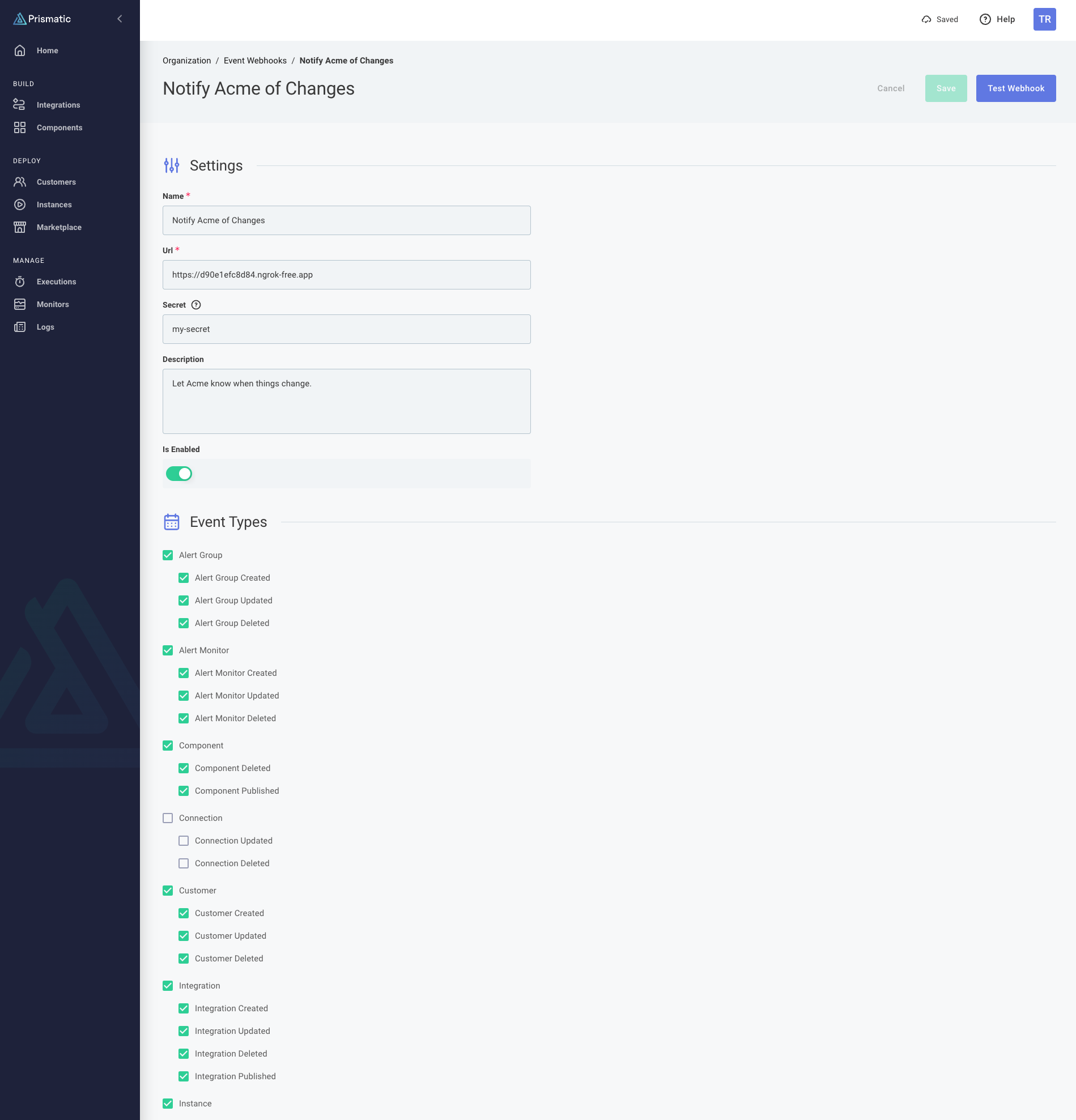
Fill in the required information:
- Name: A descriptive name for your webhook (e.g., "Production Monitoring")
- URL: The endpoint where webhooks will be sent
- Secret: (Optional) An HMAC secret key for verifying webhook signatures
- Description: Additional context about the webhook's purpose
- Is Enabled: Toggle to enable or disable the webhook
Next, select the events that should trigger this webhook:
- You can select individual events or use category checkboxes to select all events of a certain type
- Common selections include:
- Instance lifecycle events -
instance.created,instance.updated,instance.deployed, andinstance.deleted. Addinstance.enabled/instance.disabledif you care about activation state separately. See event relationships for how these interact. - Integration changes (published, updated)
- Customer management events
- Alert monitors
- Instance lifecycle events -
After configuring your webhook, use the Test Webhook button to verify your endpoint is working and check that you receive the test payload at your endpoint.
Finally, click Save to create the webhook and ensure the Is Enabled toggle is turned on.
Testing event webhooks
Use the Test Webhook button in the Prismatic UI to:
- Verify your endpoint is accessible
- Confirm the payload format is correct
- Test your webhook processing logic
- Validate authentication and security measures
When you click Test Webhook, your endpoint will receive a webhook.test event with a payload that looks like:
{
  "message": "This is a test webhook event from Prismatic.",
  "webhook_endpoint": {
    "id": "V2ViaG9va0VuZHBvaW50OmJiNGVjYTIzLWI5NzgtNDU1Mi05MDljLTI5YmRlMzZjZTYxMQ==",
    "name": "Notify Acme of Changes"
  },
  "user": {
    "id": "VXNlcjoyMzZkMDA3ZS0zZGIxLTQ4MWItOTMyNS0zMjhhYTE0OTY5MDA=",
    "email": "john.doe@example.io",
    "name": "John Doe"
  },
  "event_type": "webhook.test",
  "timestamp": "2025-08-21T20:21:40.405396+00:00",
  "organization_id": "T3JnYW5pemF0aW9uOmJjYjE0NjEzLTNjZTItNGQ0MC04OTZmLTIyNTZiNjcyYTllYw==",
  "webhook_id": "bdea273d-2500-42a2-854b-5189c3f66cfa"
}
Securing webhooks with HMAC signatures
If you set a Secret when configuring your webhook, Prismatic will use it to generate an HMAC SHA-256 signature for each webhook request.
The signature will be sent as a header, x-webhook-signature in the form sha256=<signature>.
This allows you to ensure that the webhook request is coming from Prismatic and has not been tampered with.
For example, suppose you receive the following webhook event payload:
{"message":"This is a test webhook event from Prismatic.","webhook_endpoint":{"id":"V2ViaG9va0VuZHBvaW50OjEwNTI1MjE3LTE4NDMtNGRiNC04YjYyLTgwZTdmOTc5OGEzZA==","name":"Testing"},"user":{"id":"VXNlcjozNDkwNjA3MC0wMjRmLTQxNzMtYjYxMy1mN2I0MWFmYmEwNDM=","email":"john.doe@example.com","name":"John Doe"},"event_type":"webhook.test","timestamp":"2025-10-08T14:13:05.914923+00:00","organization_id":"T3JnYW5pemF0aW9uOjQ0ZjkyMTlkLWU0ZGEtNGEwZi04ZmNhLWJkZmJlNTdiMzBjNA==","webhook_id":"4c79940b-b166-41cb-8b45-944e25b480f3"}
If your secret is set to my-secret-key-abc-123, the x-webhook-signature header would contain:
sha256=88563276df8a665d1e57bf8a05c2c2432ff80b583297082b768fb06f173e0b59
Verifying signatures with Express
In this example Express app, we verify the request signature using Node.js's crypto module before processing the webhook event:
import express from "express";
import { createHmac } from "node:crypto";

const PORT = 3000;
const PRISMATIC_SIGNING_SECRET = "my-secret-key-abc-123";

const app = express();

app.post("/my-webhook-endpoint", express.raw({ type: "*/*" }), (req, res) => {
  // Get HMAC signature from header and compare it to the one we generate
  const signatureHeader = req.headers["x-webhook-signature"];
  const signature = createHmac("sha256", PRISMATIC_SIGNING_SECRET)
    .update(req.body)
    .digest("hex");

  // If the signatures don't match, return a 401
  if (signatureHeader !== `sha256=${signature}`) {
    console.warn("Rejecting request with invalid HMAC signature");
    return res.status(401).send({ error: "Invalid signature" });
  }

  // Parse the event request and handle the event
  const payload = JSON.parse(req.body.toString());
  switch (payload.event_type) {
    case "webhook.test":
      console.log("Got a test webhook");
      break;
    case "instance.created": {
      console.log(
        `Instance (${payload.instance.id}) created from integration (${payload.integration.name}) for customer ${payload.customer.external_id}`,
      );
      break;
    }
    default:
      console.warn(`Unhandled event type: ${req.body.toString()}`);
  }
  res.status(200).send({ received: true });
});

app.listen(PORT, () => {
  console.log(`Example webhook receiver listening on port ${PORT}`);
});
Similar strategies can be used in other programming languages and frameworks.
For a complete working example, see Example Node.js Express Webhook Receiver.
Understanding webhook retry behavior
If delivery fails, Prismatic retries for up to approximately 90 seconds, with jitter to vary the delay between attempts. Your endpoint should return a 2xx HTTP response within three seconds to acknowledge receipt. Failed deliveries do not disable the endpoint or pause later events.
Handling duplicate deliveries
Your receiver may receive the same event more than once, for example if it accepts a request but its response times out.
Retries use the same webhook_id. Use this ID to avoid processing an event more than once, and return a 2xx response for events you've already accepted.
Troubleshooting
Webhook not receiving events
- Verify the webhook is enabled
- Check that the correct event types are selected
- Ensure your endpoint is accessible and responding with 2xx status codes within three seconds
Missing events
- Confirm the event types you've selected
- Check if the events actually occurred in Prismatic
- Verify your webhook configuration is saved
- Check your receiver's logs for timeouts or HTTP errors that could exhaust the delivery attempts
Authentication errors
- Ensure your endpoint accepts POST requests
- Check that you're not requiring authentication that Prismatic can't provide
- Verify your endpoint can handle the webhook payload format