Flow Concurrency & FIFO
By default, Prismatic runs executions concurrently, processing multiple webhook invocations of the same flow at the same time. This is great for performance - hundreds of webhook requests can all be processed in parallel, but it can lead to out-of-order processing or rate limiting issues.
To mitigate concurrency problems, you can configure a flow to run only a hand-full of executions at a time, queuing up additional requests until prior executions complete.
Configuring flow concurrency
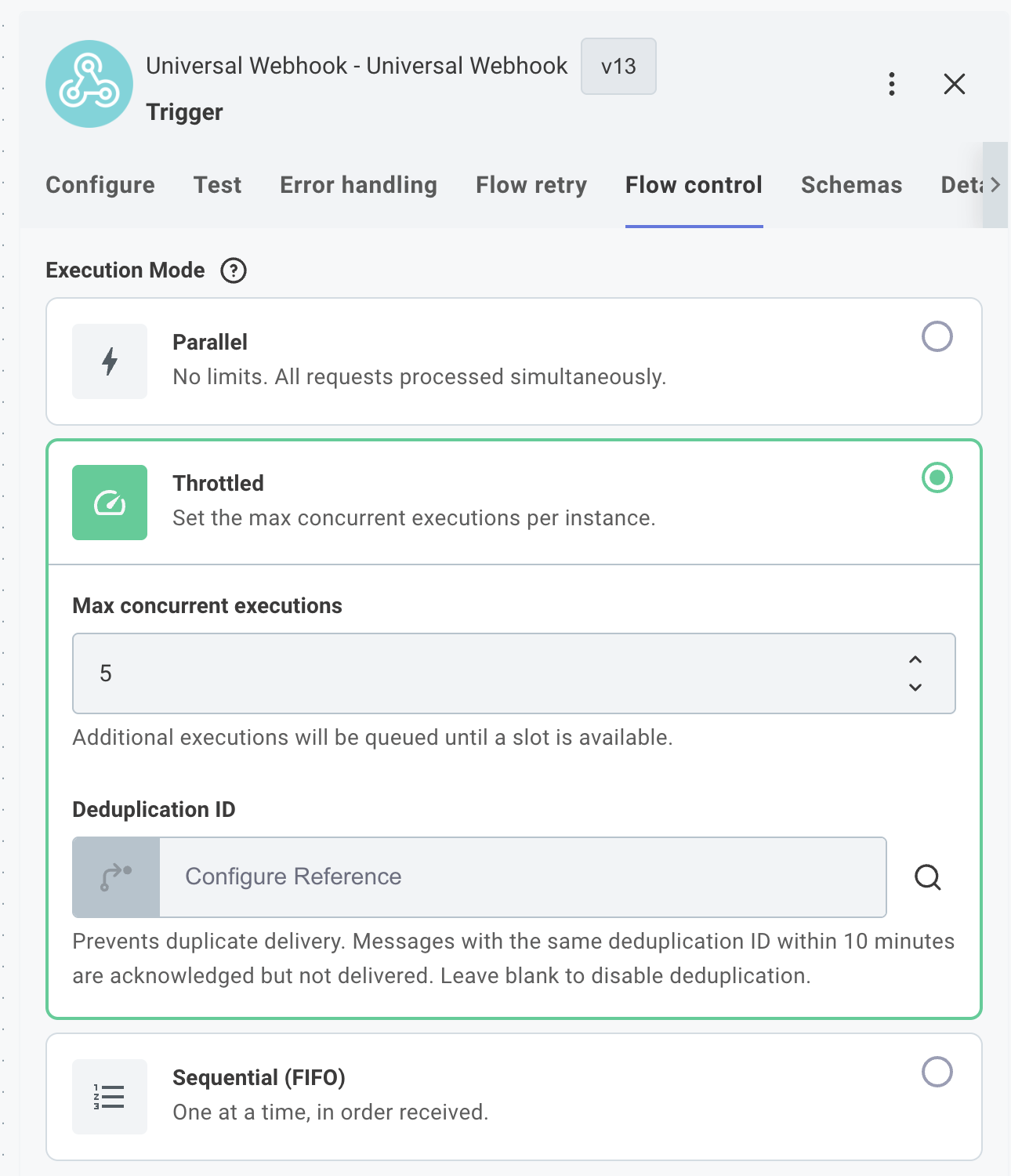
To configure flow concurrency, select your flow's trigger and open the Flow control tab. Here, you have three options:
- Parallel (default): All incoming requests are processed concurrently. There is no limit to the number of concurrent executions (except for global organization limits).
- Throttled: Incoming requests are processed concurrently, but only up to a specified limit. Additional requests wait in a queue until an execution slot becomes available.
- Sequential (FIFO): First-In, First-Out processing.
Requests are processed one at a time in the order they are received.
Additional requests wait in a queue until the current execution completes.
This is the same as setting Throttled with a concurrency limit of
1.
Note: This feature is available for webhook-based app event triggers and generic webhook triggers. It is not available for management or pre-process flows. Additionally, flows that have FIFO enabled must be asynchronous.
For app event polling, or scheduled triggers, see singleton executions.
First In, First Out (FIFO) queues
When First In, First Out (FIFO) is enabled, requests are processed one at a time in the order they are received. If your flow is already processing a request when a new request arrives, the new request is placed in a queue until the flow is ready to process it.
This is helpful if it's important that requests are processed in the order they are received (e.g., financial transactions).
Throttled concurrency
When Throttled concurrency is enabled, you can specify the maximum number of concurrent executions allowed for your flow (between 2 and 15). This works similarly to FIFO queuing, but instead of processing requests one at a time, multiple executions can run concurrently up to your specified limit.
Additional requests that arrive while the concurrency limit is reached are placed in a queue and processed as soon as execution slots become available. This is useful when you need to control the load on downstream systems while still maintaining reasonable throughput.
This is helpful in scenarios such as:
- If your integration is sensitive to the load it places on downstream systems (e.g., third-party rate limits).
- If you expect to encounter execution rate limits in Prismatic.
Message deduplication
Many applications ensure "at least once" delivery of outbound webhook requests, which can result in duplicate events being processed. To prevent processing duplicate requests, you can implement message deduplication strategies in your FIFO-enabled flows.
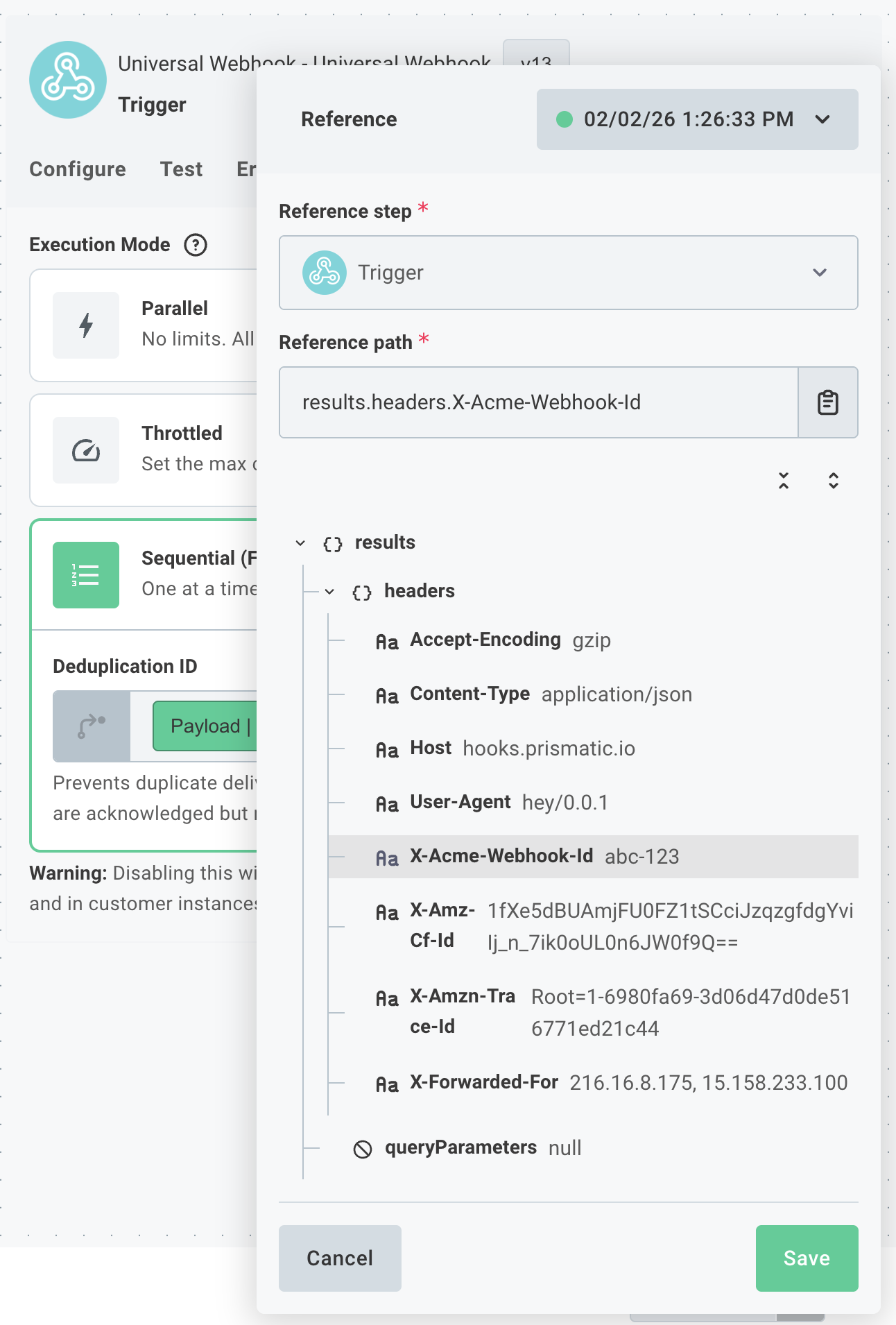
To enable automatic deduplication of messages, specify a Deduplication ID in your trigger's Flow control configuration.
For example, if a third-party sends a header called x-acme-webhook-id, you can use that value as the Deduplication ID.
If two requests with the same x-acme-webhook-id header are received within a 10-minute window, the second request will be considered a duplicate and will be ignored.
Enabling flow concurrency management in code-native integrations
You can add a queueConfig property to your flow definition to enable flow concurrency management in code-native integrations.
export const fiveConcurrentTwo = flow({
  queueConfig: {
    concurrencyLimit: 5,
  },
});
The queueConfig property supports the following options:
concurrencyLimit: The maximum number of concurrent executions allowed for the flow. Values of 2 through 15 can be specified.usesFifoQueue: A boolean that, when set totrue, enables FIFO processing with a concurrency limit of 1.dedupeIdField: An optional string that specifies the field to use for message deduplication. This field should contain a unique identifier for each incoming request.singletonExecutions: A boolean that, when set totrue, ensures that a scheduled trigger flow only has one execution running at a time.
FIFO queues in code-native integrations
FIFO queues can be enabled in code-native integrations' flows by adding a queueConfig property to your flow.
usesFifoQueue must be set to true to enable FIFO.
You can optionally specify a dedupeIdField to prevent message duplication.
export const listItems = flow({
  name: "List Items",
  stableKey: "abc-123",
  description: "Fetch items from an API",
  queueConfig: {
    usesFifoQueue: true,
    dedupeIdField: "body.data.webhook-id",
  },
  onTrigger: () => {},
  onExecution: () => {},
});
The above example assumes that the body of the incoming webhook request contains a field called webhook-id that uniquely identifies the event.
To reference a header (for example, one named x-acme-webhook-id), you can use the following syntax:
dedupeIdField: "headers.x-acme-webhook-id",
Managing flow concurrency programmatically
You can programmatically monitor and manage FIFO queues using Prismatic's GraphQL API. This is useful for monitoring or clearing queues.
Getting flow config IDs
To manage a FIFO queue, you first need the flow config ID. Every integration has one or more flows. A deployed instance has one or more corresponding flowConfig.
You can query an instance to get its flow configurations:
query {
  instance(id: "SW5example-instance-id") {
    id
    name
    flowConfigs {
      nodes {
        id
        flow {
          name
        }
      }
    }
  }
}
This returns all flow configurations for the instance, including their IDs and flow names.
Checking queue statistics
Use the fifoQueueStats query to get information about a specific queue:
query {
  fifoQueueStats(flowConfigId: "SW5example-flow-config-id") {
    flowConfigId
    queueLength
    workingSetSize
    workingSetItems
  }
}
Return fields:
| Field | Type | Description |
|---|---|---|
flowConfigId | ID | The flow config global ID |
queueLength | Int | Number of items waiting in the queue |
workingSetSize | Int | Number of items currently being processed |
workingSetItems | [ID] | Execution global IDs currently being processed |
The queueLength field tells you how many executions are waiting to be processed.
This is useful for monitoring queue buildup and identifying potential processing bottlenecks.
Clearing queued items
Before clearing queued items, you must first disable the instance using the updateInstance mutation:
mutation {
  updateInstance(input: { id: "SW5example-instance-id", enabled: false }) {
    instance {
      id
      enabled
    }
    errors {
      field
      messages
    }
  }
}
Once the instance is disabled, you can clear queued items.
After clearing, you can re-enable the instance by setting enabled: true.
Clearing all queued items
To clear all queued items for a flow config, use the clearAllFifoData mutation:
mutation {
  clearAllFifoData(input: { id: "SW5example-flow-config-id" }) {
    result {
      message
    }
    errors {
      field
      messages
    }
  }
}
This removes all pending executions from the queue. Any executions currently being processed will continue to completion.
Important: This operation cannot be undone. Cleared executions are permanently removed and will not be processed.
Removing a specific number of items
To remove a specific number of items from the front of the queue, use the removeFifoQueueItems mutation:
mutation {
  removeFifoQueueItems(
    input: { id: "SW5example-flow-config-id", itemCount: 10 }
  ) {
    result {
      message
    }
    errors {
      field
      messages
    }
  }
}
The itemCount parameter specifies how many items to remove (between 1 and 100).
Items are removed from the front of the queue in FIFO order.
This is useful when you need to:
- Reduce queue backlog without clearing everything
- Remove a known set of problematic requests
- Gradually drain the queue while monitoring system health
Clearing the working set
To remove actively running executions from the queue, use the clearFifoWorkingSet mutation:
mutation {
  clearFifoWorkingSet(input: { id: "SW5example-flow-config-id" }) {
    result {
      message
    }
    errors {
      field
      messages
    }
  }
}
This removes currently running executions from the working set, allowing other queued items to begin processing. The running executions themselves will still complete, but they are no longer blocking the queue.
This is useful when you have a long-running execution that is preventing other queued items from processing and you want to allow the queue to continue without waiting for the current execution to finish.
Flow concurrency management FAQ
Where can I see my queued requests?
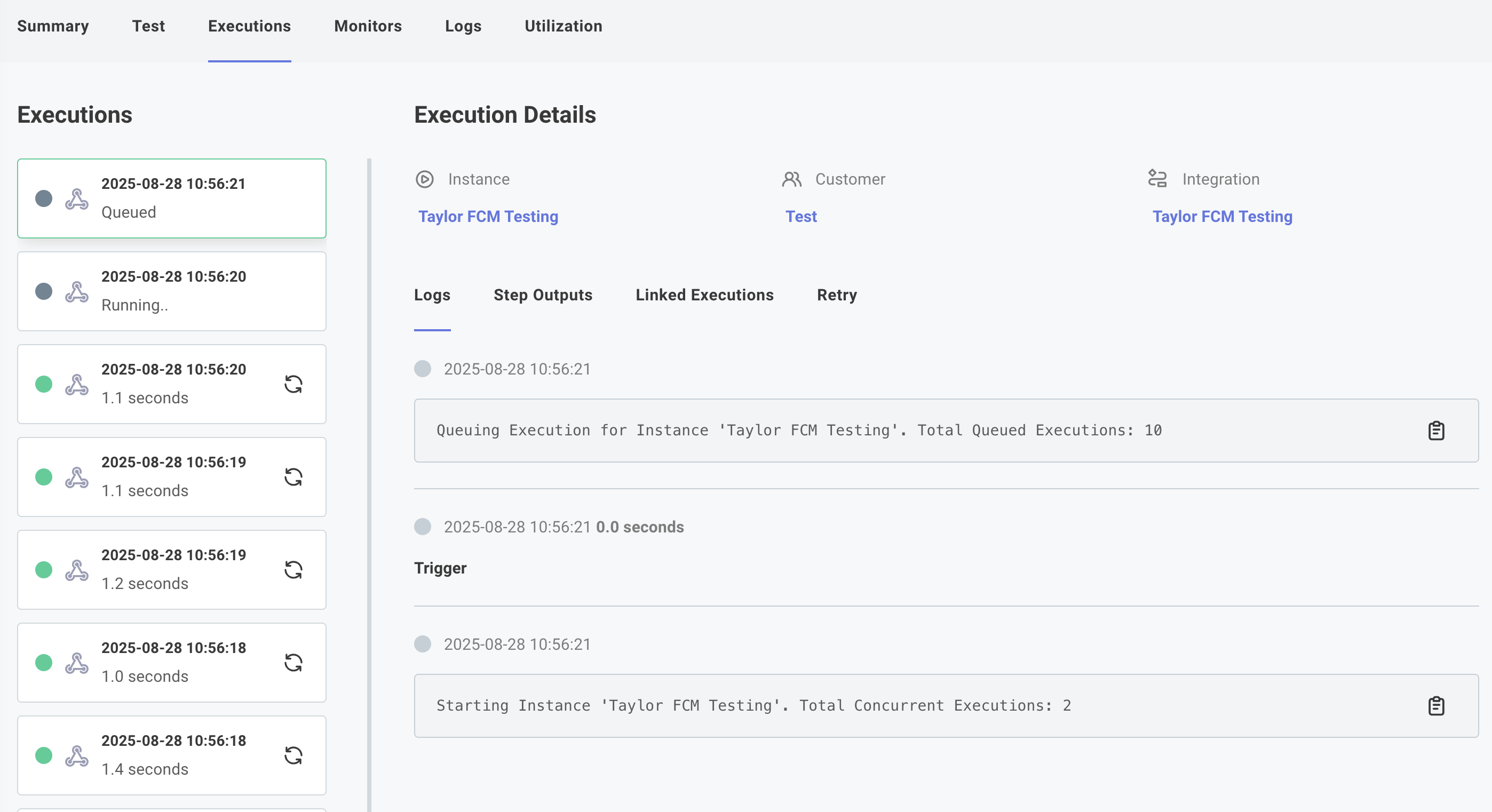
Queued requests will appear alongside your other executions.
In the integration designer if you observe a queued execution's logs, you will see a message like Queuing Execution for Instance 'Salesforce'. Total Queued Executions: 4.
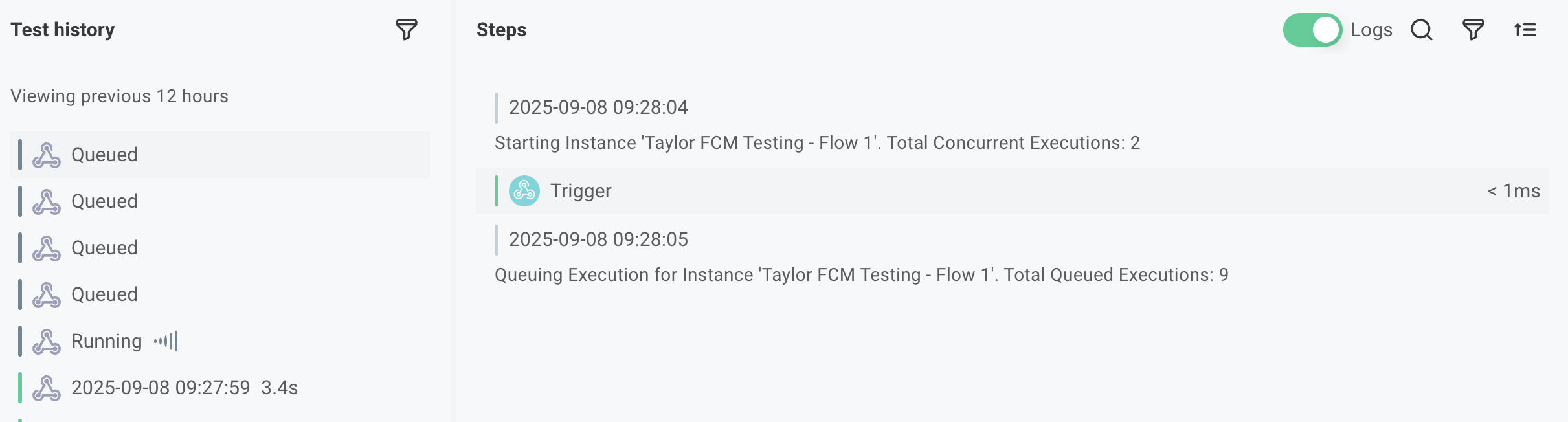
Make sure that you toggle Logs on.
When the queued execution is processed, you will see a message like Resuming Queued Execution for Instance Salesforce'. Total Queued Executions: 3. Total Concurrent Executions: 15 in the logs.
The 15 there represents all concurrent executions of all flows.
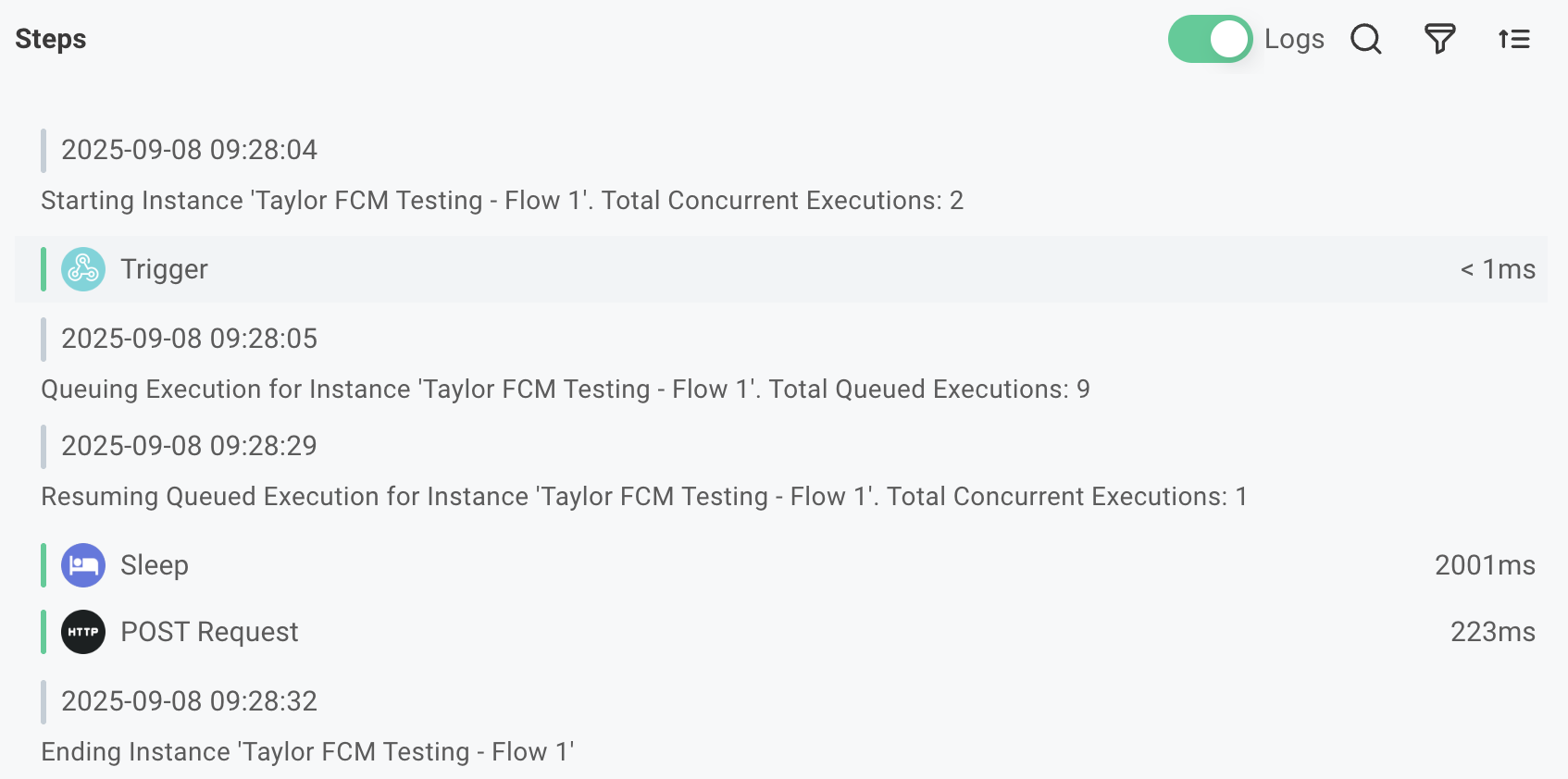
In an instance's Executions tab, queued executions will also appear alongside running executions.
Why can't flow concurrency be enabled for a synchronous flow?
The goal of a synchronous flow is to process requests in real time, providing immediate feedback to the caller. Queueing the request and processing it later would defeat that purpose.
What happens to my flow concurrency queue if my instance is paused?
No new executions will queue, but any existing executions that were queued will resume after the instance is enabled again.
What happens to my flow concurrency queue if my instance is deleted?
All queued executions will be permanently removed and cannot be recovered.
What happens if I enable flow retry with flow concurrency?
If you enable flow retry, failed executions will be retried in the order they were received, preserving the FIFO semantics.
For example, if an execution fails and your flow is configured to retry up to 3 times, waiting 2 minutes between failures, the failed execution will be retried after 2 minutes, then again after 4 minutes, and finally after 6 minutes (assuming it continues to fail). During that time, no other executions will be processed from the queue.
If an execution ultimately fails after all retries, it will be marked as failed and the next execution in the queue will be processed.
How many executions can be queued?
There is no current hard limit on the number of executions that can be queued, but keep in mind that excessive queuing will result in delayed processing of new requests.