Generating a PDF with a Code Step
In this tutorial, you'll write a short code step snippet that references some JSON data and outputs a rendered PDF file. This tutorial covers how to import external libraries in a code step and how to output binary data (like a PDF file) from a code step.
For this example, assume that our integration receives a list of rocket launches that have occurred recently in JSON format:
[
  {
    "rocketName": "Deep Space 9",
    "launchTime": "2020-10-27T20:29:46.139Z",
    "launchSupervisor": "Robert Smith",
    "launchNotes": "Rocket was launched into orbit where it will remain for several months."
  },
  {
    "rocketName": "Voyager",
    "launchTime": "2020-10-27T21:34:15.229Z",
    "launchSupervisor": "Sally Smith",
    "launchNotes": "Rocket launched without a hitch. Thrusters were retrieved 30 minutes after launch."
  }
]
Our customers would like to generate PDF files from this data with launch information, one launch per page, for their managers to print and read through.
Should we use a custom component instead?
This use case straddles the line of needing a custom component versus using a code step. This code is only used for a single integration, is relatively short, and after some preliminary testing probably doesn't need extensive unit testing.
When your code step has external dependencies (like on a PDF library), that external dependency is pulled down from a CDN each execution. That can be slow, and your integration will be dependent on the CDN being available. You may be better off building a custom component, where the external dependency will be compiled into your component.
Importing external libraries
This tutorial uses the PDF-LIB library to render the PDF. To do that, add the following to the top of a new code step in your integration:
const {
  PDFDocument,
  StandardFonts,
} = require("pdf-lib@1.17.1/dist/pdf-lib.js");
It's wise to pin requirements to known working versions. Since we're testing our integration with PDF-LIB version 1.17.1, we'll select that specific version. If you omit the version, your integration will import whatever latest version is available.
Adding this require() line to the top of your code step will cause the code step to dynamically import the PDF-LIB library as a dependency.
Writing the code step snippet
Next, you'll write the code that generates a PDF. First, test that you can generate a blank PDF file:
const { PDFDocument } = require("pdf-lib@1.17.1/dist/pdf-lib.js");

module.exports = async (context, stepResults) => {
  const doc = await PDFDocument.create();
  const pdfBytes = await doc.save();
  return { data: pdfBytes, contentType: "application/pdf" };
};
If you run this code step and look at step outputs, you'll see that the code step generated a 583 byte binary file. By adding a Save File step after the code step to GCP Storage, you can write that blank file out to GCP Storage to verify that it looks as expected. You can choose to write the file out to Amazon S3, Azure, an SFTP share, DropBox, etc.
You now have a blank PDF written out. What's left to do is add some text to the PDF based on the data that was presented to our integration's webhook:
const {
  PDFDocument,
  StandardFonts,
} = require("pdf-lib@1.17.1/dist/pdf-lib.js");

module.exports = async (context, stepResults) => {
  // Pull in data from the webhook trigger payload
  const rocketLaunches = stepResults.integrationTrigger.results.body.data;

  // Generate a PDF Document
  const doc = await PDFDocument.create();

  // Embed the Times Roman font
  const timesRomanFont = await doc.embedFont(StandardFonts.TimesRoman);

  // Loop over each rocket launch, adding a page to our document for each one
  rocketLaunches.forEach((rocketLaunch) => {
    const { rocketName, launchTime, launchSupervisor, launchNotes } =
      rocketLaunch;

    // Create a new page for each launch
    const page = doc.addPage();
    const { width, height } = page.getSize();
    const _launchTime = new Date(launchTime).toLocaleString();

    // Print information about the launch
    page.drawText(`Rocket: ${rocketName}`, {
      x: 30,
      y: height - 120,
      size: 30,
      font: timesRomanFont,
    });

    page.drawText(`Launch Time: ${_launchTime}`, {
      x: 30,
      y: height - 150,
      size: 12,
      font: timesRomanFont,
    });

    page.drawText(`${launchSupervisor}: ${launchNotes}`, {
      x: 30,
      y: height - 166,
      size: 12,
      font: timesRomanFont,
    });
  });

  // Get PDF file as a file UInt8Array
  const pdfBytes = await doc.save();

  // Return a PDF file with proper MIME type
  return { data: Buffer.from(pdfBytes), contentType: "application/pdf" };
};
Note the format of the object that is returned from this code step:
return { data: Buffer.from(pdfBytes), contentType: "application/pdf" };
The return object specifies both a data property that is a file Buffer and a contentType specifying the MIME type of the file being returned.
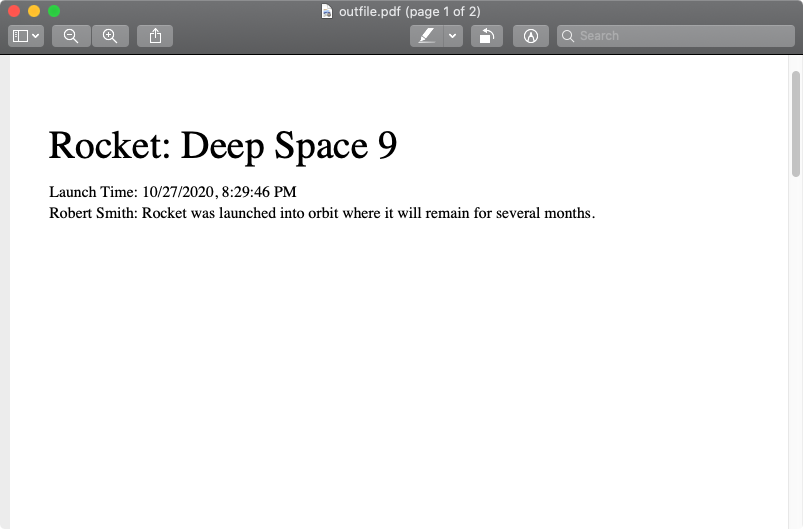
If you run a test again, you can see that a two-page PDF is being generated with formatted content from the webhook payload:
Further reading
That's it! With just about 40 lines of code (if you omit comments and blank lines), you have a code step that renders PDFs.
For more information on code steps, check out the code step usage page.