Using a Code Component to Transform Data
Prismatic's code component lets you incorporate custom JavaScript code anywhere in your integration. The code component, alongside custom components, allows you to write the product- or industry-specific portions of your integration that aren't readily solved using built-in components from the component catalog.
Both code and custom components have their use cases. As a reminder: code components are useful to write simple one-off, single integration code snippets. If you need to run the same code for multiple integrations, if your code is complex enough that it would benefit from unit testing, or if you are reliant on lots of external Node.js libraries, consider creating a custom component instead.
Today's problem
B2B companies often encounter a problem when working with third-party vendors: data not coming in within an agreed-upon spec. Suppose that your system and a third-party vendor agreed to exchange JSON-formatted data via webhook payload that looked like this:
[
  {
    "firstName": "John",
    "lastName": "Smith",
    "dob": "1987-05-20",
    "userid": "123"
  },
  {
    "firstName": "Jane",
    "lastName": "Smith",
    "dob": "1992-07-16",
    "userid": "172"
  }
]
Your integration works during testing with sample data, but when you turn it on for third-party vendor consumption, errors are generated when your integration tries to parse the data that was sent. Logs indicate that the data the vendor is sending is formatted entirely differently than agreed:
{
  "123": {
    "name": "John Smith",
    "dob": "05/20/1987"
  },
  "172": {
    "name": "Jane Smith",
    "dob": "07/16/1992"
  }
}
The vendor drags its feet and claims a fix is a "long ways off". You don't have time to wait - your customer needs the integration they paid for! You can implement a quick fix by adding a code component to the top of your integration to transform the malformed data into the format you expect.
Using a code component as a shim
Your integration expects one format of input but receives another. You need to transform the data like this:
{
  "123": {
    "name": "John Smith",
    "dob": "05/20/1987"
  }
}
into something like this:
{
  "firstName": "John",
  "lastName": "Smith",
  "dob": "1987-05-20",
  "userid": "123"
}
That should be pretty easy to do. You need to do three things:
- Split the name at the space character to form a first and last name
- Reformat the date of birth into a more reasonable format
- Pull the JSON key ("123") into a value of
userid
If you add a code component to your integration, by default it reads:
module.exports = async (context, stepResults) => {
  const results = null; // Result of calculation, API request, etc.
  return { data: results };
};
First, you'll use JavaScript destructuring to capture the JSON that the third-party vendor sent as part of the integration trigger's webhook payload:
module.exports = async (
  { logger },
  {
    integrationTrigger: {
      results: {
        body: { data: userData },
      },
    },
  },
) => {
  logger.info(userData); // Verify we're capturing user data properly
  const result = null;
  return { data: result };
};
Looking at logs, your destructuring is correct.
Next, you'll map over the objects (users) with Object.entries(userData).map().
Each iteration of your map() will generate an object with firstName, lastName, dob, and userid.
You'll reformat the date of birth with the Date() object, split the name into a first and last name using split(), and grab the userid from the keys:
module.exports = async (
  { logger },
  {
    integrationTrigger: {
      results: {
        body: { data: userData },
      },
    },
  },
) => {
  const result = Object.entries(userData).map(([userid, user]) => {
    const dob = new Date(Date.parse(user.dob)).toISOString().slice(0, 10);
    const firstName = user.name.split(" ").slice(0, -1).join(" ");
    const lastName = user.name.split(" ").slice(-1).join(" ");
    return {
      firstName,
      lastName,
      dob,
      userid,
    };
  });
  return { data: result };
};
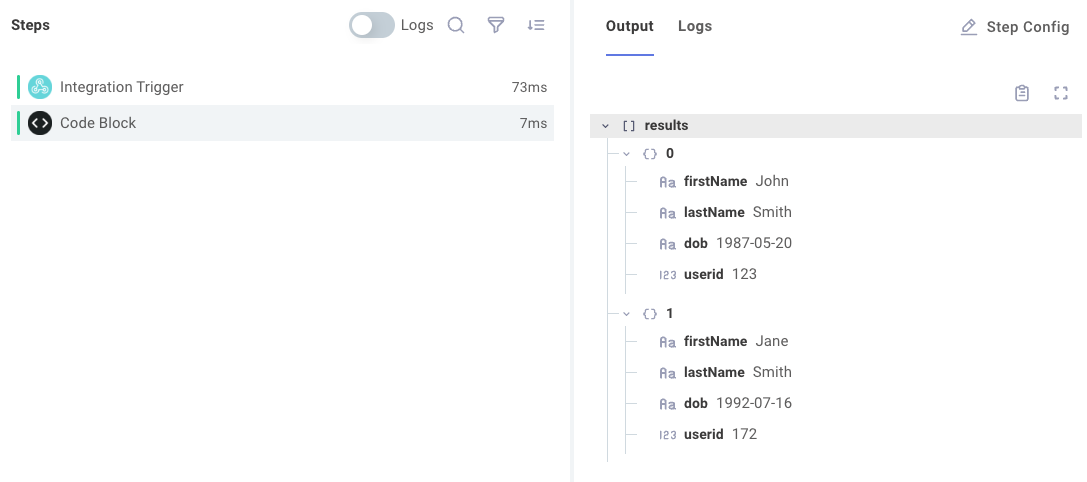
That's it! The rest of your integration can now be configured to reference the results of the code component rather than the body of the integration payload, and it'll start working as expected despite the poorly formatted JSON from the third-party vendor. Testing the code component shows that it's reformatting data as expected: