Runner Environment and Limits
Integration instances execute in isolated, containerized Node.js environments with specific resource allocations and execution constraints. Understanding these limits helps you design integrations that perform reliably within the platform's boundaries.
The Prismatic runner environment
Instances of integrations (and test runs of integrations) execute in isolated NodeJS containers with distinct filesystems and memory. Two instances of the same integration run in distinct isolated environments. Integrations currently run using NodeJS version 22.
Runner limitations
Memory allocation
The Prismatic integration runner is allocated 1GB of RAM for execution by default. If you find that your instances are running out of memory, please review Memory Management for strategies on how to stay within memory limits. Usually, optimizing data processing and avoiding large in-memory datasets can help mitigate memory issues.
Execution time limitations
An instance will run for up to 15 minutes. If you have large datasets to process, you can break data into smaller chunks and process chunks in parallel or in several subsequent executions with large data syncs.
Instance profiles
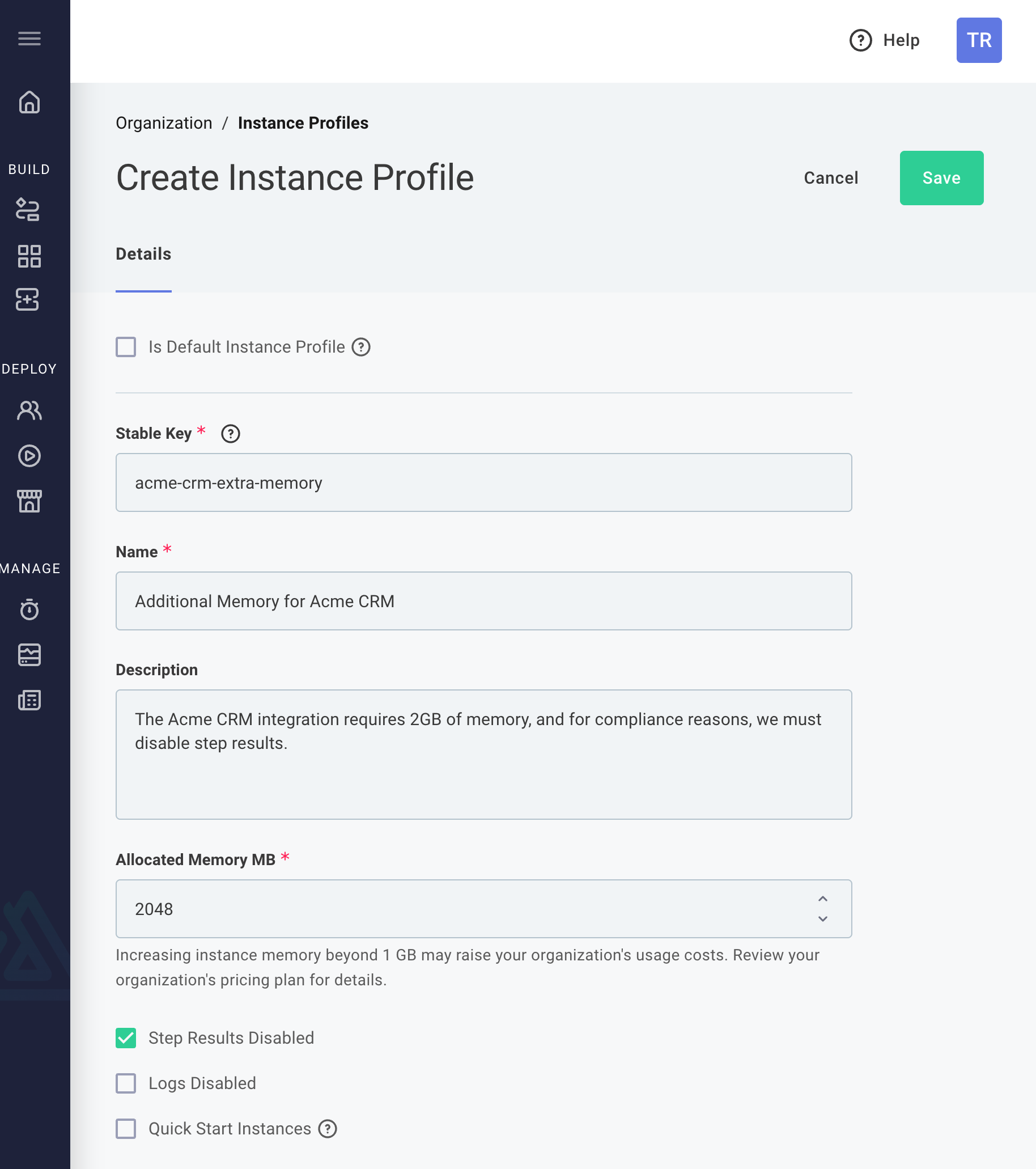
Instance profiles allow you to customize the resource allocations and execution constraints for specific integrations and instances. By assigning an instance profile to an integration or instance, you can modify:
- Allocated memory, allowing you to increase memory limits for memory-intensive integrations. By default, 1GB (1024MB) of memory is allocated. You can increase this to a maximum of 10GB (10240MB).
- Step result retention, allowing you to control whether step results are retained. Some compliance requirements may necessitate not retaining step results or logs.
- Log retention, allowing you to control whether logs are saved.
- Quickstart, which keeps instance runner environments "warm" to reduce cold start times. This is important for some synchronous invocations, where low latency is critical, but typically not necessary for asynchronous invocations.
Some of these features may require additional costs and must be enabled by your Prismatic account manager.
To create a new instance profile, navigate to Settings > Instance Profiles in the Prismatic web app and select + Instance Profile. There, give your instance profile a name, configure allocated memory, step result and log retention, and quickstart settings as needed.
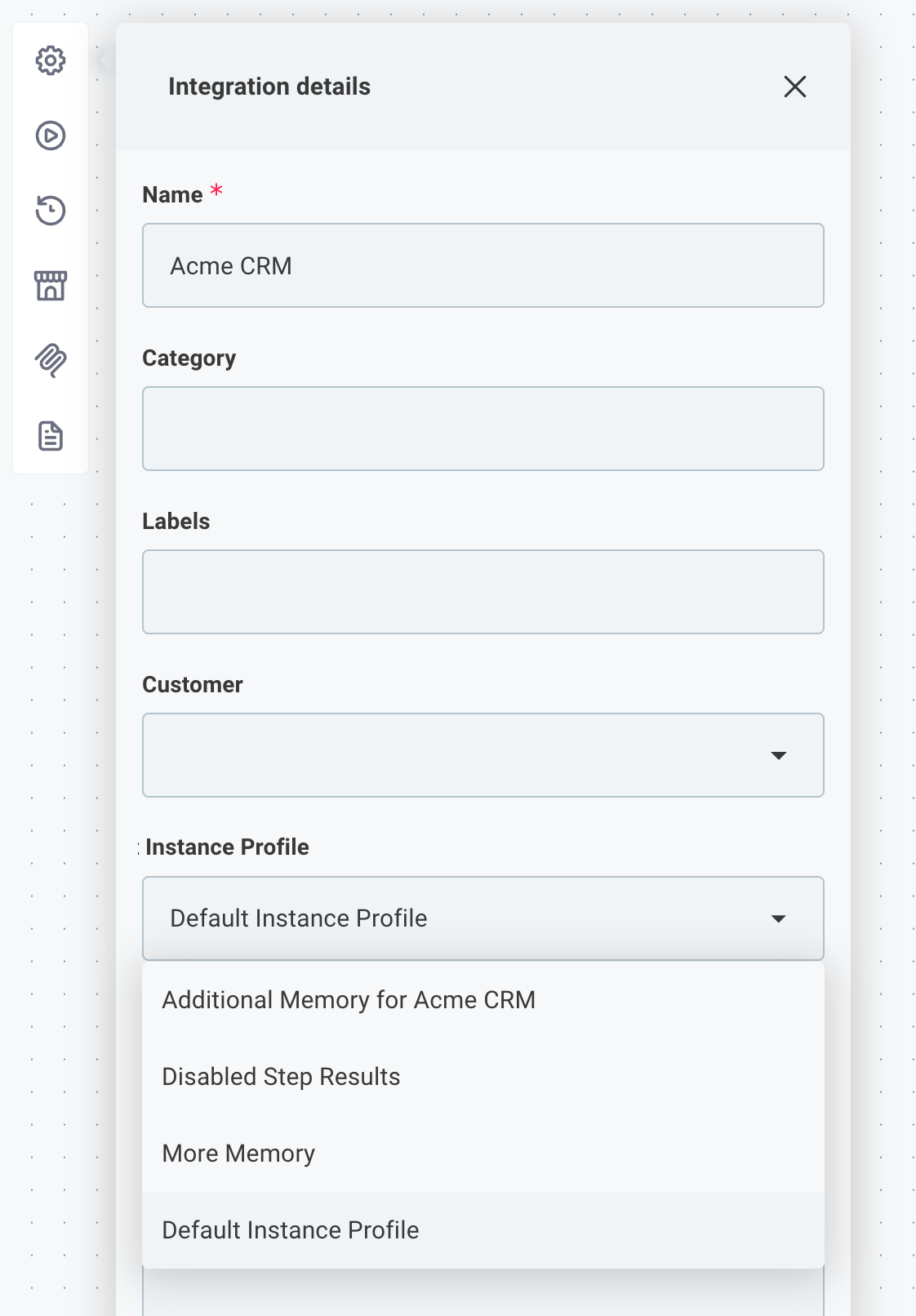
To assign a default instance profile to an integration, open the integration's Integration Details and select the desired instance profile from the Default Instance Profile dropdown.
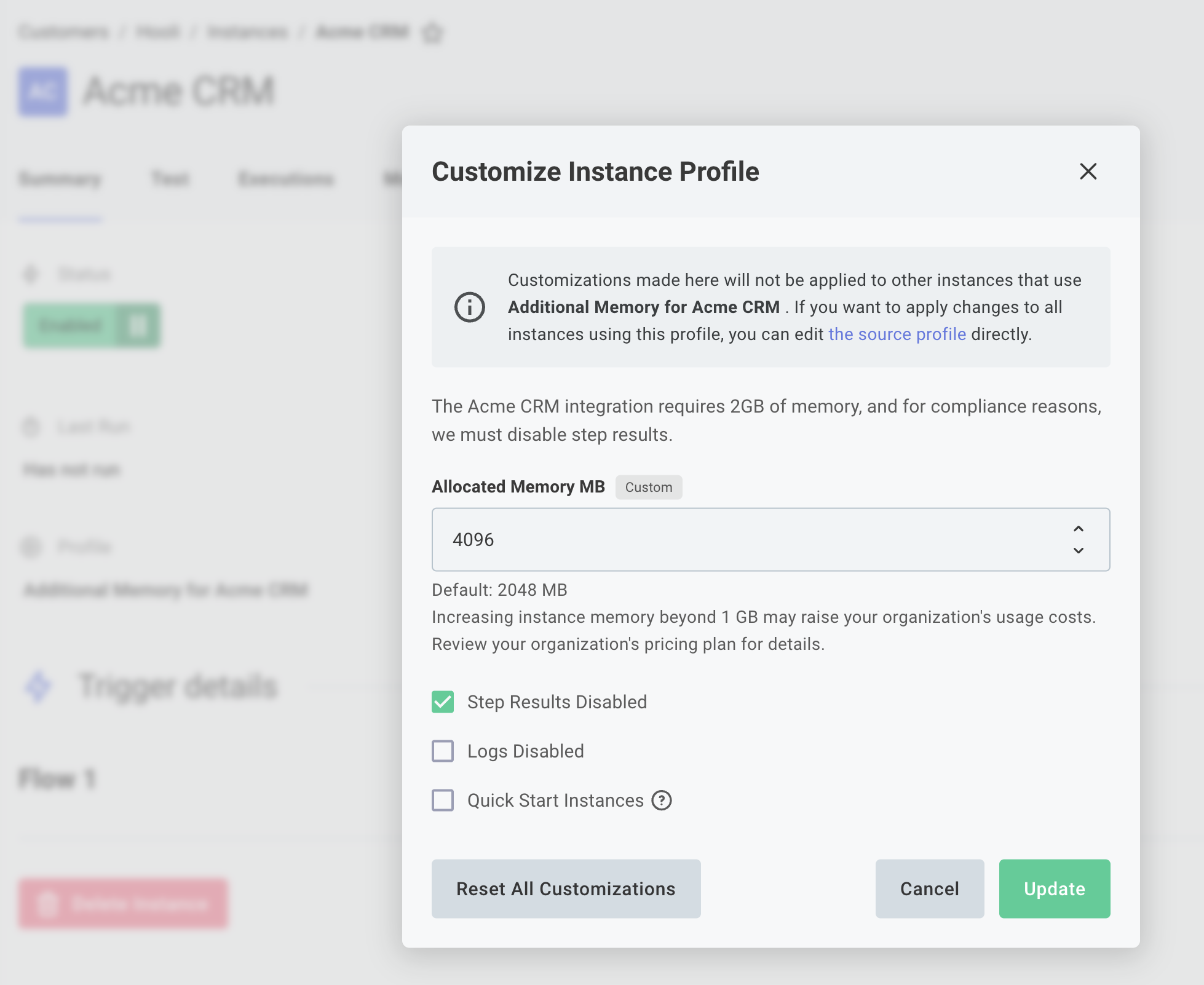
If a single instance of an integration requires different settings from the rest, you can override instance profile settings for that specific instance by opening the instance and clicking the profile's name under Profile.
Webhook limitations
Webhook request size limitations
Webhook payload size is limited to 6MB. 6MB is generally large enough to handle most JSON, XML, or other webhook payloads.
If the payload you need to process exceeds 6MB (i.e. you are processing large images, PDFs, etc.), we recommend saving the large file to a file storage system first (Dropbox, Amazon S3, Azure Files, etc.) and sending metadata about the file in your webhook request. Your integration can use the metadata to fetch the file for processing.
Synchronous webhook response size limitations
When a webhook is invoked synchronously, the response contains the results of the last step of the flow (so if the last step returned a PDF file, the webhook response would be a PDF file). Prismatic writes the response to a file in Amazon S3 and responds with an HTTP 303 (Redirect) to the object in S3.
Step results have a maximum size of 500MB. If the results that you generate exceed 500MB, consider writing the file to a file storage system (Dropbox, your own Amazon S3 bucket, etc.) and returning metadata about the file instead.
Read More: Synchronous Invocations and Redirects
Synchronous invocation timeouts
A webhook request will time out after 30 seconds. Webhook requests to synchronous triggers (triggers that wait until the execution finishes running before responding) must complete their work in under 30 seconds.
Webhook rate limiting and concurrent executions
The number of concurrent executions your organization can run is determined by your pricing plan. If your organization is already running that many executions and an additional request is received, the requester will receive a 429 "too many requests" response.
When an execution starts, the first log line includes the number of executions that are currently running.

Alerting on concurrency limits
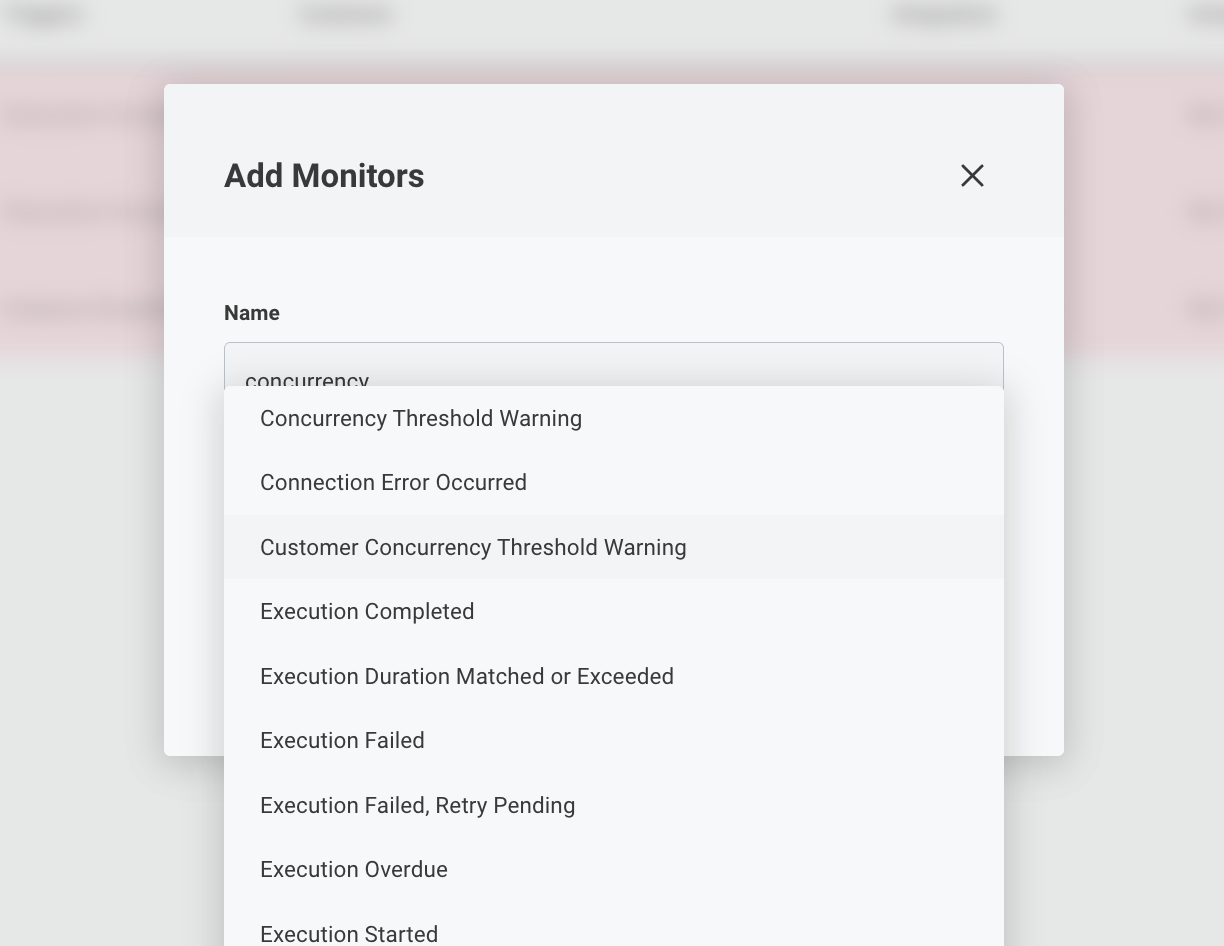
You can alert your team when you approach your concurrent execution limit by creating a concurrency threshold alert monitor. To do that, open Monitors from the left sidebar and then select + Add alert monitor. Give your monitor a name and select Concurrency Threshold Warning as the Trigger.
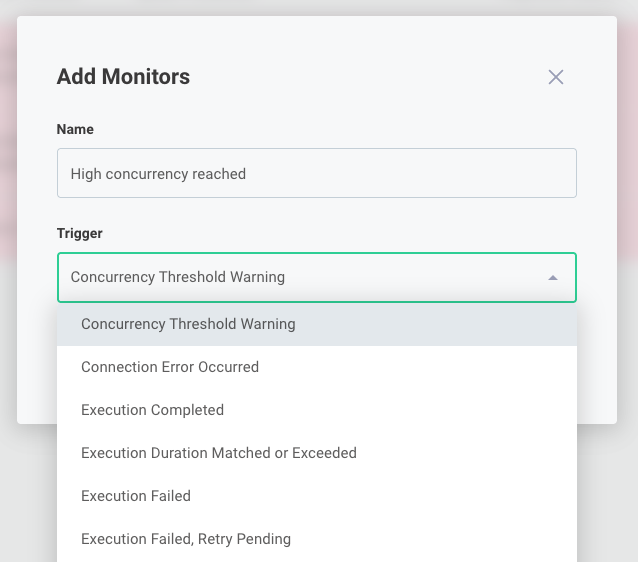
Within your trigger, select recipients to receive alerts (via email or webhook request). You will be alerted if the number of concurrent executions you're running exceeds 80% of your maximum limit (for example, if your contract allows for 500 concurrent executions, you will receive an alert if you run over 400 executions at one time).
Per-customer concurrent execution limits
Per-customer execution concurrency limits are available on Enterprise plans.
If a single customer's high-volume integrations are consuming a disproportionate share of your organization's execution capacity, you can set a concurrency limit specific to that customer. When a customer reaches their limit, additional execution attempts return a 429 "too many requests" response.
You can set per-customer limits from the customer's Utilization tab or from your organization's Settings > Execution Limits tab in the Prismatic web app. See per-customer execution concurrency for setup instructions.
Alerting: You can create a Customer Concurrency Threshold Warning alert monitor to notify your team when any customer with a set limit reaches 80% of their allocation. To do that, open Monitors from the left sidebar, select + Add alert monitor, and choose Customer Concurrency Threshold Warning as the trigger.