Set Up the On-Prem Agent
This guide walks you through setting up the on-prem agent, configuring instances to use it, and managing registration tokens.
Prerequisites
You need a system on your private network that is capable of running a Docker container. This can be the same server that serves the database, filesystem, or other resource you want to connect to, or a separate server on the same network that can access the resource. The on-prem container itself is very lightweight, generally consuming less than 100MB of memory and a small amount of CPU.
While we recommend using a Linux Docker host for the on-prem container, you can run the on-prem agent on Windows as well. Please see the On-Prem Agent on Windows article.
Configure the on-prem Docker container
An on-prem resource is configured for a specific customer.
As an organization team member, you can view all on-prem resources by running prism on-prem-resources:list:
prism on-prem-resources:list

 Name            Status      Customer
 ─────────────── ─────────── ────────
 Acme PostgreSQL AVAILABLE   Acme Corp
 Hooli SFTP      UNAVAILABLE Hooli
To create a new on-prem resource, first look up the ID of the customer whom the resource is for:
prism customers:list --columns "Id,Name"

 Id                                                           Name
 ──────────────────────────────────────────────────────────── ─────────────────
 Q3VzdG9tZXI6YjBmZDAyZTItYmE1OC00NzE0LWJhYzgtMDMwNWM5N2JiY2Vj Acme Corp
 Q3VzdG9tZXI6MTE0ODdlYmItNDdlMC00MGFjLWI1NjYtYzBiZWVjNjlkZTMz Initech
 Q3VzdG9tZXI6M2RkMjAwYjAtMjlmYy00MzZjLTk2OWYtMmNkMjUzYWNkYzY1 Stark Enterprises
 Q3VzdG9tZXI6NzFlY2NiYzQtYjc5OC00YzQzLWIzZDAtZjdmYzE5OTEyYzlj Hooli
Next, generate a registration JSON web token (JWT) for your customer:
prism on-prem-resources:registration-jwt \
  --customerId Q3VzdG9tZXI6YjBmZDAyZTItYmE1OC00NzE0LWJhYzgtMDMwNWM5N2JiY2Vj

eyJ0eXAiO....
To test the on-prem agent in the integration designer, you can create an on-prem resource that is only visible to your organization (and not attached to a particular customer).
To do that, run prism on-prem-resources:registration-jwt --orgOnly
Now, with a registration JWT in hand, you can start the on-prem agent Docker. The container takes a set of environment variables to configure the connection to the Prismatic platform:
-
PRISMATIC_URLis the URL of the Prismatic platform. For the US commercial region, that'shttps://app.prismatic.io. For other regions, use the appropriate URL. -
APP_HOSTis the hostname of the service running on the private network. For example, if you're connecting to a database that runs on a host with IP address10.1.2.3, enter that as theAPP_HOST.Connect to the docker hostIf you run the on-prem agent on the same host as the service you're connecting to, you can use the special hostname
host.docker.internalto connect to the host.host.docker.internalresolves to the internal IP address of the host running the Docker container.Note that
localhostor127.0.0.1does not work in this context, as it refers to the container itself. -
APP_PORTis the port on which the service is running (5432for PostgreSQL,3306for MySQL,22for SFTP, etc.). -
NAMEis the name of the on-prem resource that you will see when you runprism on-prem-resources:list. -
REGISTRATION_JWTis the JWT you generated for the customer.
export REGISTRATION_JWT=$(prism on-prem-resources:registration-jwt --customerId Q3VzdG9tZXI6YjBmZDAyZTItYmE1OC00NzE0LWJhYzgtMDMwNWM5N2JiY2Vj)

docker run \
  --env PRISMATIC_URL=https://app.prismatic.io \
  --env APP_PORT=1433 \
  --env APP_HOST=host.docker.internal \
  --env "NAME=Acme MS SQL" \
  --env REGISTRATION_JWT \
  -t prismaticio/on-prem-agent:latest
Run the on-prem agent using Docker Compose
Docker Compose allows you to define and run multi-container Docker applications and has some useful features like automatic restart of containers on system reboot.
Here's an example docker-compose.yml file that starts the on-prem agent:
services:
  on-prem-agent:
    image: prismaticio/on-prem-agent:latest
    environment:
      PRISMATIC_URL: https://app.prismatic.io
      APP_PORT: 1433
      APP_HOST: host.docker.internal # Or specify the IP of the service
      NAME: Acme MS SQL
      REGISTRATION_JWT: ${REGISTRATION_JWT} # Source from host's environment variable
    restart: always # Use "always" to start this service when the Docker engine starts
After creating a docker-compose.yml file, you can run docker-compose up from the command line to start the on-prem agent, or docker-compose up -d to start it in the background.
Configure an instance to use the on-prem agent
Once an on-prem agent is running and has connected to the Prismatic platform, you can configure an instance to use the on-prem agent.
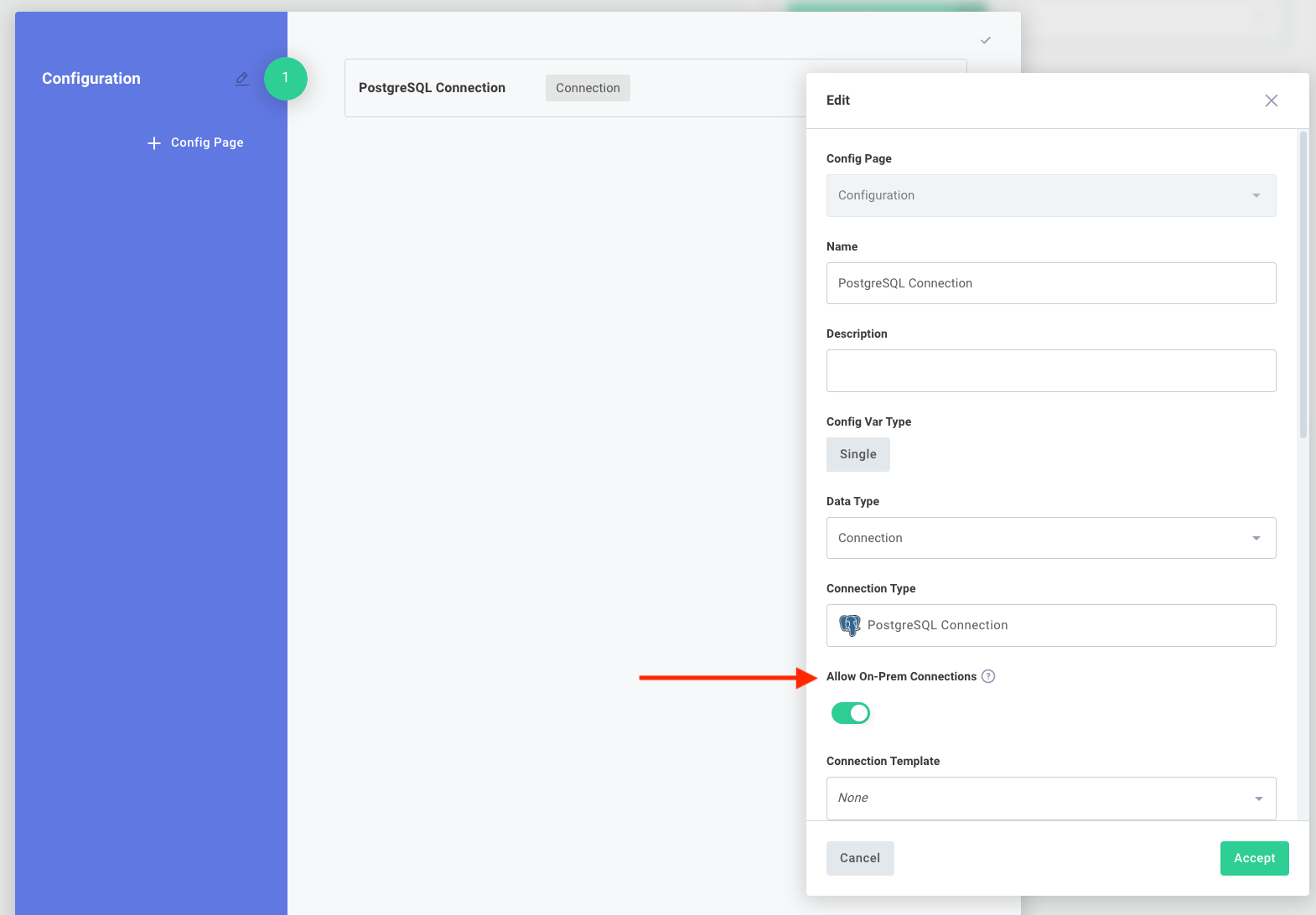
First, you need to update connections on your integration to support an on-prem connection. Open a connection in your config wizard designer and select Allow On-Prem Connections.
When your customer configures an instance of your integration, they can select an existing on-prem agent to use for the connection by toggling Use On-Prem Connection and selecting a connection to use:
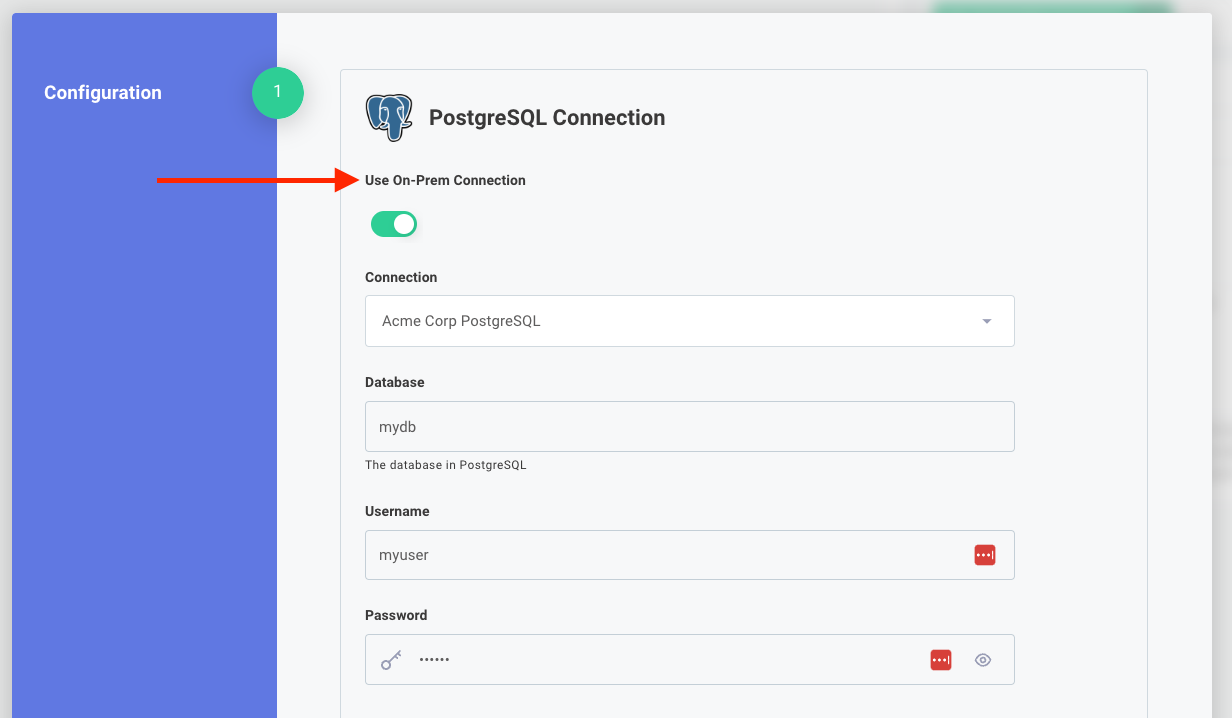
Note that when an on-prem connection is selected, the connection's "Host" and "Port" inputs disappear. That is because the on-prem service is responsible for connecting to the private network service, and the instance communicates with the on-prem service. The on-prem service will provide the instance with a local host and port to connect to when an execution is run.
Regenerate or revoke the registration JWT
If you lose the registration JWT for an on-prem resource, you can regenerate it using the prism on-prem-resources:registration-jwt command.
You will need to provide the command with a --customerId and --resourceId of the on-prem resource you want to regenerate the JWT for.
Those values can be found by running prism on-prem-resources:list --extended --output json.
If you need to revoke an on-prem resource registration JWT, you revoke all old JWTs and generate a new one by running prism on-prem-resources:registration-jwt --customerId {ID} --resourceId {ID} --rotate.
White-label the on-prem agent
If you would like to white-label the on-prem agent, so your customers install and run a Docker container from your organization, follow these steps:
- Create a
Dockerfilethat reads:FROM prismaticio/on-prem-agent:latest
ENV PRISMATIC_URL=https://app.prismatic.io - Build and publish the image with a white-labeled name to Docker Hub:
docker build . -t acme-corp/on-prem-agent:latest
docker push acme-corp/on-prem-agent:latest - Your customers can then start a Docker container using your white-label name, and can omit the
PRISMATIC_URLparameter, since that's hard-coded in yourDockerfileabove:docker run \
--env APP_PORT=1433 \
--env APP_HOST=host.docker.internal \
--env "NAME=Acme MS SQL" \
--env REGISTRATION_JWT \
-t acme-corp/on-prem-agent:latest
Related topics
- On-Prem Agent overview - Learn how the on-prem agent works
- Configure custom connectors - Add on-prem support to your custom connectors