Managing Connections
Whether you're creating a customer connection, user connection, organization (customer) connection, or organization (global) connection, you can manage your connections in one of two places:
- From a component's connections page. Click Components on the left sidebar and then search for the component whose connections you want to manage. You can alter an existing connection or create a new one by clicking + Add Connection.
- From the low-code integration designer when you add new steps to your integration.
Adding a new connection for a component
After clicking Components on the left sidebar, search for the component whose connections you want to manage and click on it. From that component's Connections tab, select + Add Connection to create a new connection for that component.
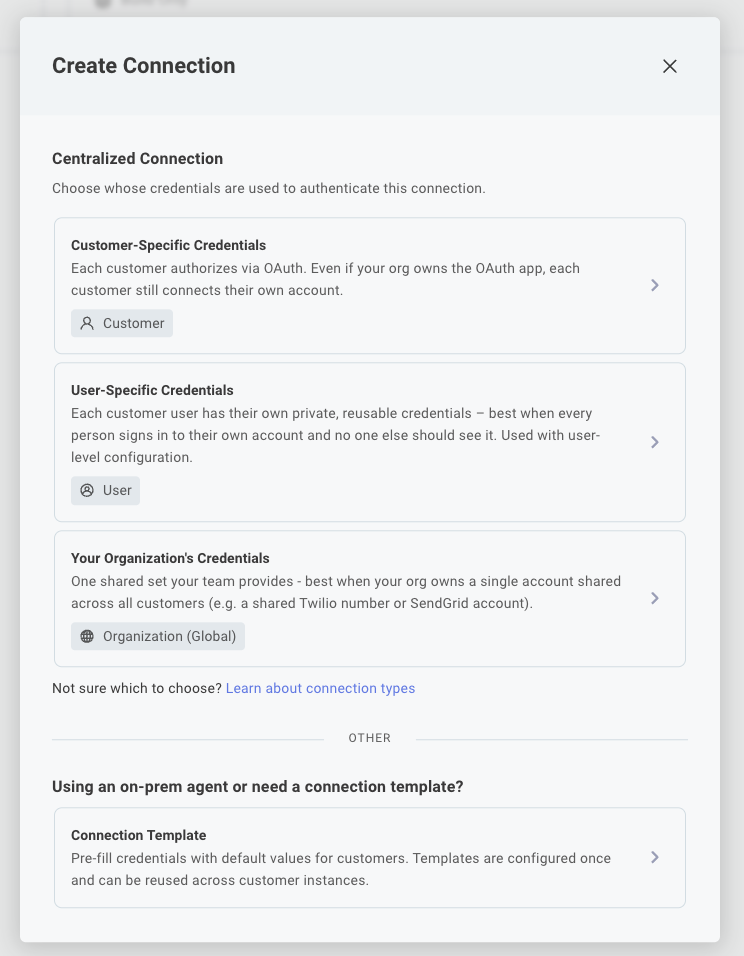
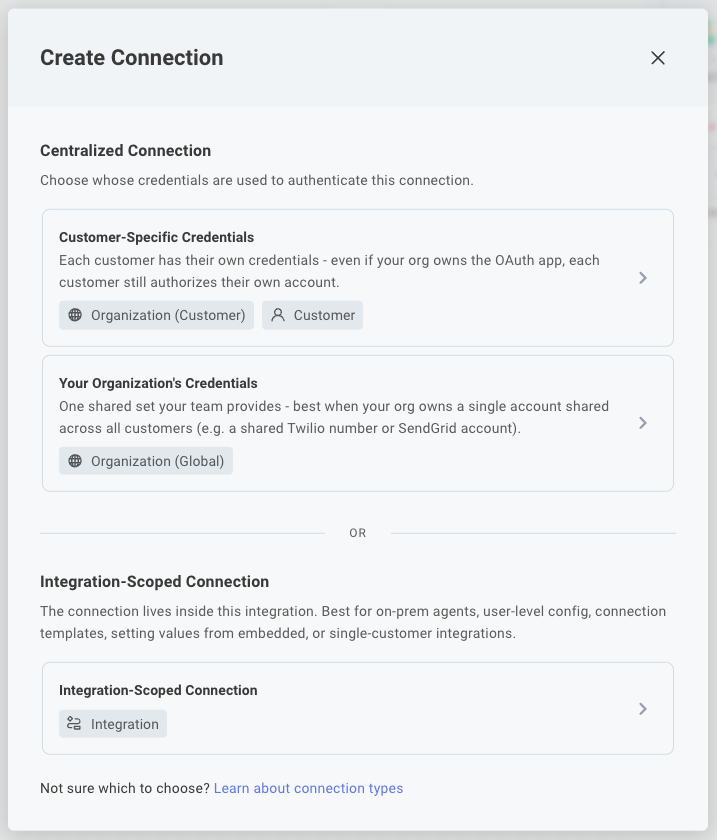
You will be asked to select the connection type based on whose credentials the connection uses - your customer's, an individual user's, or your organization's?
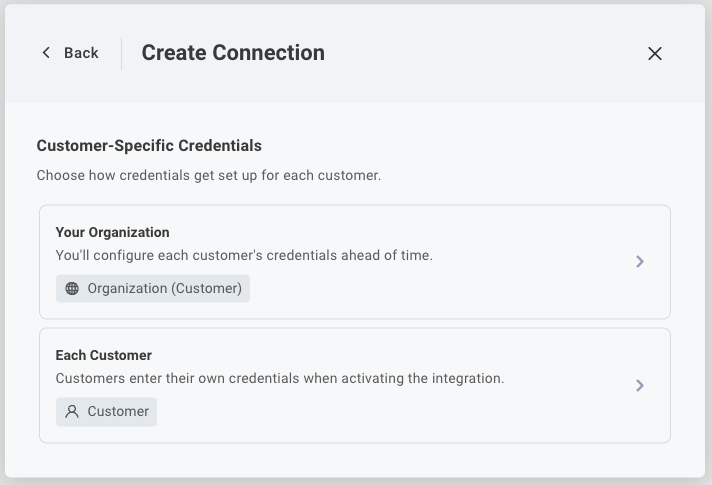
If you select Customer-Specific Credentials, and the connection is not an OAuth 2.0 connection, you will next be asked who supplies those credentials. Your customer might supply them themselves (for example, by clicking an OAuth 2.0 button or pasting in their own API key), or you might supply them on the customer's behalf (for example, by generating an API key for your customer in your own app for seamless authentication).
If you select User-Specific Credentials, you're creating a user connection that each of your customers' users activates with their own credentials. User connections require user-level config.
On the other hand, if you select Your Organization's Credentials, you're creating an organization (global) connection that can be used across all of your customers. You'll be prompted for your organization's connection information.
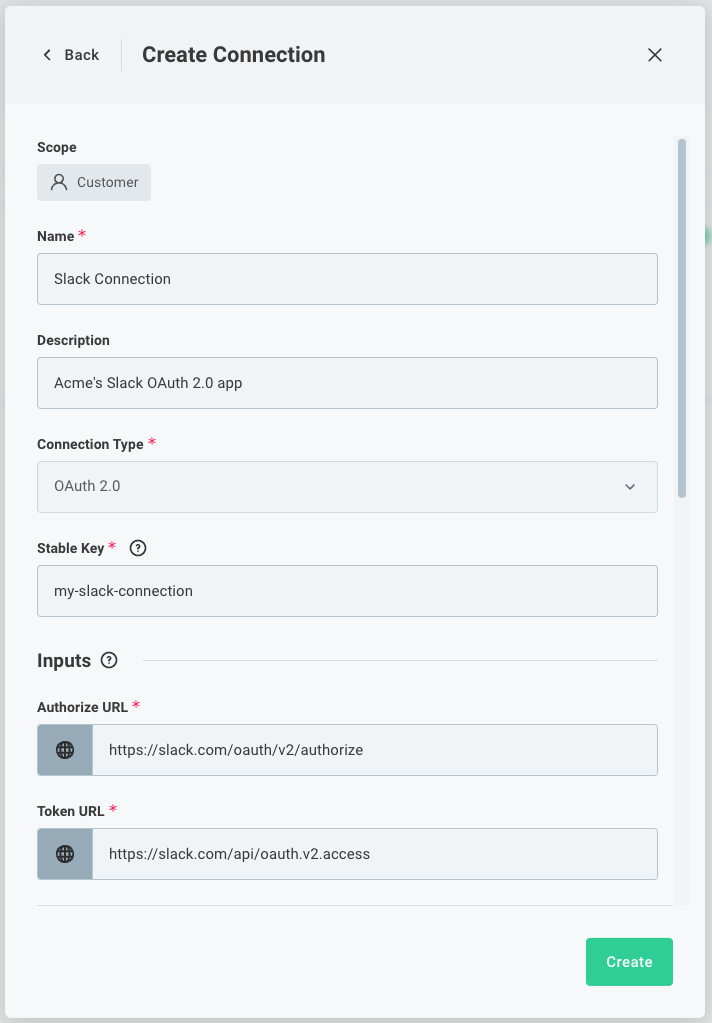
Regardless of connection type, you will be prompted to select the type of connection you want to create (if the component has multiple), and any global values you would like all of your customers to inherit. Typically, OAuth 2.0 connections contain mostly global values for authorize URL, client ID, scopes, etc., while API key connections contain mostly customer-specific values for the API key itself.
Syncing connections between tenants
If your organization has multiple tenants (for example, a US and EU tenant, or a dev and prod tenant), be sure to assign your connections the same Stable Key in each tenant. Then, when you sync integrations between tenants, your integrations will automatically use the correct connections in the new tenant.
Adding a new connection from the low-code integration designer
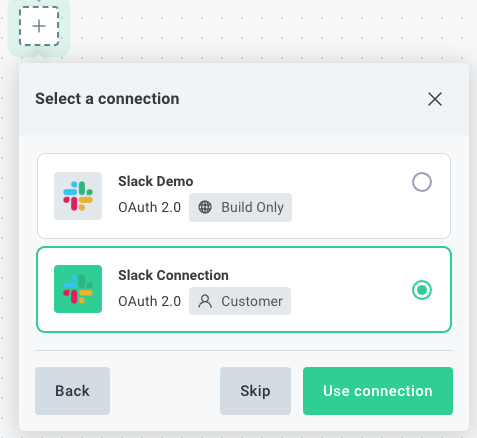
When you add a step to your integration that requires a connection, if one for that component already exists, you'll be prompted to select from existing connections.
If no connections already exist, you will be prompted to create a new connection of a type of your choosing, similar to adding a new connection on the component's Connections tab.
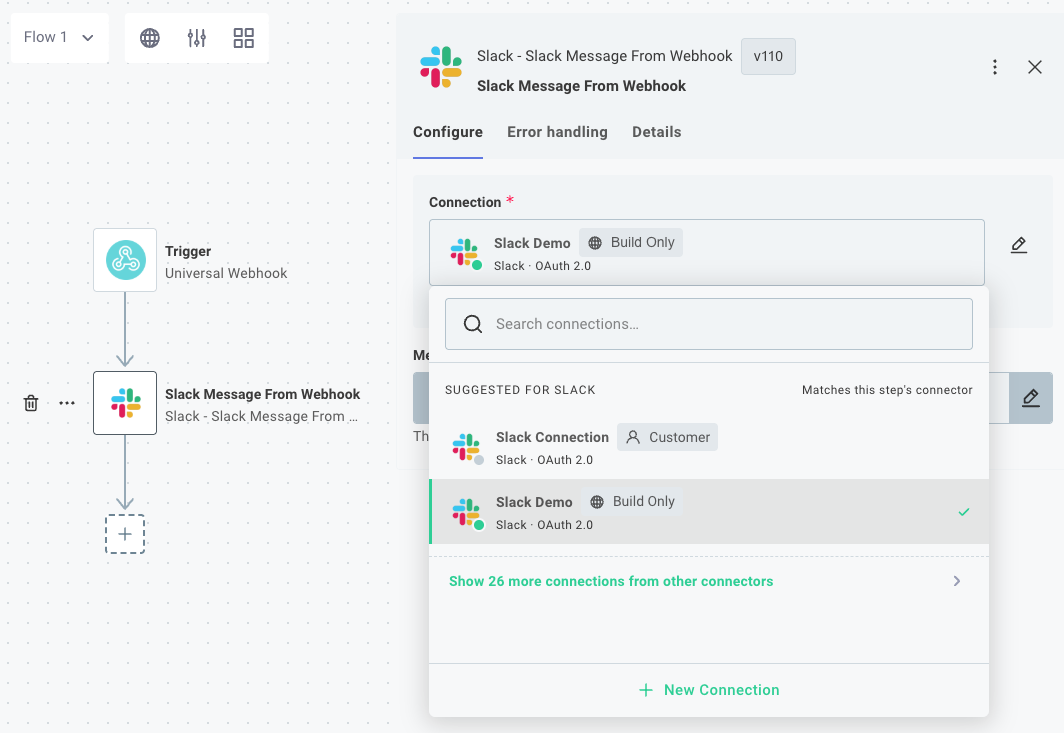
If you would like to switch which connection you're using for a particular step, you can click the connection in the step editor and select a different connection, or create a new one.
If you would like to switch all steps using the same connection to a different connection, open the config wizard designer (settings icon in the toolbar at the top of the designer) and edit your integration's connection to use a different one.
Configuring a test connection for building integrations
After creating a new connection, you'll be prompted to supply test credentials for that connection. These test credentials will be used in the integration designer as you're building integrations that rely on the connection.
If you'd like to change your test credentials at any time, you can return to the Connections tab of a component, select your connection, and edit your credentials under Test Runner Connection. Your test instances that run as you test your integration in the integration designer will immediately begin using the new test credentials that you supply.
Enabling a connection for the embedded workflow builder
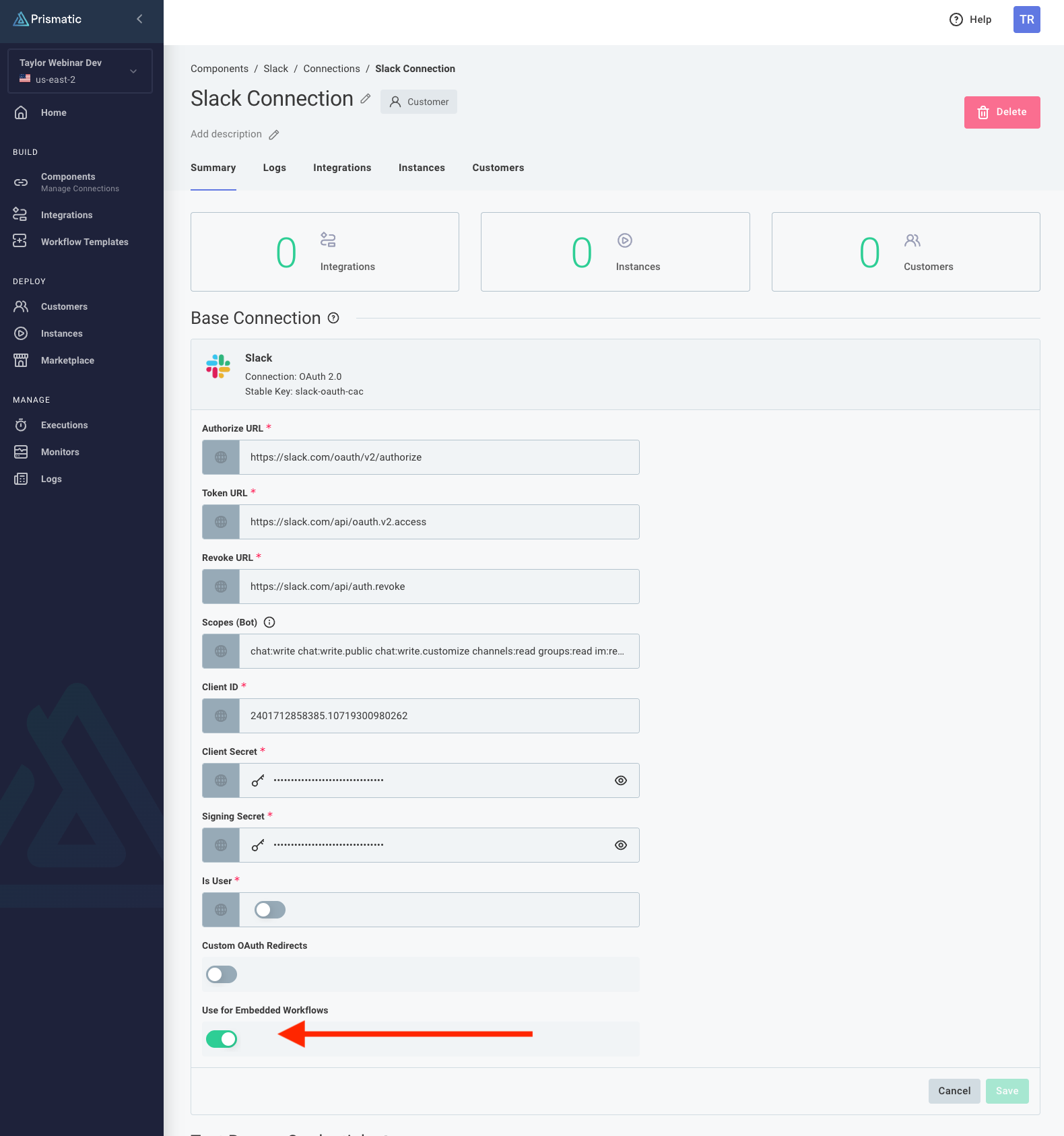
If you embed the workflow builder in your app for your customers to build their own workflows, you can choose which connections to expose to them. Open the connection you want to make available, and toggle on Use for embedded workflows.