Integration-Scoped Connections
Integration-scoped connections are the "classic" way of adding connections to an integration. They were first introduced when we developed connections but have largely been replaced by other connection types that are centrally managed and shared across integrations.
Now, integration-scoped connections are primarily used in two situations:
- You want to connect to an on-prem resource
- You want to programmatically set connection information through the embedded SDK at instance deploy time
Connections that are scoped to a user no longer require an integration-scoped connection. Use a user connection instead, so the connection can be centrally managed and reused across integrations.
Integration-scoped connections in low-code integrations
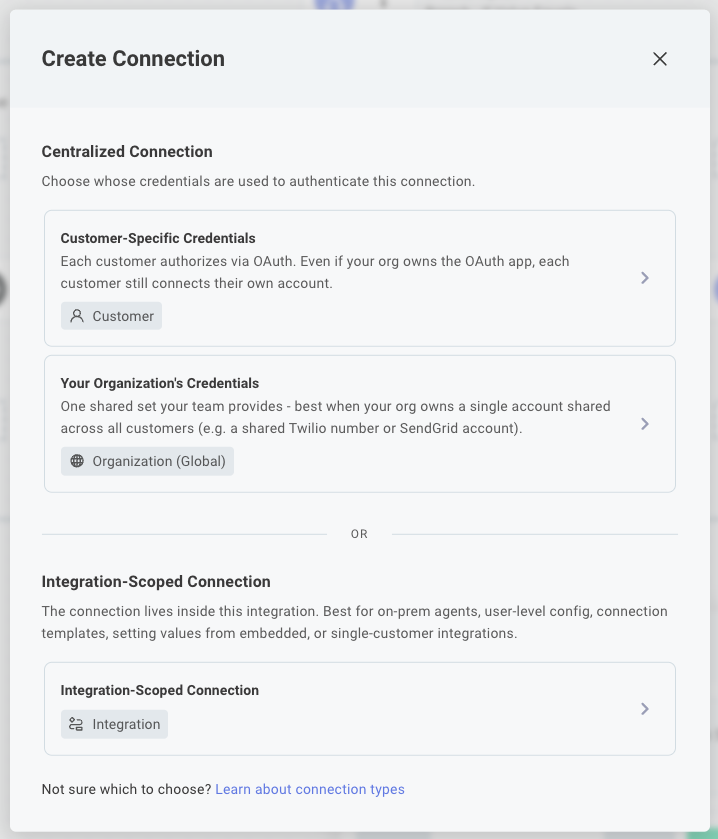
When you add a step to your low-code integration that requires a connection, you'll have the option to add an Integration-Scoped Connection. After selecting this connection type, you'll be prompted to select which component you want to create a connection for, along with any input values you want to pre-fill for that connection (like an OAuth client ID, etc.).
Integration-scoped connections in code-native integrations
Connections are defined in the configPages.ts of your code-native project. See:
- Connections in code-native integrations for inline-defined connections
- Referencing existing connections in code-native for referencing existing components' connections
Connection templates
A Connection Template allows you to pre-fill a connection's input fields with default values. A template can be referenced by an integration you build or by an integration your customers build using embedded workflow builder. Connection templates are useful for a few reasons:
- If several of your integrations require the same connection input fields (for example, an OAuth 2.0 client ID and secret), you can create a template that contains those fields and reference it in each integration.
- If you want to provide a template for your customers to use in their own integrations, you can create a template and share it with them. They can then reference the template in their own integrations but will not be able to view or change the template's input fields (so they can't access your client secret).
- If you store your integrations' YAML definitions in source control, your YAML will be cleaner if you reference a template instead of including the connection's input fields directly in the YAML. By referencing a template that contains a client ID and client secret, you can avoid committing sensitive information to source control.
A customer connection provides the same benefits as a connection template, but with the added benefit of being reusable across integrations.
Creating a connection template
To create a connection template, select Components and then search for your desired component. Then, open the Connections tab and select + Add Connection. Select Create a Connection Template.
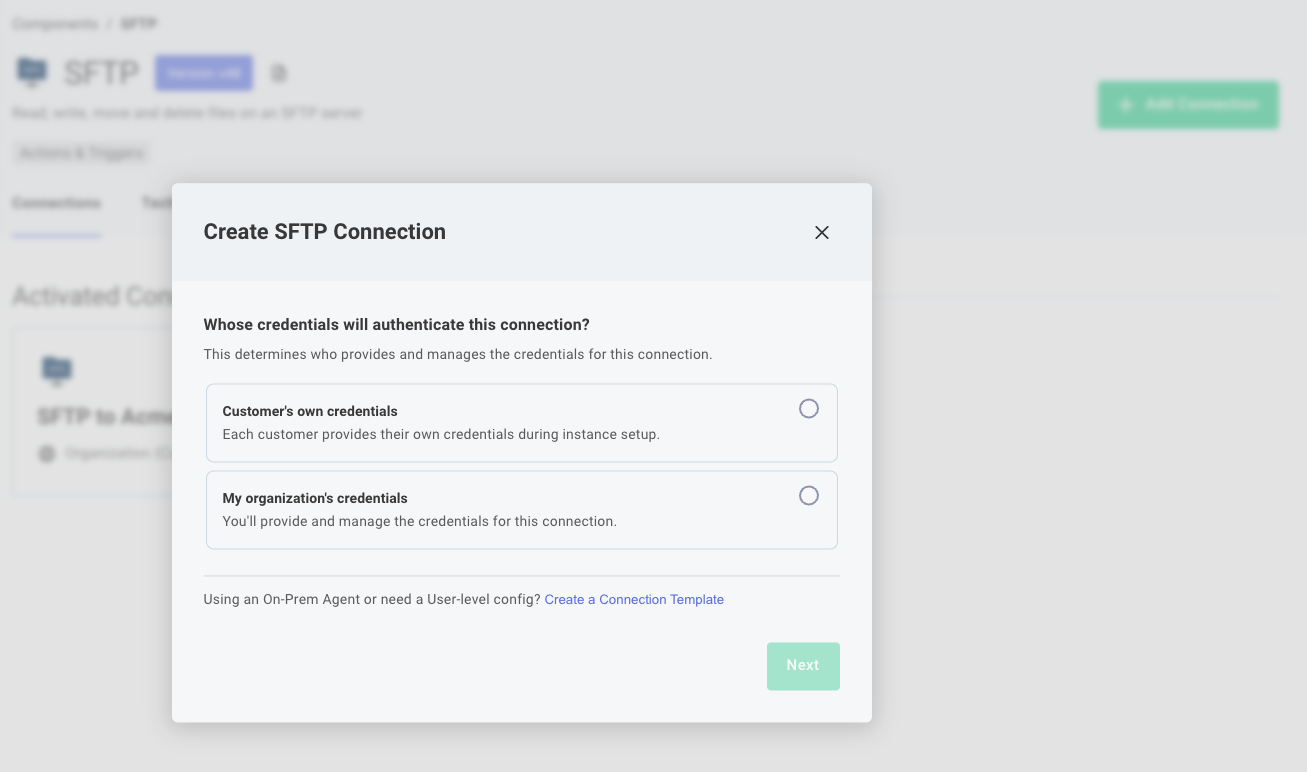
Select the connector to add a connection template for, and then select Connection Template for the Connection Type.
Give your template a name, and then add input fields that you would like to pre-fill to the template. Fields that you omit will be configurable by an integration builder (either an organization member or a customer using embedded designer).
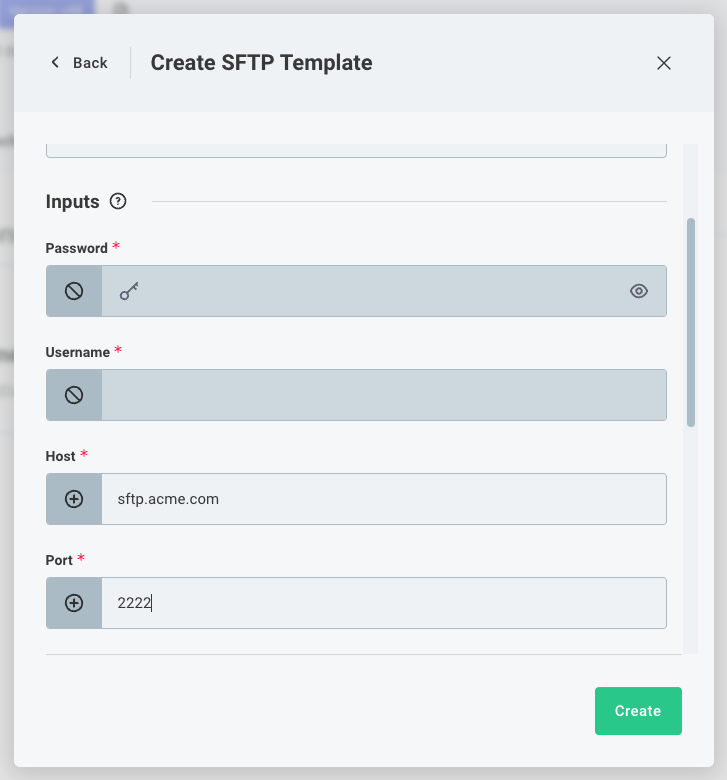
A connection template's input values can be updated until a version of an integration that uses the template has been published. If an integration that uses the template has been published, the template's input values cannot be updated.
To update a connection template's input values, create a new connection template with your updated values and update your integration to reference the new connection template.
Your deployed instances (perhaps on v10 of your integration) will continue to reference the old connection template, but new instances (perhaps on v11 of your integration) will reference the new connection template and its values.
Referencing a connection template in a low-code integration
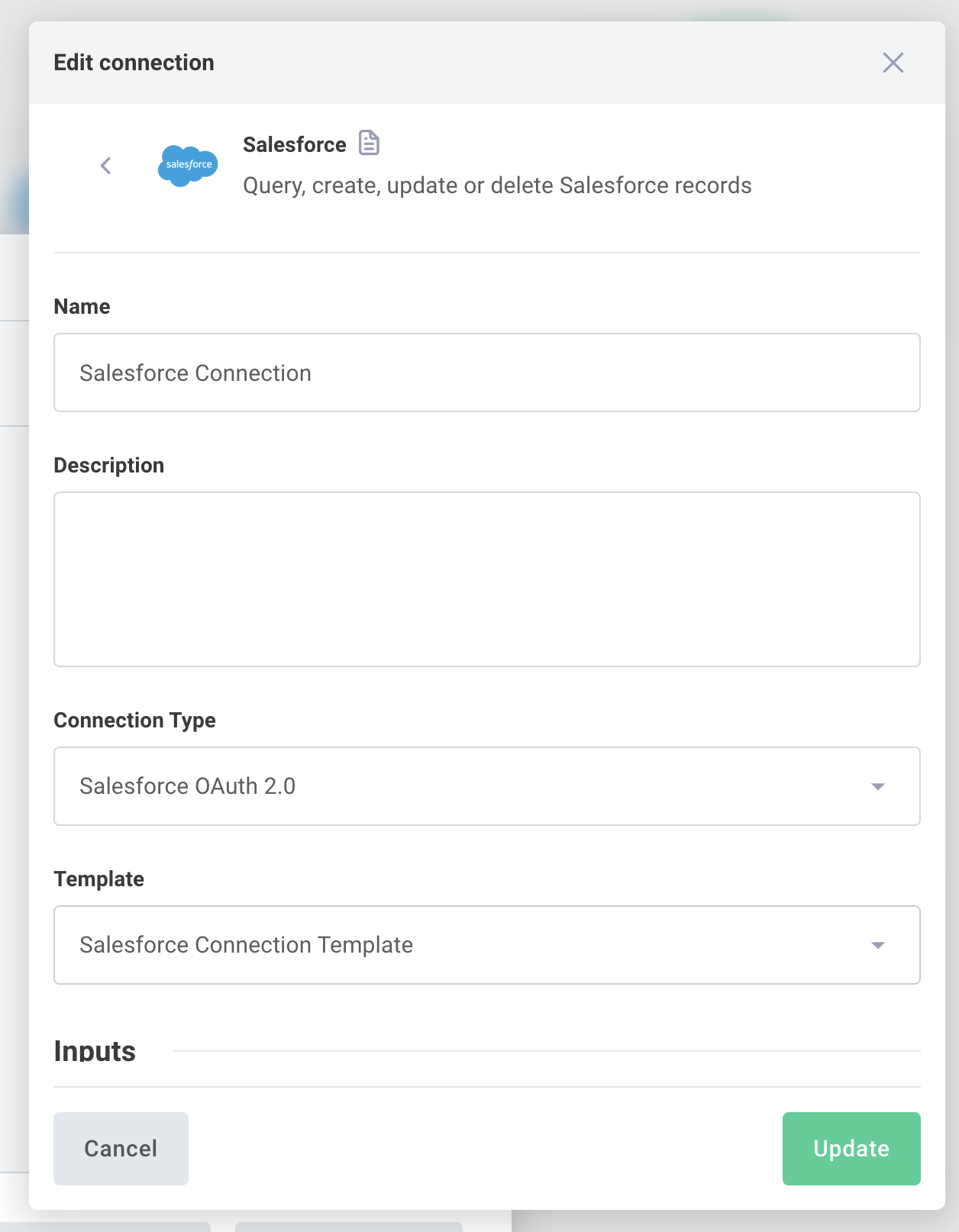
To reference a connection template in an integration, add a new connection to the integration. Then, select the template you created from the Connection Template dropdown menu.
You will now only see fields that were not included in the template.
Referencing a connection template in a code-native integration
Connection templates can be used if you reference an existing component's connection in your code-native integration.
You can do this by adding a template property to your connection reference.
connectionConfigVar({
  stableKey: "my-salesforce-connection",
  dataType: "connection",
  connection: {
    component: "salesforce",
    key: "oauth2",
    values: {},
    template: "My Salesforce Connection",
  },
});