Configuration Presentation Modes
With headless configuration, your app decides how a configuration looks. In this tutorial, you present one integration's configuration two ways with Solis:
- Single page shows every question at once: the record type, the field mapping, and a live preview. It suits customers who want to see the whole setup and change answers in any order.
- Multi-step wizard asks one question per step: first the record type, then the field mapping and preview. It suits longer setups, and questions whose choices depend on an earlier answer.
Both modes are the same form component with a different layout. They collect the same values and make the same Solis calls, so a customer can switch modes halfway through without losing their answers.
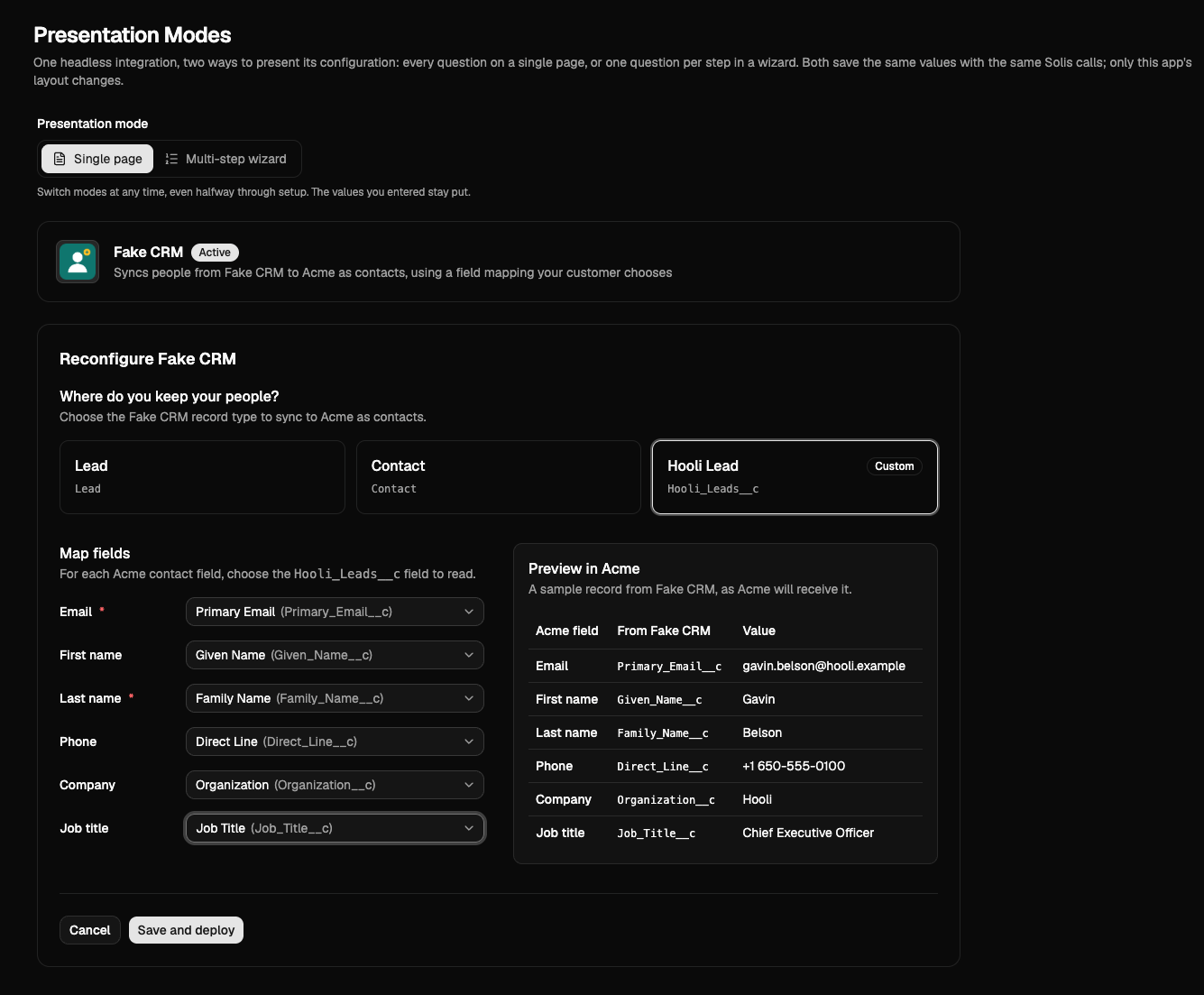
The code comes from the Presentation Modes page, headless-presentation-modes.tsx, of Prismatic's example embedded app.
The form it presents is in fake-crm-configuration-form.tsx.
Before you begin
You need:
- The example embedded app, configured and running. Follow the Run the example step of Build a custom marketplace with Solis to set it up.
- The Fake CRM integration, in
integrations/fake-crm/, published and available in your marketplace. Follow Get started with headless configuration to import and publish it.
In the example app, select Presentation Modes in the sidebar.
- Choose Multi-step wizard, then click Deploy Fake CRM. The first step asks for a record type.
- Choose Hooli Lead, and click Next: map fields. The second step shows the field mapper and a preview of a sample record.
- Switch to Single page. The record type and every mapping you chose are still there, now on one page.
- Map any required fields that are still empty, and click Deploy Fake CRM.
After the instance deploys, Reconfigure Fake CRM opens the same form with the saved values, in whichever mode is selected. Remove deletes the instance so you can start again.
Open fake-crm-configuration-form.tsx.
The form takes a layout prop, and holds the customer's answers in a single values state, whichever layout it renders:
export type FormLayout = "wizard" | "single-page";

export function FakeCrmConfigurationForm({
  layout = "wizard",
  initialValues,
  onSubmit,
  // ...
}) {
  const [step, setStep] = useState<"recordType" | "mapping">("recordType");
  const [values, setValues] = useState<FakeCrmConfiguration>(initialValues);

  const recordTypePicker = (/* record type cards */);
  const fieldMapper = (/* field selects and the preview */);
  const submit = (/* the submit button */);

  if (layout === "single-page") {
    return (
      <form onSubmit={handleSubmit}>
        {recordTypePicker}
        {values.recordType ? fieldMapper : null}
        {submit}
      </form>
    );
  }

  return step === "recordType" ? (
    <>
      {recordTypePicker}
      <Button disabled={!values.recordType} onClick={() => setStep("mapping")}>
        Next: map fields
      </Button>
    </>
  ) : (
    <form onSubmit={handleSubmit}>
      {fieldMapper}
      <Button onClick={() => setStep("recordType")}>Back</Button>
      {submit}
    </form>
  );
}
Each layout arranges the same three pieces: the record type picker, the field mapper, and the submit button.
Because switching modes only changes the layout prop of the same component, React keeps its state, so the customer's answers carry over.
If you render a different component for each mode, keep the values in a parent component instead, and pass them down, or a switch resets the form.
Each layout also controls when the customer can move on. The wizard's Next button waits for a record type, and in both layouts the submit button waits until every required field is mapped.
The form fills its questions with the integration's server functions: listRecordTypes, listFields, and getSampleRecord.
The example's useServerFunctionQuery hook runs a server function whenever its inputs change, and waits while the inputs are null.
The form uses that to run each function only when the current layout shows its result:
const showMapping = layout === "single-page" || step === "mapping";

const fields = useServerFunctionQuery<{ recordType: string }, Field[]>(
  configuration,
  "listFields",
  values.recordType ? { recordType: values.recordType } : null,
);
// Sends the unsaved mapping, so the preview follows every change.
const preview = useServerFunctionQuery<FakeCrmConfiguration, SampleRecord>(
  configuration,
  "getSampleRecord",
  showMapping && values.recordType ? values : null,
);
In the wizard, the preview doesn't run until the customer reaches the mapping step.
On a single page, it runs as soon as there's a record type, and again each time the mapping changes.
The preview receives the unsaved values as inputs, because a server function reads only saved configuration from its context.
The form doesn't call Solis to save.
It hands its values to onSubmit, and the example's ConfigurationEditor does the rest for every layout:
- Runs the configuration's
initaction for suggested values, which become the form'sinitialValues. - Calls
savewith the customer's values, which Prismatic validates against the integration's schema. - Calls the instance's
deployaction to make the values live.
The page passes the selected mode through the editor to the form:
<ConfigurationEditor
  key={configuration.data.versionNumber}
  configuration={configuration}
  layout={layout}
  submitLabel={deployed ? "Save and deploy" : "Deploy Fake CRM"}
  onDeployed={() => setConfiguring(false)}
  onCancel={() => setConfiguring(false)}
/>
When save fails validation, its error lists each invalid field by path.
The editor passes them to the form as fieldErrors, and the field mapper shows each message next to its field.
See Save and deploy.
The form doesn't hard-code the Acme fields it maps.
It reads them from the configuration's JSON Schema, with each field's title and whether it's required, so a field the integration adds appears in both layouts without an app change.
JSON Schema properties have no order, so the form orders the fields by the integration's ui layout.
Fake CRM declares a JSON Forms uiSchema, and the form reads the order of its scope entries from configuration.data.ui:
// `ui` can also be a "custom" layout, which only its own app understands.
const uiSchema = ui?.type === "uiSchema" ? ui.value : null;
An integration can instead declare ui: { type: "custom", value } with any value your app defines, such as the steps of a wizard and the fields on each.
See Load the configuration.
What you learned
- Your app chooses how a headless configuration looks, and can offer more than one layout for the same integration.
- Keeping the customer's values in one place lets them switch layouts without losing their answers.
- Server functions can run only when the current layout shows their result.
- Every layout saves with the same
init,save, anddeploycalls, and Prismatic validates the values the same way.