Build a One-Click Connect List with Solis
In this tutorial, you build a list of integrations, each with a Connect button, using Solis, Prismatic's custom UI SDK. One click sets up an integration from start to finish:
- Your app creates an instance of the integration for the customer.
- The customer authorizes their third-party account on the provider's OAuth consent screen.
- The integration's
initfunction suggests a configuration. - Your app saves that configuration, linked to the new credential, and deploys the instance.
When init can't fill in a required setting, such as which Slack channel to post to, your app asks for only that setting in a dialog before it deploys.
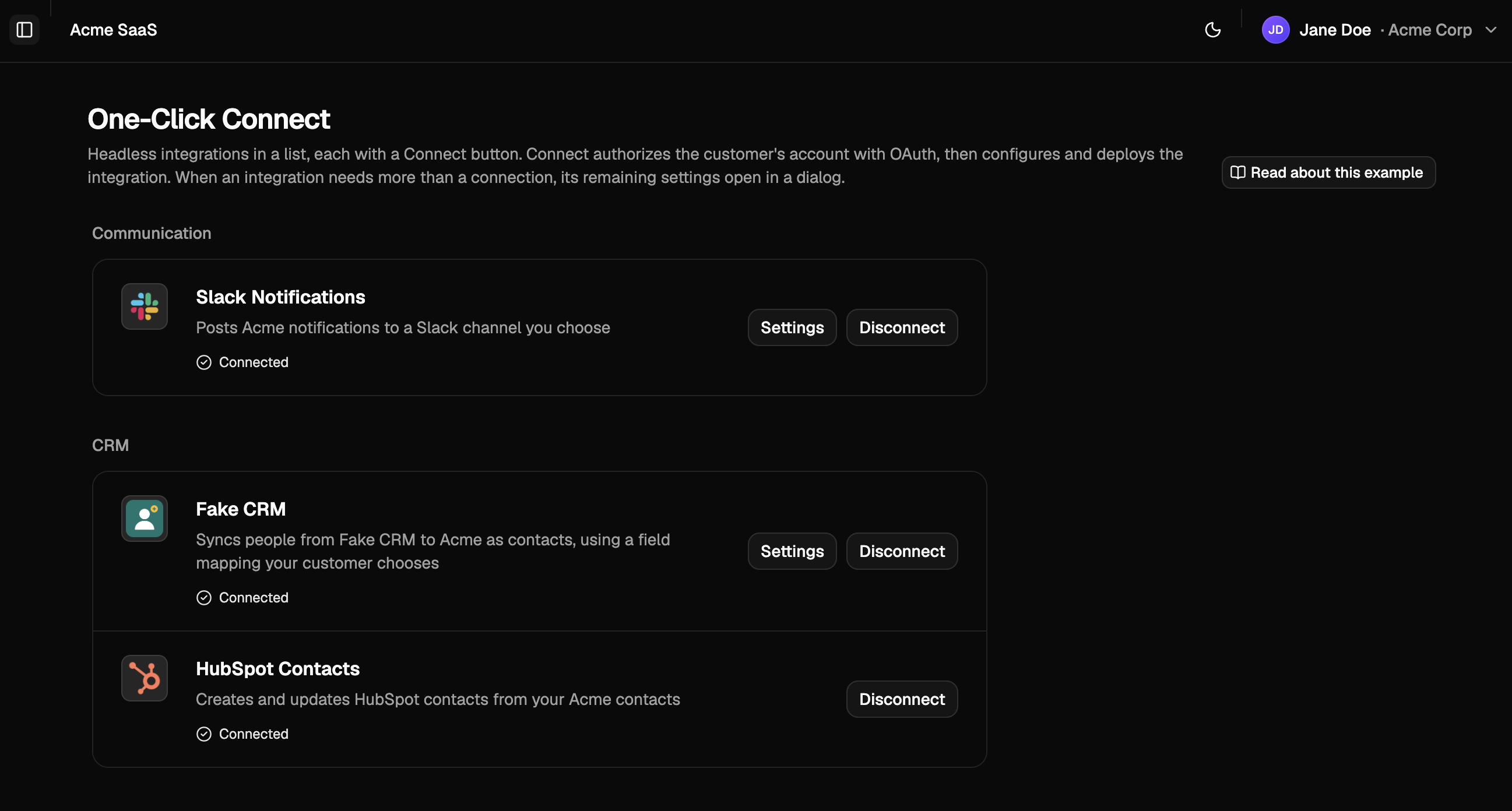
The code comes from the One-Click Connect page, headless-one-click-list.tsx, of Prismatic's example embedded app.
You use two integrations from the app's repository, which show the two cases the list handles:
| Integration | Needs | What Connect does |
|---|---|---|
| HubSpot Contacts | A HubSpot connection | Deploys as soon as the customer authorizes HubSpot |
| Slack Notifications | A Slack connection, a channel | Asks for a channel after the customer authorizes Slack, then deploys |
Before you begin
You need:
- A Prismatic organization with the headless configuration feature enabled. Contact your Prismatic representative to enable it.
- An admin account in that organization
- A customer in your organization to sign in as
- A HubSpot OAuth app and a Slack app, for the client ID and secret of each connection
- The Prism CLI 10.6.0 or later, logged in with
prism login - Bun and Node.js 22.19.0 or later
- The example embedded app, configured and running. Follow the Run the example step of Build a custom marketplace with Solis to set it up.
One-click connect works with integrations that use headless configuration. Integrations that use config pages need Prismatic's config wizard, so the list leaves them out.
Each integration authorizes the customer's account through a customer-activated connection. Your organization defines the connection once, with your OAuth app, and each customer authorizes their own account. A customer who authorizes Slack for one integration can reuse that credential for another.
In Prismatic, create a customer-activated connection for each integration. The stable key must match the key the integration declares:
| Stable key | Connection | OAuth scopes |
|---|---|---|
hubspot-oauth | HubSpot's OAuth 2.0 connection | oauth, crm.objects.contacts.read, crm.objects.contacts.write |
slack-oauth | Slack's OAuth 2.0 connection | Bot scopes channels:read, groups:read, chat:write, chat:write.public |
The integrations are in the example app's integrations/hubspot/ and integrations/slack/ directories.
Import each one:
cd integrations/hubspot   # then the same in integrations/slack
bun install
bun run import
Then publish each integration and make it available and deployable in your marketplace.
Or use Prism, with the integration ID that bun run import printed:
prism integrations:publish <integration-id>
prism integrations:marketplace <version-id> --available --deployable
In the example app, select One-Click Connect in the sidebar. The page lists the headless integrations in your marketplace, grouped by category.
- Click Connect next to HubSpot Contacts. A window opens HubSpot's consent screen. After you authorize HubSpot, the row shows Connected.
- Click Connect next to Slack Notifications, and authorize Slack. A Finish connecting Slack Notifications dialog lists your workspace's channels. Choose a channel and click Connect.
To try the flows, send a request to an instance's webhook URL.
HubSpot takes an Acme contact, such as { "email": "ada@example.com", "firstName": "Ada" }, and Slack takes a message, such as { "text": "Hello from Acme" }.
The rest of this tutorial explains how the page and the integrations work together.
Whether an integration connects in one click depends on what its init function returns.
Open integrations/hubspot/src/configuration.ts.
HubSpot Contacts needs nothing from the customer but a connection, so its schema has no fields, and init returns an empty configuration:
export const integrationConfiguration = configuration({
  instance: {
    schema: z.object({}),
    version: CONFIGURATION_VERSION,
    connections: {
      hubspot: customerActivatedConnection({ stableKey: "hubspot-oauth" }),
    },
  },
  init: {
    perform: async () => ({ configuration: {} }),
  },
});
Slack Notifications needs a channel, which has no sensible default.
Its init, in integrations/slack/src/configuration.ts, returns the saved channel when there is one, and otherwise leaves the required channelId empty with a reason the app can show:
export const configurationSchema = z.object({
  channelId: z.string().min(1).meta({ title: "Channel" }),
  channelName: z.string().optional().meta({ title: "Channel name" }),
});

// ...

init: {
  perform: async (context) => {
    if (context.configurationVersion === CONFIGURATION_VERSION) {
      const saved = configurationSchema.safeParse(context.configuration);
      if (saved.success) {
        return { configuration: saved.data, unresolvedReasons: [] };
      }
    }
    return {
      configuration: { channelId: "" },
      unresolvedReasons: ["Choose the Slack channel Acme posts to."],
    };
  },
},
To connect more of your integrations in one click, give their init functions defaults for every required field they can fill in.
Slack also defines a listChannels server function, which the app calls to list channels in the dialog.
Open frontend/routes/examples/headless-one-click-list.tsx.
The list reads the marketplace with useMarketplace() and keeps only integrations whose configurationExperience is headless:
const marketplace = useMarketplace({ includeActiveIntegrations: true });
if (marketplace.status !== "success") return null;

const headless = marketplace.data.items.flatMap((item) =>
  item.status === "success" && item.data.configurationExperience === "headless"
    ? [{ integration: item.data, actions: item.actions }]
    : [],
);
The page then groups the integrations by category and renders one row per integration.
Each row reads the customer's instance from integration.instances, and the instance's lifecycle decides whether the row shows Connect or Connected with Settings and Disconnect buttons.
Browsers allow a click to open a window only before the click handler's first await.
A connection's createConnection action opens the OAuth consent window as it starts, so you normally call it directly from a click handler.
For an integration the customer hasn't set up, though, the connection requirement belongs to an instance that doesn't exist yet, and creating it takes a round trip.
So the click opens a blank window right away, and the app passes Solis a host with an openExternalUrl capability.
When Solis asks the host to open the consent screen, the capability sends the blank window there.
The code is in frontend/components/headless/consent-window.ts:
import type { HostApi } from "@prismatic-io/solis-react";

/** The window the next consent screen opens in. */
let pending: Window | null = null;

export const preopenedConsentHost: HostApi = {
  openExternalUrl(url) {
    const popup = pending;
    pending = null;
    if (popup && !popup.closed) {
      popup.location.href = url;
      return true;
    }
    // Nothing was opened for this consent screen, so the browser may block this.
    return window.open(url, "_blank") !== null;
  },
};
Pass the host to the provider.
Define it at module level, because a new host object restarts the Solis session:
<PrismaticProvider
  prismaticUrl={prismaticUrl}
  auth={{ token }}
  host={preopenedConsentHost}
>
  <IntegrationList />
</PrismaticProvider>
The same file's openConsentWindow() opens the blank window and returns use(), which marks it as the window for the next consent screen, and close().
When the customer clicks Connect, the row opens the consent window, then creates an instance if the customer doesn't have one:
const connect = async () => {
  // Open the window now, while the browser still counts this as the click.
  const consent = openConsentWindow();
  if (!consent) return fail(POPUP_BLOCKED);
  const controller = new AbortController();
  if (!instanceId) {
    const created = await createInstance.execute({ name });
    if (created.status === "error") {
      consent.close();
      return fail(created.error.message);
    }
    setCreatedId(created.data.id);
  }
  setAttempt({ consent, controller });
};
useConfiguration({ instanceId }) loads the new instance's configuration.
Its connections resource lists the connections the instance needs in data.instance.
Once those requirements load, the row hands the window to Solis with consent.use() and calls createConnection on the requirement, which runs the OAuth flow:
const [requirement] = requirements.instance;
consent.use();
const created = await requirement.actions.createConnection.execute({
  signal: controller.signal,
});
consent.close();
if (created.status === "error") {
  if (created.error.code === "PRISMATIC_CONNECT_ABORTED") return;
  return fail(created.error.message);
}
await configureAndDeploy([{ key: requirement.key, id: created.data.id }]);
The signal lets the row's Cancel button abort a pending authorization.
The example sets up integrations with a single connection in one click; an integration that needs more than one shows an error instead.
With the new credential selected, the row runs init, checks its suggestion against the integration's schema, then saves and deploys:
const configureAndDeploy = async (
  chosen: ConfigurationConnectionSelection[],
) => {
  const initialized = await configuration.actions.init.execute({});
  if (initialized.status === "error") return fail(initialized.error.message);
  const proposal = readProposal(initialized.data);

  // Required fields init left empty need the customer, such as Slack's channel.
  if (
    unpopulatedFields(configuration.data.schema, proposal.configuration).length
  ) {
    setDialog({ kind: "finish", proposal });
    return;
  }

  const saved = await configuration.actions.save.execute({
    value: proposal.configuration,
    connections: chosen,
  });
  if (saved.status === "error") return fail(saved.error.message);

  const deployed = await instance.actions.deploy.execute();
  if (deployed.status === "error") return fail(deployed.error.message);
};
initsuggests values and saves nothing, so it's safe to run before the customer has chosen anything. Prismatic doesn't validate the suggestion.unpopulatedFields(), infrontend/components/headless/configuration-editor.tsx, reads the schema'srequiredfields and returns the ones the suggestion leaves empty.save({ value, connections })validates the values against the schema and links the instance to the customer's credential. An instance can't deploy until it's linked to the connections it declares.deploymakes the instance run with the saved values.
Linking connections on save requires a Prismatic stack that supports it.
The example checks session.data.hasFeature("configuration.connections"), where session comes from usePrismatic(), before it passes connections to save.
When init returns connections requirements of its own, pass the matching selections to init too.
The example's integrations declare connections only on the instance, so their init needs none.
For Slack, unpopulatedFields() returns channelId, so the row opens a dialog with the app's Slack form instead of saving.
The form lists channels with the listChannels server function, using the credential the customer just authorized, and shows init's unresolvedReasons above the field:
const listChannels = useServerFunction<
  Record<string, never>,
  { id: string; name: string; isPrivate: boolean }[]
>(configuration, "listChannels");

const result = await listChannels.execute({ inputs: {}, connections });
The example's Slack form wraps this call in a small useServerFunctionQuery hook, which reruns it when its inputs change.
When the customer clicks Connect in the dialog, the form saves the chosen channel with the same connections and deploys, as in the previous step.
After the instance is deployed, the row's Settings button opens the same form to change the channel, and Disconnect calls the instance's remove action.
See Calling server functions for more on server functions in your app.
What you learned
- An integration connects in one click when its
initfunction can suggest every required setting. - Solis's
createConnectionruns the OAuth flow, and ahostwithopenExternalUrllets one click both create an instance and open the consent window. save({ value, connections })links the instance to the customer's credential, anddeploymakes it live.- When
initleaves required fields empty, your app asks for only those fields.
Next steps
- Build a custom marketplace with Solis to list every integration, including those with config pages
- Connections in headless
- Building configuration UIs with Solis React
- Customer-activated connections