Explore Marketplace Options
In this video, we explore the options for embedding Prismatic's integration marketplace in your app with the embedded SDK.
We cover embedding an iframe in an existing <div>, presenting the marketplace as a popover, and the screen configuration options you can apply to either.
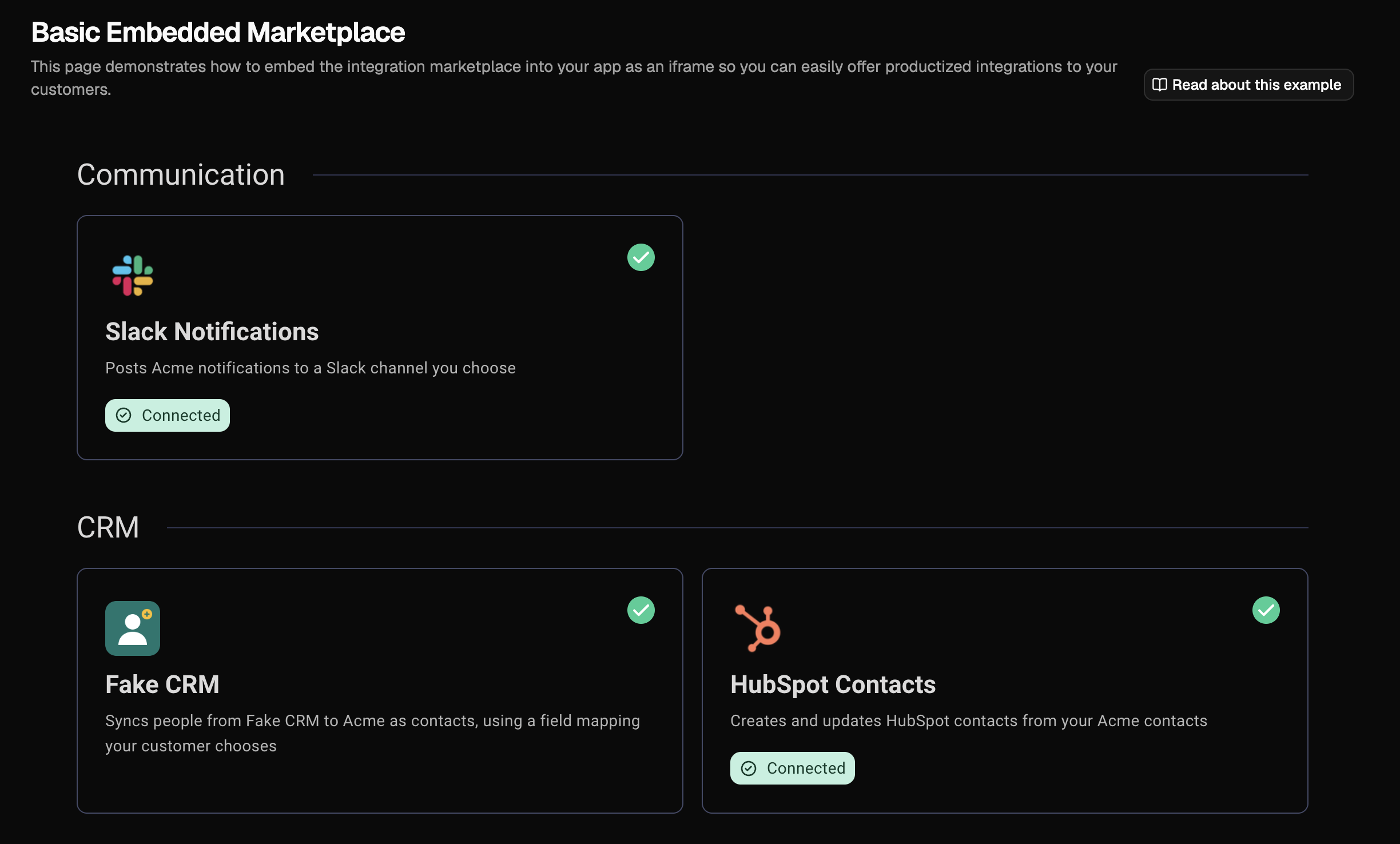
The code below comes from Prismatic's example embedded app, which includes a page for each option.
Each snippet assumes you've installed the embedded SDK, called prismatic.init(), and authenticated the user with prismatic.authenticate().
See Installing the embedded SDK and Authenticate embedded users.
Embed the marketplace in a page
To make the marketplace part of a page in your app, give showMarketplace() a selector for an existing element.
The SDK replaces the element's contents with an iframe that fills it, so give the element a height:
<div id="integration-marketplace" style="height: 100%">Loading…</div>
import prismatic from "@prismatic-io/embedded";

prismatic.showMarketplace({
  selector: "#integration-marketplace",
});
In React, call showMarketplace() from an effect after the user is authenticated.
This version from the example app's basic-embedded-marketplace.tsx also passes the app's current light or dark mode, so the marketplace matches when the user toggles it:
useEffect(() => {
  if (authenticated && token) {
    prismatic.showMarketplace({
      selector: "#my-embedded-marketplace",
      theme: theme === "light" ? "LIGHT" : "DARK",
    });
  }
}, [authenticated, token, theme]);

return <div id="my-embedded-marketplace" className="h-full" />;
theme overrides the default mode of your custom theme.
Open the marketplace in a popover
To show the marketplace over the current page, such as from an Integrations button in your app's header, set usePopover to true.
This excerpt is from the example app's basic-marketplace-popover.tsx:
<Button
  onClick={() => {
    prismatic.showMarketplace({
      usePopover: true,
      theme: theme === "light" ? "LIGHT" : "DARK",
    });
  }}
>
  Open Marketplace
</Button>
Show only some integrations
Use filters to show integrations with a specific category or label.
When you set both, integrations must match both:
prismatic.showMarketplace({
  selector: "#integration-marketplace",
  filters: {
    marketplace: {
      category: "CRM",
    },
  },
});
To filter by name or combine conditions, use a filterQuery.
See Filtering integrations.
Open a single integration
To start setup from your own button or link, call configureInstance() with the integration's name.
The SDK opens that integration's config wizard without the marketplace listing:
prismatic.configureInstance({
  integrationName: "Salesforce",
  usePopover: true,
});
See Configure a specific integration.
Configure the screens
screenConfiguration hides parts of the marketplace, the instance screen, and the config wizard.
For example, this hides the marketplace search bar, the instance screen's Test and Logs tabs, and the config wizard's page sidebar:
prismatic.showMarketplace({
  selector: "#integration-marketplace",
  screenConfiguration: {
    marketplace: {
      hideSearch: true,
    },
    instance: {
      hideTabs: ["Test", "Logs"],
    },
    configurationWizard: {
      hideSidebar: true,
    },
  },
});
To apply the same settings to every showMarketplace() and configureInstance() call, pass screenConfiguration to prismatic.init() instead.
A screenConfiguration in an individual call replaces the one from init(); it isn't merged.
The example app's Screen Configuration page, screen-configuration.tsx, lets you toggle each option and see the result.
See Hiding UI elements in marketplace for every option.
Next steps
- Theme the marketplace to match your app's colors and typography
- Listen for marketplace lifecycle events
- Build a custom marketplace with Solis to build the marketplace with your own components
- Embedding marketplace