Build with Code and AI
This "Hello, World" style guide demonstrates how to build a code-native integration using Prismatic's code-first TypeScript SDK and agent skills. By building using a code-first approach, you can take advantage of the full power of TypeScript and Node.js to build integrations, while staying in your favorite IDE and development environment.
Code-first (code-native) integrations are ideal for developers who want to build integrations entirely in code.
You can use Prismatic's agent skills to build your integration faster. These skills provide your AI agent with example code snippets, efficient documentation lookup, and best practice guidance.
Run this command in your terminal:
npx skills add prismatic-io/agent-skills
Describe the integration you want to build. Your coding assistant can select the prismatic-integrations skill for the task:
Build a Prismatic code-native integration
named `TODO List Slack Notifications`. This integration will fetch an array
of todo items from a REST API endpoint. Each item will have a `completed`
boolean property and `title` string property.

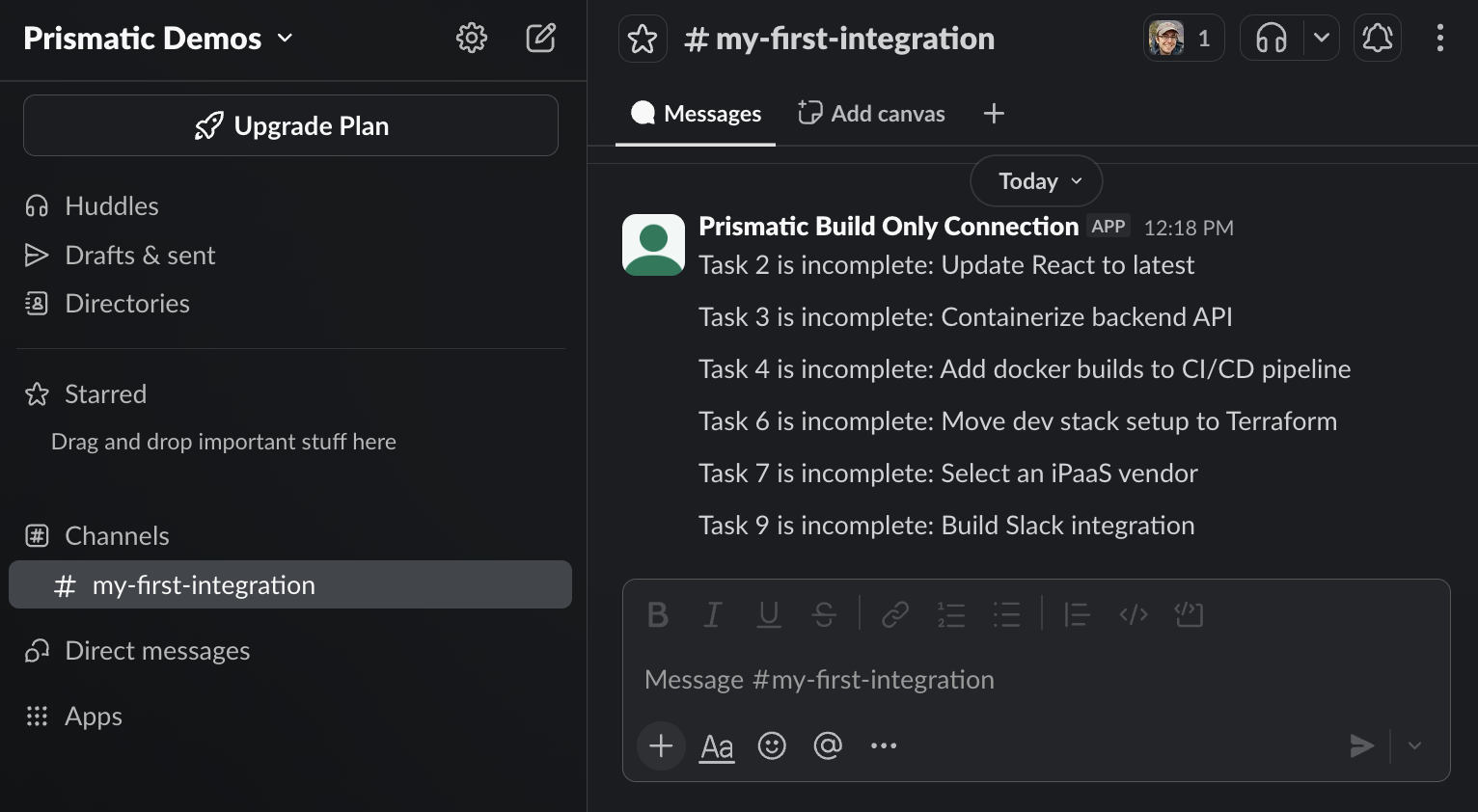
For each item that is not completed, the integration will post a message to
a Slack channel with the task details.

This integration should:
- Use a configuration variable for the REST API endpoint URL, which defaults
  to `https://jsonplaceholder.typicode.com/todos?_limit=10`
- Use a Slack OAuth connection for authentication - the build-only OAuth
  connection is fine for now
- Prompt a user to select one of their Slack channels from a dropdown menu
- Run on a schedule each day at 8:00 AM UTC
Your AI assistant will scaffold a new project, install dependencies, write the flows, configure the Slack OAuth connection, and import the integration into your Prismatic tenant for testing. See the agent skills documentation.
Get started from scratch
If you prefer to learn by building the integration step-by-step yourself, follow the steps below to scaffold a new code-native integration. Our example integration will:
- Be configurable with a REST API endpoint config variable and a Slack channel dropdown menu
- Fetch a list of TODO items from a REST API endpoint
- Check each item for a
completedboolean property - For each incomplete item, post a message to a Slack channel with the task details
- Install a recent version of Node.js
- Install Prismatic's CLI tool and authenticate it against your Prismatic tenant
- Authenticate a Slack connection by navigating to Components > Slack > Connections in the Prismatic web app, selecting the Build Only connection, and clicking Connect.
Use the prism CLI tool to scaffold a new code-native integration project:
prism integrations:init todo-slack-notifications
This creates a new directory called todo-slack-notifications.
Open this directory in your code editor and then install the project's dependencies
npm install
Finally, delete src/flows.test.ts and src/client.ts - we'll cover unit testing and creating reusable HTTP clients in another guide.
rm src/client.ts src/flows.test.ts
Our integration will rely on the built-in Slack component, so we need to install the Slack component manifest into our project:
npx cni-component-manifest slack
This will create a set of files in src/manifests/slack that define the Slack component's actions, connections, triggers, and data sources.
Next, add Slack to your component registry:
import { componentManifests } from "@prismatic-io/spectral";
import slack from "./manifests/slack";

export const componentRegistry = componentManifests({ slack });
For this integration, we want our users to:
- Provide the endpoint for the REST API that the integration will fetch todo items from
- Select a Slack channel from a dropdown menu to post incomplete tasks to
We'll add a basic config variable for the REST API, and we'll use a data source to fetch the list of Slack channels and present them as a picklist dropdown menu.
For simplicity, we'll leverage a build-only connection, which is a connection that exists for development and testing purposes - for production, you'd want to create your own Slack OAuth app. Some third-party apps review OAuth apps before you can use them in production, so plan ahead when you build a real integration.
import { configPage, configVar } from "@prismatic-io/spectral";
import { slackReusableConnection } from "./manifests/slack/connections";
import { slackSelectChannels } from "./manifests/slack/dataSources/selectChannels";

export const configPages = {
  Configuration: configPage({
    elements: {
      "Slack Connection": slackReusableConnection(
        // Replace this with your own UUID. See src/manifests/slack/connections/index.ts
        "12345678-0000-0000-0000-000000000000",
      ),
      // Include some helper text to guide users through the configuration experience
      _helperText0: "<h2>Integration Configuration</h2>",
      _helperText1:
        "<p>Please provide the API endpoint for your todo items and select a Slack " +
        "channel where you'd like to receive notifications of incomplete tasks.</p>",
      "TODO API Endpoint": configVar({
        stableKey: "todo-api-endpoint",
        dataType: "string",
        defaultValue: "https://jsonplaceholder.typicode.com/todos?_limit=10",
      }),
      "Slack Channel": slackSelectChannels("slack-channel", {
        connection: { configVar: "Slack Connection" },
      }),
    },
  }),
};
Each organization has a distinct build-only connection ID for testing. Look at src/manifests/slack/connections/index.ts to find the slackReusableConnection's stableKey for your tenant.
Now that our integration is configurable, we'll build a flow that runs on a schedule, fetches the list of TODO items from the configured REST API endpoint, and uses the Slack component to post messages to the configured Slack channel for each incomplete task.
import { flow } from "@prismatic-io/spectral";
import axios from "axios";

interface TodoItem {
  id: number;
  completed: boolean;
  title: string;
}

export const checkTodoItems = flow({
  name: "Check Todo Items",
  stableKey: "check-todo-items",
  description:
    "Fetch todo items from an API and send message for incomplete items.",
  schedule: { value: "0 8 * * *" }, // Run each day at 8:00 AM UTC
  onExecution: async (context) => {
    const response = await axios.get<TodoItem[]>(
      context.configVars["TODO API Endpoint"],
    );
    const todoItems = response.data;
    for (const todoItem of todoItems) {
      if (todoItem.completed) {
        context.logger.info(
          `Task ${todoItem.id} is completed: ${todoItem.title}`,
        );
      } else {
        await context.components.slack.postMessage({
          connection: context.configVars["Slack Connection"],
          channelName: context.configVars["Slack Channel"],
          message: `Task ${todoItem.id} is incomplete: ${todoItem.title}`,
        });
      }
    }
    return { data: null };
  },
});

export default [checkTodoItems];
Now it's time to build your integration
npm run build
Finally, import your integration and open it in the Prismatic web app
prism integrations:import --open
Once the integration opens in your browser, navigate to Test Configuration > Test Instance Configuration and walk through the config wizard.
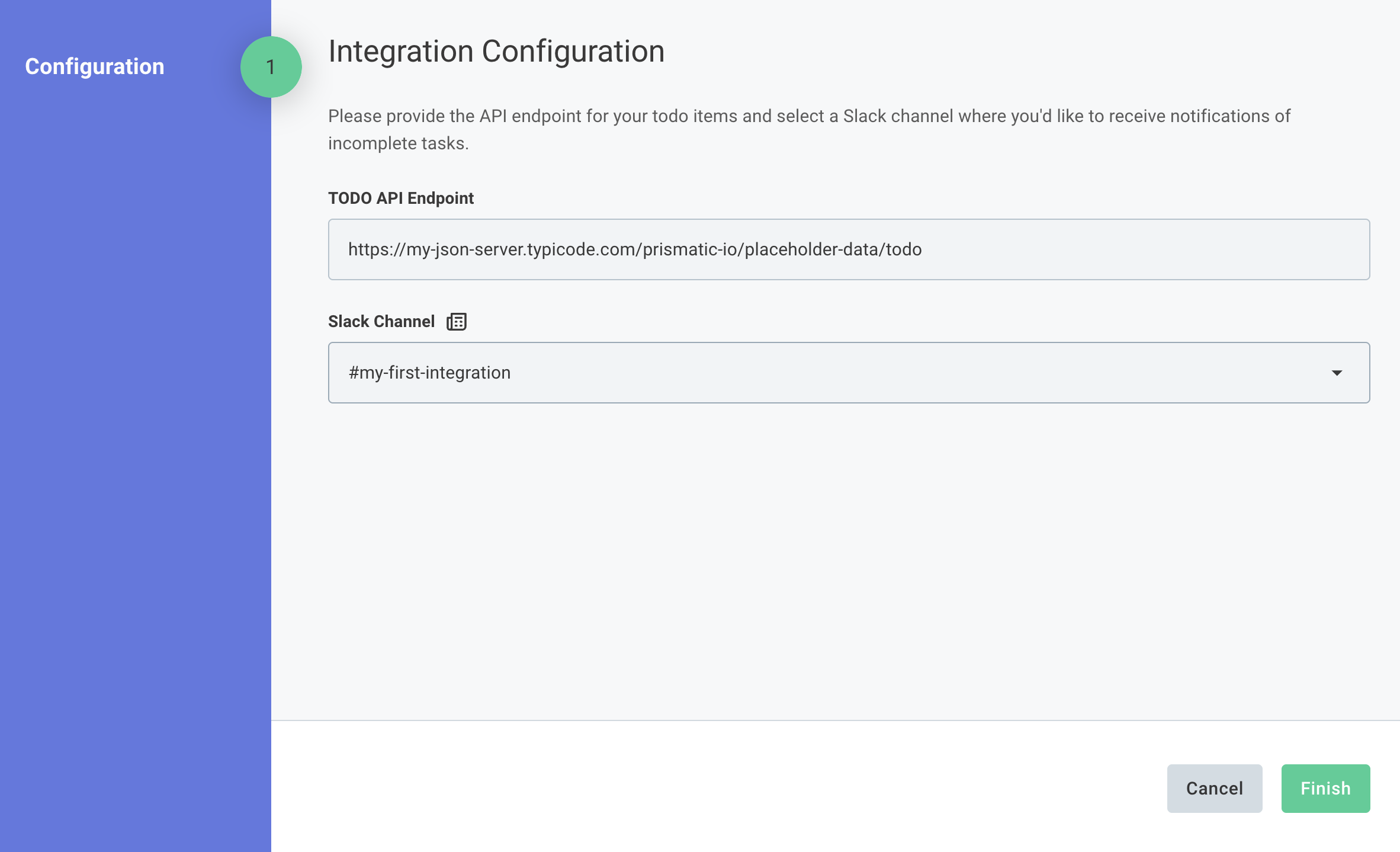
After completing the configuration, trigger a test execution of your flow by clicking Test in the top right of the page.