# Build with Code and AI
This "Hello, World" style guide demonstrates how to build a code-native integration using Prismatic's code-first TypeScript SDK and AI skills. By building using a code-first approach, you can take advantage of the full power of TypeScript and Node.js to build integrations, while staying in your favorite IDE and development environment.
Code-first (code-native) integrations are ideal for developers who want to build integrations entirely in code.
Recommended: Use Claude to build your integration
If you use an AI coding assistant like Claude Code you can leverage [Prismatic's AI skills](https://github.com/prismatic-io/prismatic-skills) to build your integration faster. These skills provide your AI agent with example code snippets, efficient documentation lookup, and best practice guidance.
Install Prismatic's AI skills in your coding assistant
Open `claude` and run the following commands to install Prismatic's marketplace and skills
Install Prismatic's AI marketplace and skills
```text
/plugin marketplace add prismatic-io/prismatic-skills
/plugin install prismatic-skills@prismatic-skills
/reload-plugins
```
Invoke the build-integration skill with a prompt describing your integration
Next, invoke your newly-installed `build-integration` command and skill with a prompt describing the integration you want to build
Prompt Claude to build your integration
```text
/prismatic-skills:build-integration Build a Prismatic code-native integration
named `TODO List Slack Notifications`. This integration will fetch an array
of todo items from a REST API endpoint. Each item will have a `completed`
boolean property and `task` string property.
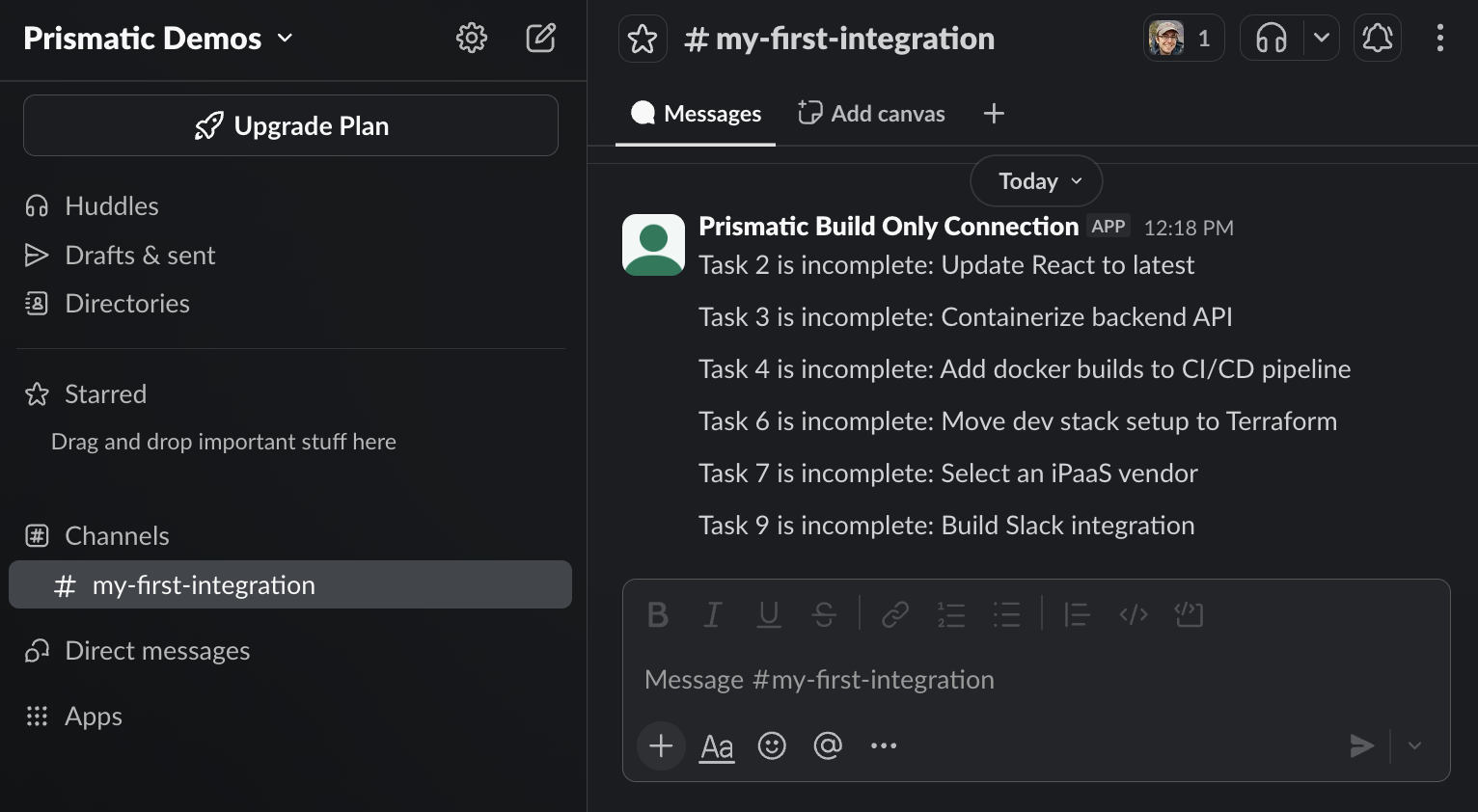
For each item that is not completed, the integration will post a message to
a Slack channel with the task details.
This integration should:
- Use a configuration variable for the REST API endpoint URL, which defaults
to `https://my-json-server.typicode.com/prismatic-io/placeholder-data/todo`
- Use a Slack OAuth connection for authentication - the build-only OAuth
connection is fine for now
- Prompt a user to select one of their Slack channels from a dropdown menu
- Run on a schedule each day at 8:00 AM UTC
```
Your AI assistant will scaffold a new project, install dependencies, write the flows, configure the Slack OAuth connection, and import the integration into your Prismatic tenant for testing. See full [agent skills documentation](https://prismatic.io/docs/custom-connectors/get-started/ai-assisted-development.md).
## Get started from scratch[](#get-started-from-scratch "Direct link to Get started from scratch")
If you prefer to learn by building the integration step-by-step yourself, follow the steps below to scaffold a new code-native integration. Our example integration will:
1. Be configurable with a REST API endpoint config variable and a Slack channel dropdown menu
2. Fetch a list of TODO items from a REST API endpoint
3. Check each item for a `completed` boolean property
4. For each incomplete item, post a message to a Slack channel with the task details
Prerequisites
* Install a recent version of [Node.js](https://nodejs.org/en)
* Install [Prismatic's CLI tool](https://prismatic.io/docs/cli.md) and [authenticate it](https://prismatic.io/docs/cli.md#authenticating-with-the-cli-tool) against your Prismatic tenant
* Authenticate a Slack connection by navigating to **Components** > **Slack** > **Connections** in the Prismatic web app, selecting the **Build Only** connection, and clicking **Connect**.
Initialize a new integration project
Use the [prism CLI tool](https://prismatic.io/docs/cli.md) to scaffold a new code-native integration project:
```bash
prism integrations:init todo-slack-notifications
```
This creates a new directory called `todo-slack-notifications`. Open this directory in your code editor and then install the project's dependencies
```bash
npm install
```
Finally, delete `src/flows.test.ts` and `src/client.ts` - we'll cover unit testing and creating reusable HTTP clients in another guide.
Remove extraneous files
```bash
rm src/client.ts src/flows.test.ts
```
Install the Slack component manifest
Our integration will rely on the built-in [Slack](https://prismatic.io/docs/components/slack.md) component, so we need to install the Slack component manifest into our project:
```bash
npx cni-component-manifest slack
```
This will create a set of files in `src/manifests/slack` that define the Slack component's actions, connections, triggers, and data sources.
Next, add Slack to your component registry:
src/componentRegistry.ts
```ts
import { componentManifests } from "@prismatic-io/spectral";
import slack from "./manifests/slack";
export const componentRegistry = componentManifests({ slack });
```
Create a configuration experience
For this integration, we want our users to:
1. Provide the endpoint for the REST API that the integration will fetch todo items from
2. Select a Slack channel from a dropdown menu to post incomplete tasks to
We'll add a basic config variable for the REST API, and we'll use a [data source](https://prismatic.io/docs/integrations/data-sources.md) to fetch the list of Slack channels and present them as a picklist dropdown menu.
For simplicity, we'll leverage a [build-only](https://prismatic.io/docs/integrations/connections.md#build-only-connections) connection, which is a connection that exists for development and testing purposes - for production, you'd want to create your own Slack OAuth app.
src/configPages.ts
```ts
import { configPage, configVar } from "@prismatic-io/spectral";
import { slackReusableConnection } from "./manifests/slack/connections";
import { slackSelectChannels } from "./manifests/slack/dataSources/selectChannels";
export const configPages = {
Configuration: configPage({
elements: {
"Slack Connection": slackReusableConnection(
// Replace this with your own UUID. See src/manifests/slack/connections/index.ts
"12345678-0000-0000-0000-000000000000",
),
// Include some helper text to guide users through the configuration experience
_helperText0: "Integration Configuration
",
_helperText1:
"Please provide the API endpoint for your todo items and select a Slack " +
"channel where you'd like to receive notifications of incomplete tasks.
",
"TODO API Endpoint": configVar({
stableKey: "todo-api-endpoint",
dataType: "string",
defaultValue:
"https://my-json-server.typicode.com/prismatic-io/placeholder-data/todo",
}),
"Slack Channel": slackSelectChannels("slack-channel", {
connection: { configVar: "Slack Connection" },
}),
},
}),
};
```
Finding your build-only connection UUID
Each organization has a distinct build-only connection ID for testing. Look at `src/manifests/slack/connections/index.ts` to find the `slackReusableConnection`'s `stableKey` for your tenant.
Build a flow to fetch TODO items and post incomplete ones to Slack
Now that our integration is configurable, we'll build a flow that runs on a schedule, fetches the list of TODO items from the configured REST API endpoint, and uses the Slack component to post messages to the configured Slack channel for each incomplete task.
src/flows.ts
```ts
import { flow } from "@prismatic-io/spectral";
import axios from "axios";
interface TodoItem {
id: number;
completed: boolean;
task: string;
}
export const checkTodoItems = flow({
name: "Check Todo Items",
stableKey: "check-todo-items",
description:
"Fetch todo items from an API and send message for incomplete items.",
schedule: { value: "0 8 * * *" }, // Run each day at 8:00 AM UTC
onExecution: async (context) => {
const response = await axios.get(
context.configVars["TODO API Endpoint"],
);
const todoItems = response.data;
for (const todoItem of todoItems) {
if (todoItem.completed) {
context.logger.info(
`Task ${todoItem.id} is completed: ${todoItem.task}`,
);
} else {
await context.components.slack.postMessage({
connection: context.configVars["Slack Connection"],
channelName: context.configVars["Slack Channel"],
message: `Task ${todoItem.id} is incomplete: ${todoItem.task}`,
});
}
}
return { data: null };
},
});
export default [checkTodoItems];
```
Build and import your integration
Now it's time to build your integration
Build the integration
```bash
npm run build
```
Finally, import your integration and open it in the Prismatic web app
Import and open the integration in Prismatic
```bash
prism integrations:import --open
```
Test your integration
Once the integration opens in your browser, navigate to **Test Configuration** > **Test Instance Configuration** and walk through the config wizard.
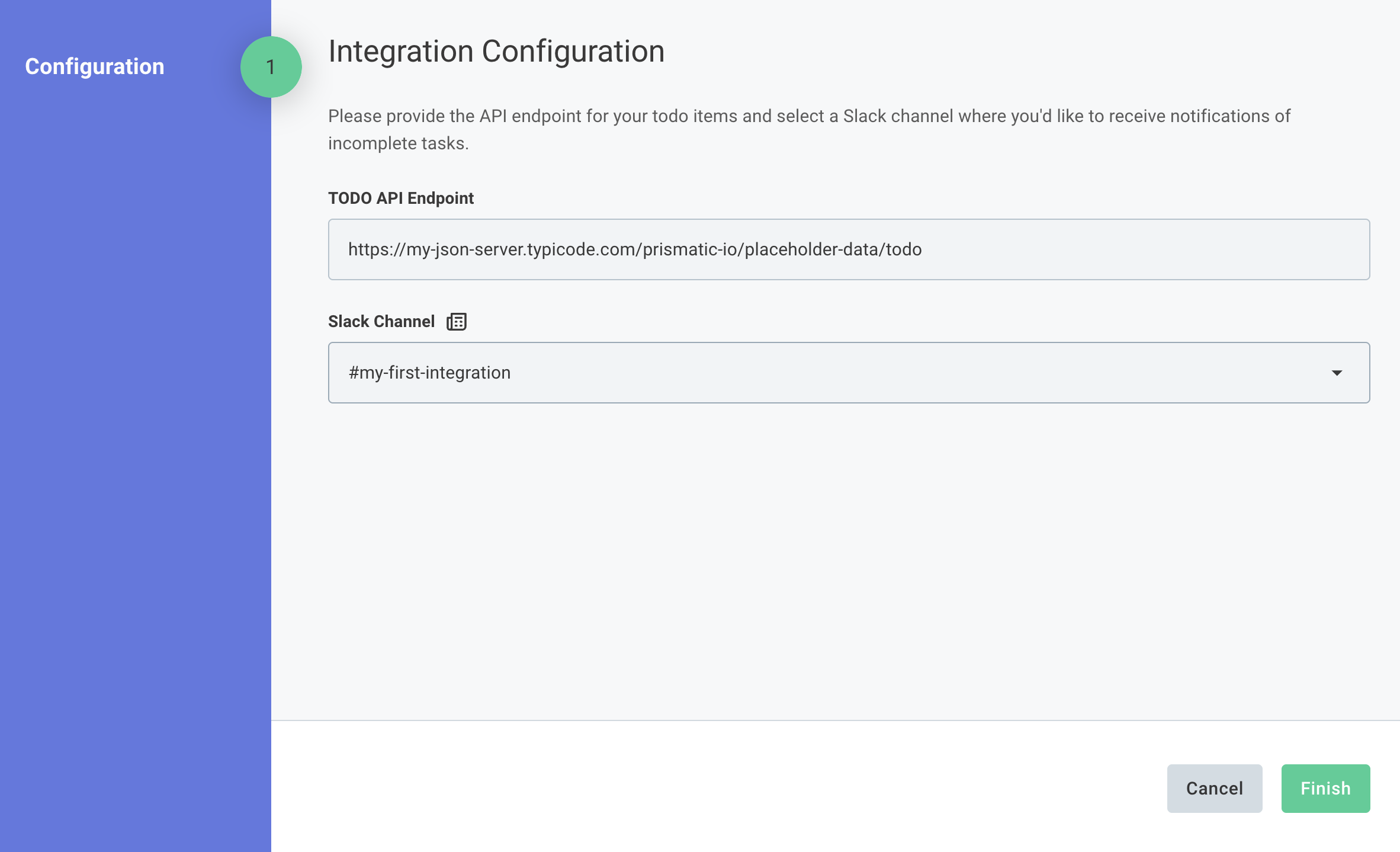
After completing the configuration, trigger a test execution of your flow by clicking **Test** in the top right of the page.