Embedding Workflow Builder
The video above shows how you can embed Prismatic's workflow builder in your application. Before embedding the workflow builder, please review Authenticating Users.
The Prismatic Skills plugin for Claude Code can walk you through workflow builder embedding, theming, and i18n interactively. Run /prismatic-skills:embedded to get started.
Enabling workflow builder
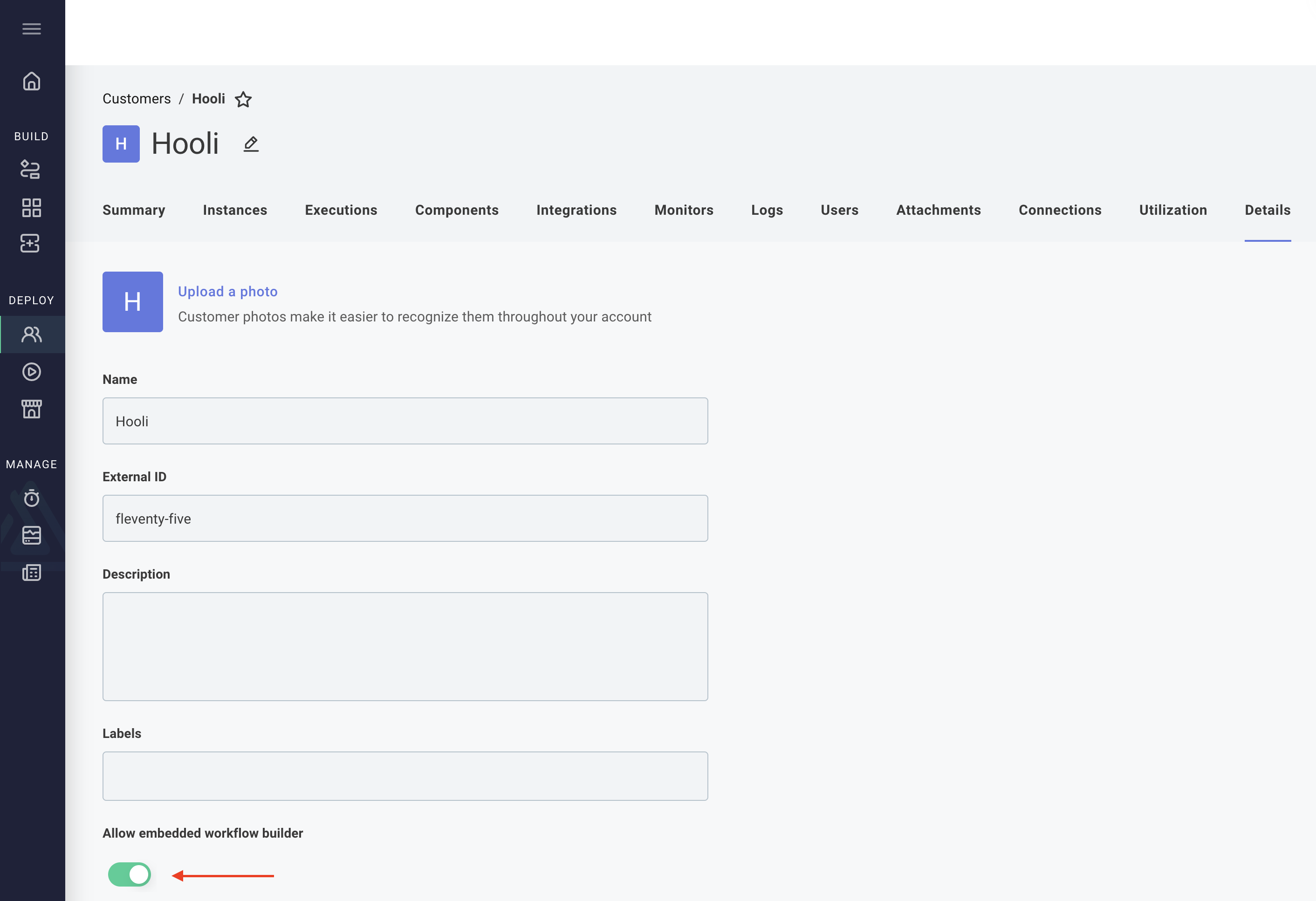
The embedded workflow builder is disabled for all customers by default. To enable it for a customer, open the customer from the Customers screen and select the Details tab. Enable the Allow embedded workflow builder option.
Listing workflows
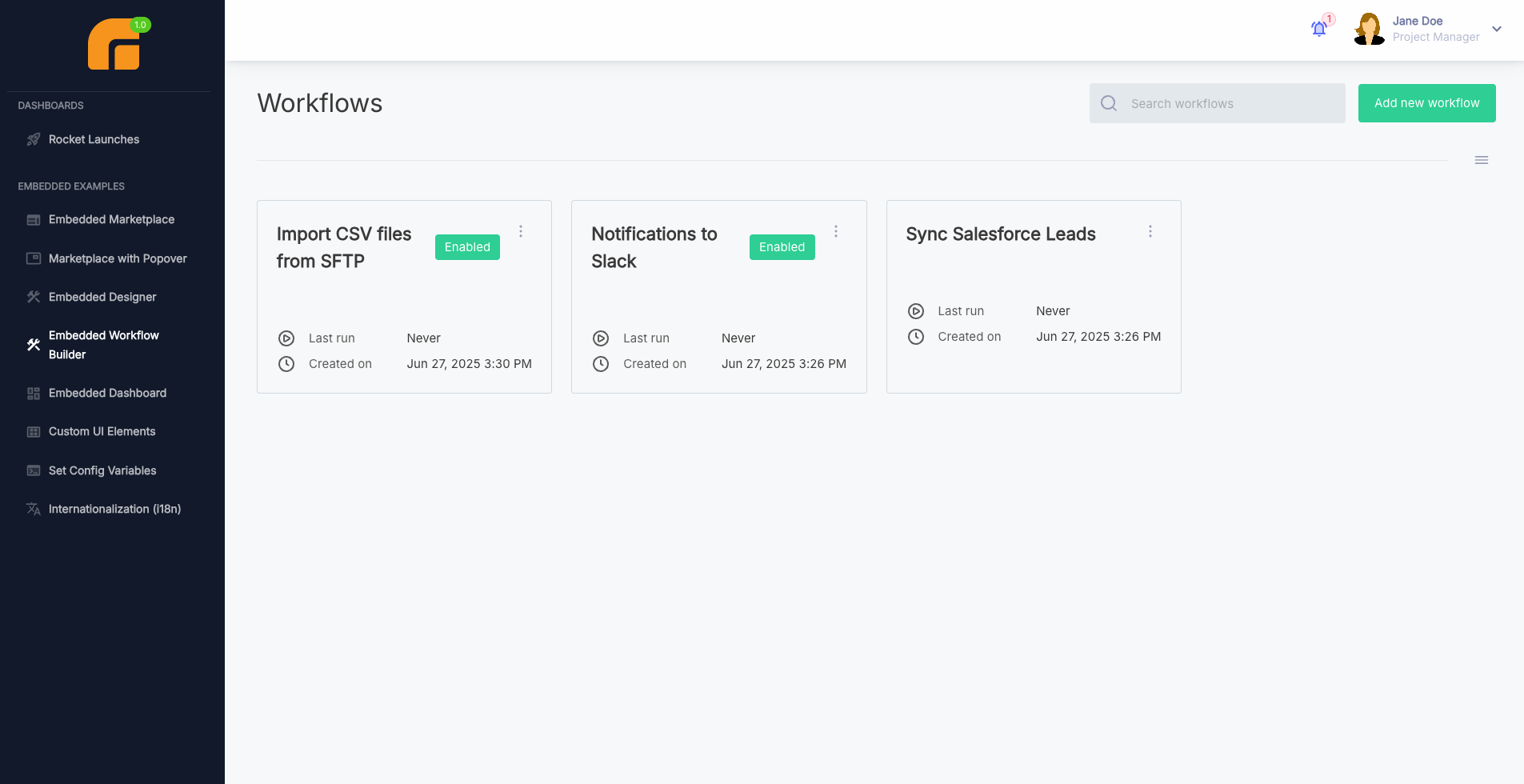
The prismatic.showWorkflows function displays all workflows owned by the customer user's customer.
import prismatic from "@prismatic-io/embedded";
import { useEffect } from "react";

const id = "workflow-list-div";

function WorkflowList() {
  useEffect(() => {
    prismatic.showWorkflows({ selector: `#${id}` });
  }, []);

  return <div id={id}>Loading...</div>;
}

export default WorkflowList;
From the showWorkflows screen, your customers can open existing workflows or create new workflows by clicking the +Add workflow button.
Opening the workflow builder directly
If you know the ID of an workflow, you can open it directly using prismatic.showWorkflow.
You will need to get the workflow's ID using the prismatic.graphqlRequest function:
const embeddedDivId = "embedded-workflow-div";

interface Workflow {
  id: string;
  name: string;
}
function Workflows() {
  const { authenticated } = usePrismaticAuth();
  const [workflows, setWorkflows] = React.useState<Workflow[]>([]);

  React.useEffect(() => {
    const fetchWorkflows = async () => {
      const response = await prismatic.graphqlRequest({
        query: `query getWorkflows {
            workflows(draft: true) {
                nodes {
                    id
                    name
                }
            }
        }`,
      });
      setWorkflows(response.data.workflows.nodes);
    };
    if (authenticated) {
      fetchWorkflows();
    }
  }, [authenticated]);

  return (
    <>
      <Head>
        <title>Workflows</title>
      </Head>
      {workflows.map((workflow) => (
        <button
          key={workflow.id}
          onClick={() =>
            prismatic.showWorkflow({
              workflowId: workflow.id,
              selector: `#${embeddedDivId}`,
            })
          }
        >
          {workflow.name}
        </button>
      ))}
      <WorkflowWrapper id={embeddedDivId} maxWidth={false} disableGutters />
      <Footer />
    </>
  );
}
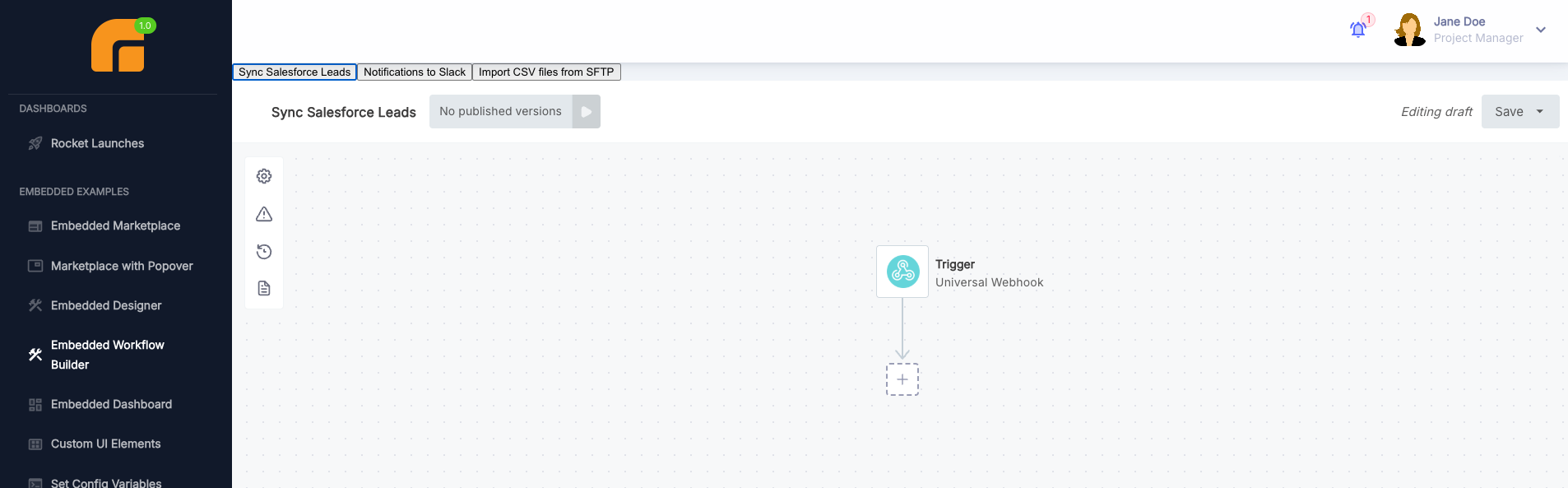
The above simple script will present workflows as buttons.
When clicked, prismatic.showWorkflow will open the workflow builder for that workflow.
Workflow builder events
Similar to marketplace events, you can listen for events when workflows are enabled or disabled. The following events will be emitted when workflows are enabled or disabled:
WORKFLOW_ENABLED: Emitted when a workflow is enabled.WORKFLOW_DISABLED: Emitted when a workflow is disabled.
For both of these events, the event's data property will contain information about the workflow and customer:
{
  "event": "WORKFLOW_ENABLED",
  "data": {
    "customerId": "Q3VzdG9tZXI6ZjYxMzY4MzItMzYxYi00NmI3LTlmMmItN2ZkNTc3YzY1YTg1",
    "customerName": "Smith Real Estate",
    "workflowVersionId": "V29ya2Zsb3dWZXJzaW9uOjdiNTIxYjcyLWM5ZTUtNGI5MC1iM2RhLWU2ODk2OTllNmYwZQ==",
    "instanceName": "Process Customer Orders",
    "instanceId": "SW5zdGFuY2U6N2I1MjFiNzItYzllNS00YjkwLWIzZGEtZTY4OTY5OWU2ZjBl"
  }
}
You can listen for these events using a window.addEventListener:
window.addEventListener("message", (event) => {
  if (event.data.event === "WORKFLOW_ENABLED") {
    const { customerName, instanceName } = event.data.data;
    console.log(`${customerName} enabled workflow ${instanceName}`);
  }
});