Embedding Component Screens
You can embed component screens in your application using the showComponents() and showComponent() functions. These allow customers to view all available components or see details about a specific component.
Show all components
The showComponents() function displays all components available in your organization.
Basic usage
import prismatic from "@prismatic-io/embedded";
import { useEffect } from "react";

const id = "components-div";

function ComponentListView() {
  useEffect(() => {
    prismatic.showComponents({ selector: `#${id}` });
  }, []);

  return <div id={id}>Loading...</div>;
}

export default ComponentListView;
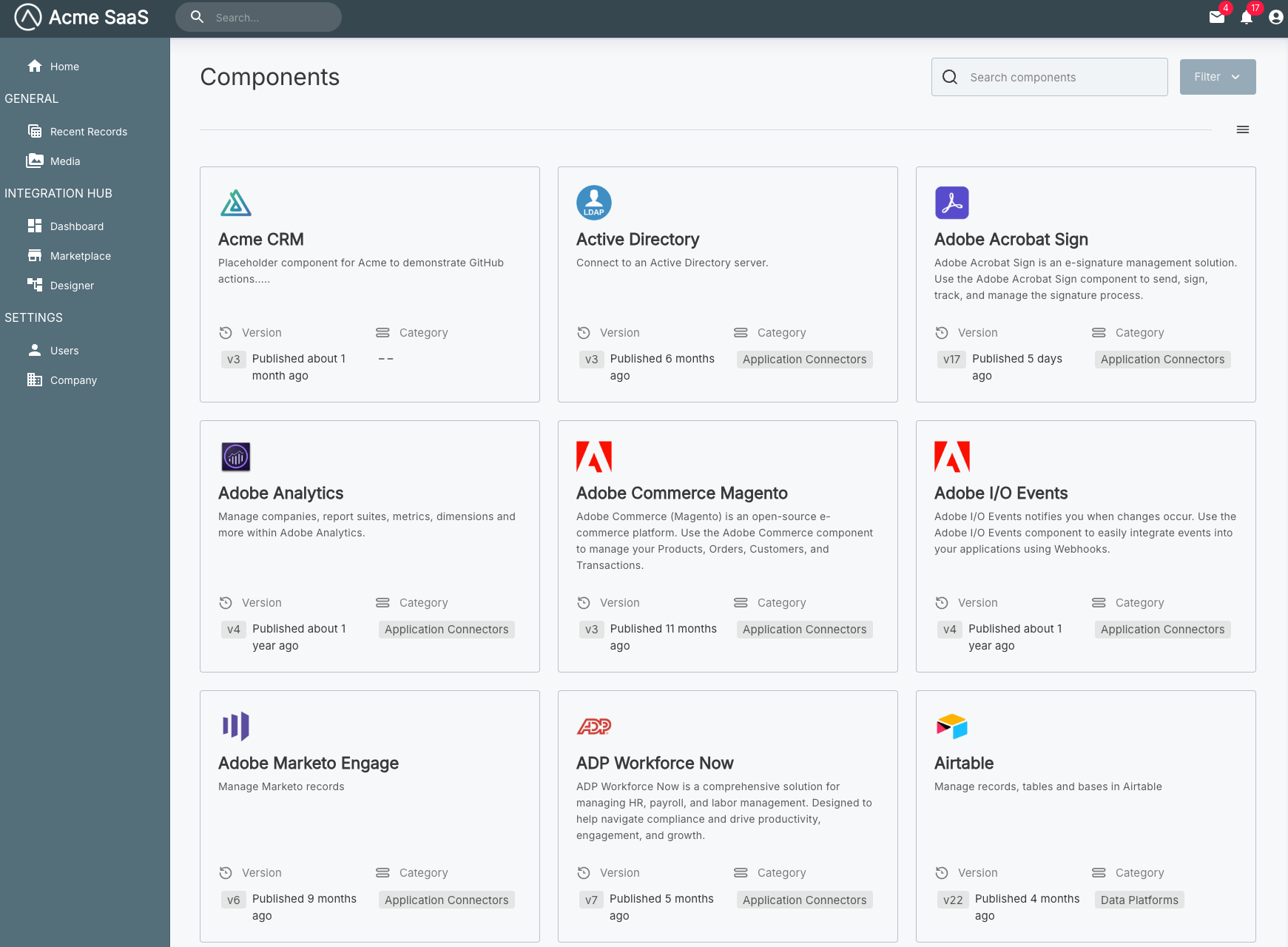
Configuration options
The showComponents() function accepts a configuration object. See the Additional Screens Overview for available options including selector, usePopover, theme, autoFocusIframe, filters, screenConfiguration, and translation.
Show a specific component
The showComponent() function displays details about a specific component. You'll need to provide the component's ID, which you can retrieve using the prismatic.graphqlRequest() function.
Basic usage
import prismatic from "@prismatic-io/embedded";
import { useEffect } from "react";

const id = "component-div";

function DropboxComponent() {
  useEffect(() => {
    const showDropboxComponent = async () => {
      const query = `query getComponentByKey($componentKey: String!) {
        components(key: $componentKey) {
          nodes {
            id
          }
        }
      }`;

      const result = await prismatic.graphqlRequest({
        query,
        variables: { componentKey: "dropbox" },
      });

      prismatic.showComponent({
        selector: `#${id}`,
        componentId: result.data.components.nodes[0].id,
      });
    };

    showDropboxComponent();
  }, []);

  return <div id={id}>Loading...</div>;
}

export default DropboxComponent;
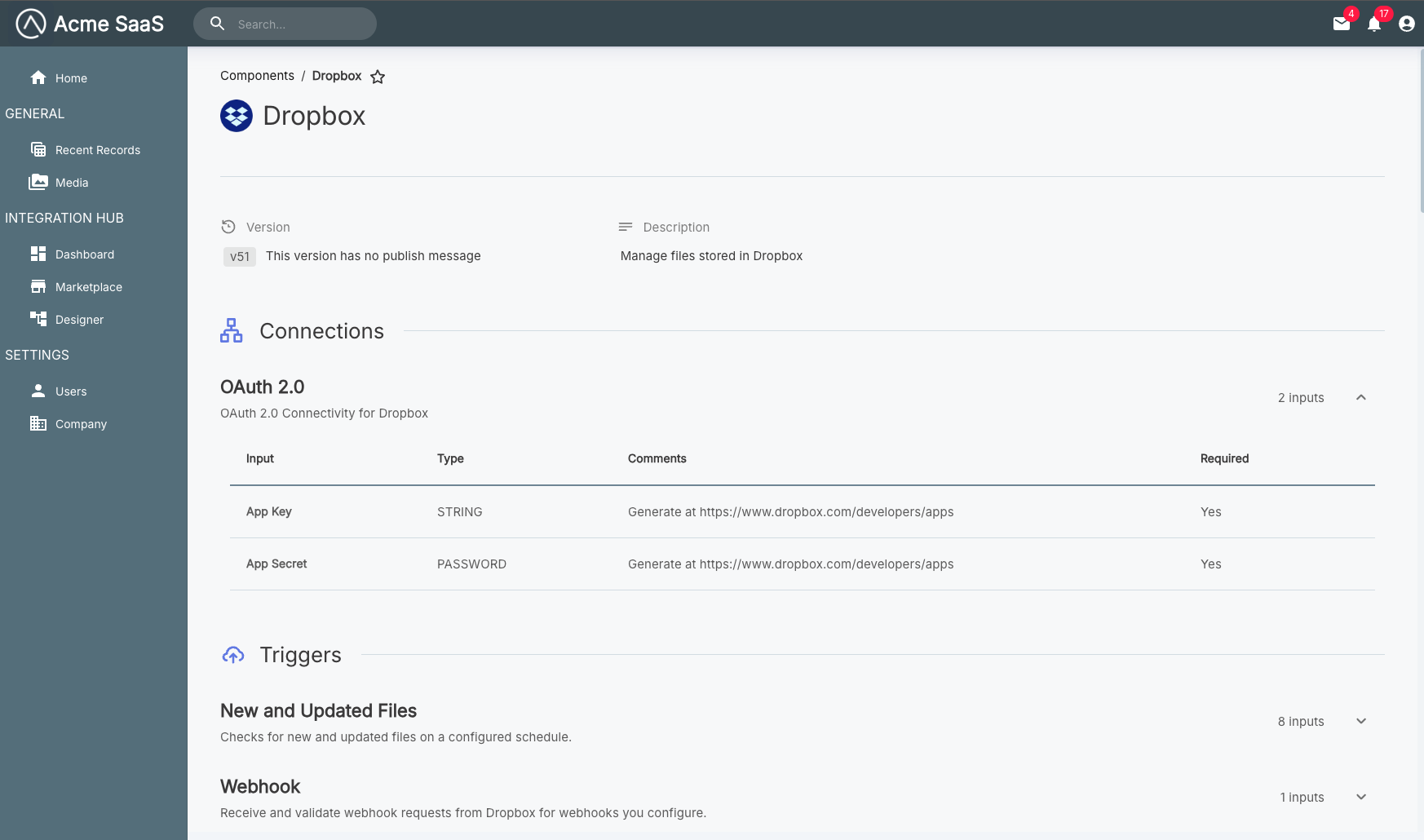
Additional documentation on querying the Prismatic API as a customer user from the embedded SDK is available in the Embedded API Requests article.
Configuration options
The showComponent() function accepts a configuration object with the following properties:
componentId
Type: string (required)
The ID of the component to display. You must retrieve this ID using the Prismatic API.
prismatic.showComponent({
  selector: "#component-div",
  componentId:
    "Q29tcG9uZW50OmQzNzJiZGI4LTY5MjItNGMzNS1hZGQ2LWRkMjU3NmE4ZjYyYQ==",
});
For all other configuration options including selector, usePopover, theme, autoFocusIframe, screenConfiguration, and translation, see the Additional Screens Overview.
Complete examples
All components with configuration
import prismatic from "@prismatic-io/embedded";
import { useEffect } from "react";

const id = "components-div";

function ComponentListView() {
  useEffect(() => {
    prismatic.showComponents({
      selector: `#${id}`,
      usePopover: false,
      theme: "DARK",
      autoFocusIframe: true,
      filters: {
        components: {
          category: "Data Platforms",
        },
      },
    });
  }, []);

  return <div id={id}>Loading...</div>;
}

export default ComponentListView;
Specific component with configuration
import prismatic from "@prismatic-io/embedded";
import { useEffect } from "react";

const id = "component-div";

function DropboxComponent() {
  useEffect(() => {
    const showDropboxComponent = async () => {
      const query = `query getComponentByKey($componentKey: String!) {
        components(key: $componentKey) {
          nodes {
            id
          }
        }
      }`;

      const result = await prismatic.graphqlRequest({
        query,
        variables: { componentKey: "dropbox" },
      });

      prismatic.showComponent({
        selector: `#${id}`,
        usePopover: false,
        theme: "LIGHT",
        autoFocusIframe: true,
        componentId: result.data.components.nodes[0].id,
      });
    };

    showDropboxComponent();
  }, []);

  return <div id={id}>Loading...</div>;
}

export default DropboxComponent;