Prismatic Extension for VS Code & Cursor
An extension for VSCode & Cursor that improves the developer experience around Code-Native Integrations (CNI) by enabling test execution, integration imports, instance configuration, and inspection of execution results directly within the IDE.
Purpose
The main intent of this extension is to offer:
-
Seamless Development Workflow Integration: This extension bridges the gap between local development and the Prismatic platform by providing direct access to integration testing, configuration, and debugging tools within your IDE. Instead of constantly switching between your code editor and the Prismatic web interface, developers can manage their entire CNI development lifecycle from VS Code, reducing context switching and improving productivity.
-
Real-time Testing and Debugging: The extension provides immediate feedback on integration performance through real-time test execution and detailed step-by-step output streaming. This allows developers to quickly identify issues, debug problems, and iterate on their integrations without leaving their development environment, significantly reducing the feedback loop between coding and testing.
-
Unified Configuration Management: The Config Wizard provides a guided interface for setting up integration instances, while maintaining synchronization with the Prismatic platform, ensuring that local development configurations stay aligned with production environments.
Features
- Authentication: Secure login and token management with multi-tenant support.
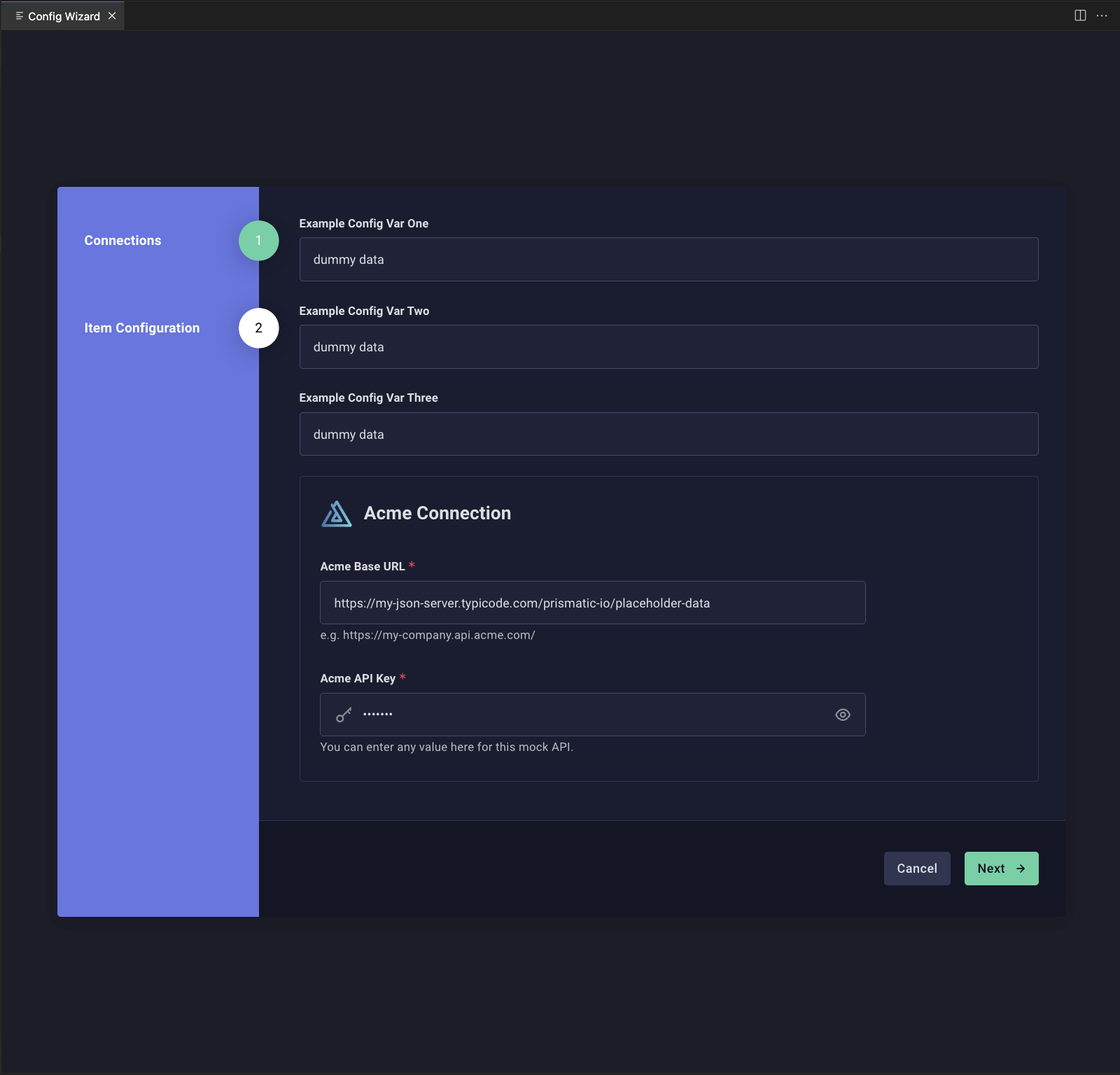
- Config Wizard: Configure integration instances with a guided interface.
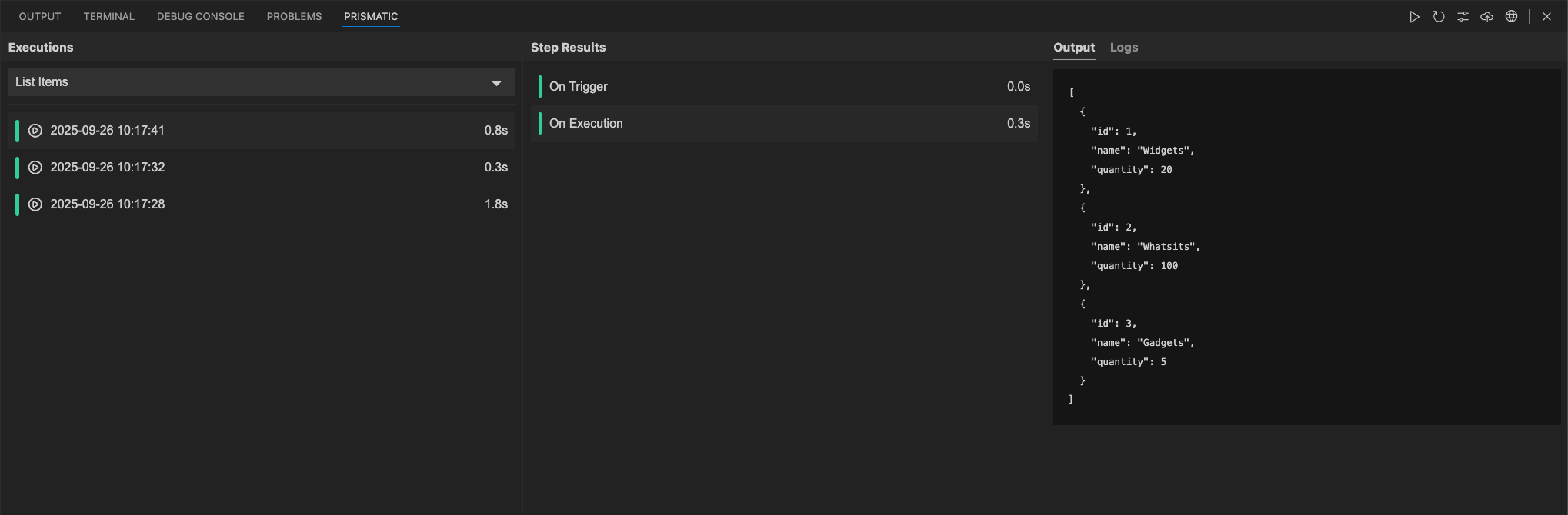
- Execution Results: View detailed step-by-step outputs and logs.
- Integration Import: Direct import of integrations from Prismatic via the Prism CLI.
- Status Bar: Displays the current organization and active integration at a glance.
- Integrations Sidebar: Tree view listing all Code-Native Integrations in your workspace.
- Integration Details: Sidebar panel showing configuration state, flows, and connections.
- Flow Payloads: Tree view of flows and their test payload files.
Prerequisites
- A Prismatic account.
- VSCode version 1.96.0 or higher or Cursor.
- A Prismatic Code-Native Integration (CNI) project.
- The Prismatic CLI (Prism) installed globally.
Installation
Install the Prismatic extension for VS Code by visiting the Visual Studio Marketplace or by searching for "Prismatic" in the VS Code Extensions view.
Usage
The extension provides commands and webview panels that can be accessed through the VS Code command palette:
- Press
Cmd+Shift+P(Mac) orCtrl+Shift+P(Windows/Linux) - Type "Prismatic" to see available commands.
Available Commands
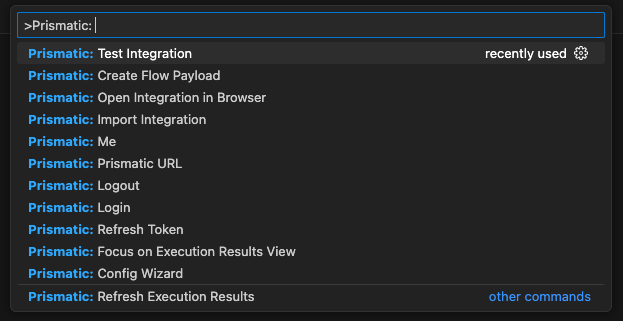
Prismatic: Config Wizard
Launches the Config Wizard to edit configuration values for your integration instance.
Prismatic: Import Integration
Imports your local Code-Native Integration into the Prismatic platform.
Prismatic: Test Integration
Runs a test for your Code-Native Integration and streams step outputs and logs for debugging.
Prismatic: Create Flow Payload
Generates a sample flow payload you can use to simulate data inputs during testing.
Prismatic: Login
Opens your browser to authenticate with Prismatic. If your account has access to multiple tenants, you'll be prompted to select one.
Prismatic: Logout
Clears your stored authentication session.
Prismatic: Switch Tenant
Switches between Prismatic organizations without logging out and back in.
Prismatic: Prismatic URL
Sets the Prismatic instance URL used by the extension. This allows you to change your Prismatic stack environment.
Prismatic: Select Integration
Switches the active integration from a list of Code-Native Integrations found in your workspace.
Prismatic: Open Integration in Browser
Opens the active Code-Native Integration in the Prismatic web app.
Prismatic: Reveal in Explorer
Reveals the active integration's directory in the VS Code file explorer.
Prismatic: Me
Displays details about the currently authenticated Prismatic user, including name, organization, and Prismatic stack URL.
Prismatic: Focus on Execution Results View
Displays test results, including step results and logs.
Available Webviews
Prismatic: Focus on Execution Results View
Displays test results, including step results and logs.
Prismatic: Config Wizard
Displays the Config Wizard to edit configuration values for your integration instance.
Extension settings
prismatic.prismCliPath
Path to the Prism CLI executable. If not specified, the extension searches for prism in your system PATH, falling back to npx.
prismatic.npmCliPath
Path to the npm executable. If not specified, the extension searches for npm in your PATH and common locations (Homebrew, nvm, asdf, etc.).
prismatic.debugMode
Debug logging level for command execution.
| Value | Description |
|---|---|
off | No debug logging (default) |
basic | Logs command, working directory, and Node version |
verbose | Logs command, working directory, Node version, and all environment variables |
Debug output appears in the Prismatic output channel (View > Output > "Prismatic").
Troubleshooting
If you encounter issues:
- Enable debug mode (
basicorverbose) in VS Code settings and check the Prismatic output channel (View > Output > "Prismatic") for detailed logs. - Ensure the CLI is installed globally:
npm install -g @prismatic-io/prism - Verify the installation:
prism --version - Check your PATH environment variable includes the npm global bin directory.
- Try reinstalling the extension.
Related tools
- To set up the Prism CLI, see Set Up Your Dev Environment.
- The Prism MCP dev server connects AI coding assistants to your Prismatic tenant.
- Prismatic agent skills give your AI coding assistant platform knowledge and guidance for building, operating, and troubleshooting in Prismatic.