Data Sources in Embedded Workflow Builder
In the low-code integration designer, data sources populate config wizard variables with dynamic data from third-party APIs. However, the embedded workflow builder doesn't have config wizards. Instead, you can use data sources to provide dynamic options directly for action inputs.
How data sources work in embedded workflow builder
In the embedded workflow builder, data sources provide picklist options for action inputs. When you reference a data source in an action input, the workflow builder fetches the data and displays it as a dropdown menu.
This allows your customers to select from dynamic lists like:
- Slack channels from their workspace
- Salesforce objects from their org
- Users from their system
- Any other data fetched from external APIs
Creating a data source for action inputs
To use a data source with an action input in the embedded workflow builder, you create both a data source and an action that references it.
Here's an example that fetches a list of people from an API and lets users select one:
- index.ts
- connections.ts
- dataSources.ts
- actions.ts
/**
 * Main component file that exports the component definition.
 * This file imports and combines the actions, data sources, and connections
 * defined in separate files.
 */

import { component } from "@prismatic-io/spectral";
import { getPerson } from "./actions";
import { peopleApiKey } from "./connections";
import { selectPerson } from "./dataSources";

export default component({
  key: "inlineDataSources",
  public: false,
  display: {
    label: "inline-data-sources",
    description: "Component demonstrating inline data sources for EWB",
    iconPath: "icon.png",
  },
  // Export the action that uses the data source
  actions: { getPerson },
  // Export the data source so it can be referenced by actions
  dataSources: { selectPerson },
  // Export the connection for authenticating with the API
  connections: [peopleApiKey],
});
/**
 * Connection definitions and helpers for authenticating with the People API.
 * This file defines the connection configuration and provides a helper function
 * to create an authenticated HTTP client.
 */

import { connection, input, type Connection } from "@prismatic-io/spectral";
import { createClient } from "@prismatic-io/spectral/dist/clients/http";

// Define the connection that users will configure
export const peopleApiKey = connection({
  key: "peopleApiKey",
  display: {
    label: "People API Key",
    description: "API Key for accessing the People API",
  },
  inputs: {
    apiKey: input({ label: "API Key", type: "string", required: true }),
  },
});

// Connection input that can be used by actions and data sources
export const connectionInput = input({
  label: "Connection",
  type: "connection",
  required: true,
});

// Helper function to create an authenticated HTTP client
export const getPeopleClient = (connection: Connection) => {
  const apiKey = connection.fields.apiKey as string;
  return createClient({
    baseUrl: "https://jsonplaceholder.typicode.com",
    headers: {
      Authorization: `Bearer ${apiKey}`,
    },
  });
};
/**
 * Data source that fetches a list of people from the API.
 * In the embedded workflow builder, this data source provides dropdown options
 * for action inputs that reference it.
 */

import { dataSource } from "@prismatic-io/spectral";
import { connectionInput, getPeopleClient } from "./connections";

interface Person {
  id: number;
  name: string;
}

export const selectPerson = dataSource({
  display: {
    label: "Select Person",
    description: "Select a person from the list",
  },
  // Use "picklist" type to display options in a dropdown menu
  dataSourceType: "picklist",
  inputs: { connection: connectionInput },
  perform: async (context, inputs) => {
    // Fetch people from the API
    const client = getPeopleClient(inputs.connection);
    const response = await client.get<Person[]>("/users");
    const people = response.data;

    // Return data in key/label format for the picklist
    return {
      result: people.map((person) => ({
        key: person.id.toString(), // The value that will be saved
        label: person.name, // The text that users will see
      })),
    };
  },
});
/**
 * Action that retrieves a specific person by ID.
 * The personId input references the selectPerson data source,
 * which provides a dropdown menu of people in the embedded workflow builder.
 */

import { action, input, util } from "@prismatic-io/spectral";
import { connectionInput, getPeopleClient } from "./connections";

interface Person {
  id: number;
  name: string;
}

export const getPerson = action({
  display: {
    label: "Get Person",
    description: "Get a person by ID",
  },
  inputs: {
    connection: connectionInput,
    personId: input({
      label: "Person ID",
      type: "string",
      required: true,
      clean: util.types.toString,
      // Reference the data source by its key - this creates a dropdown in EWB
      dataSource: "selectPerson",
    }),
  },
  perform: async (context, { connection, personId }) => {
    // Fetch the specific person using the selected ID
    const client = getPeopleClient(connection);
    const response = await client.get<Person>(`/users/${personId}`);
    return { data: response.data };
  },
});
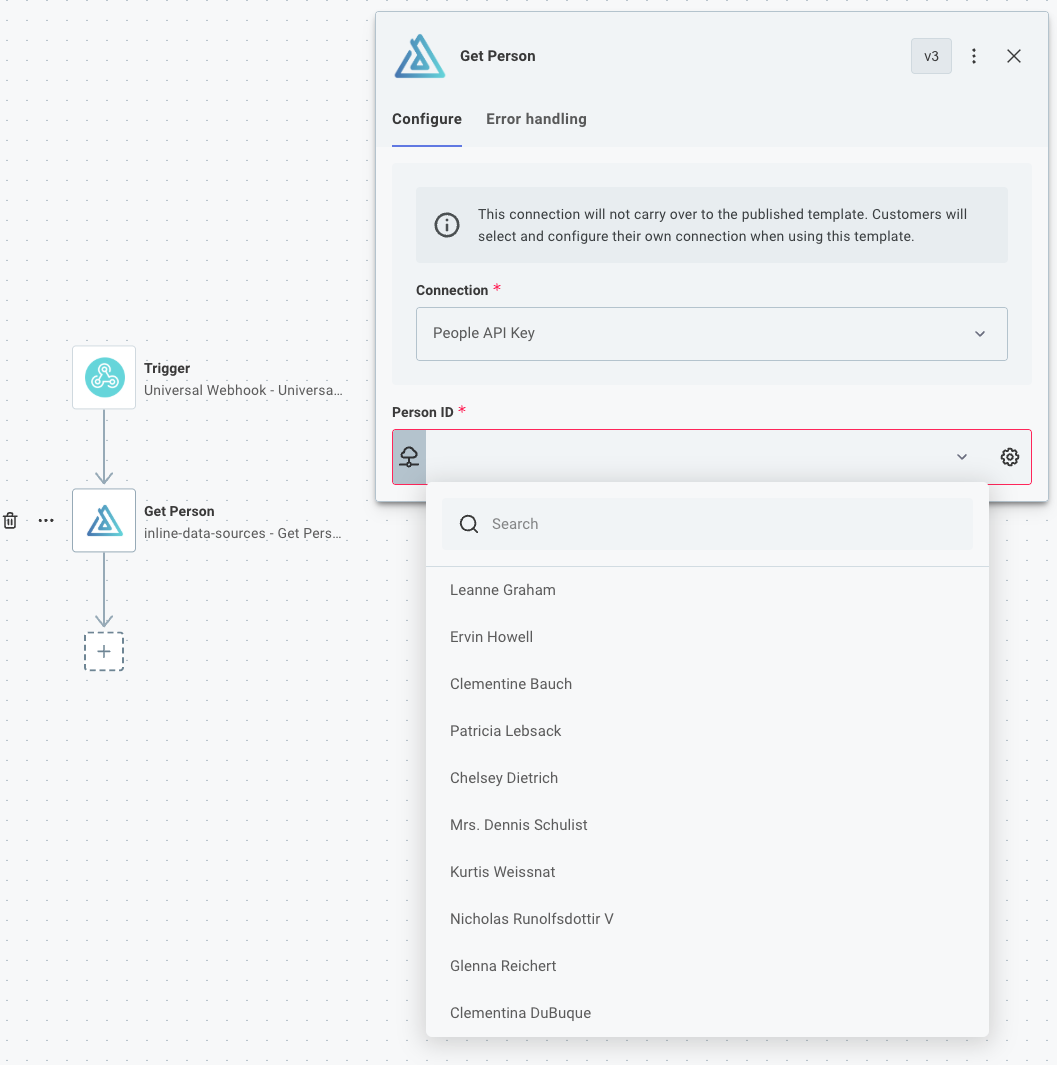
Given the code above, a user configuring the Get Person action in the embedded workflow builder will see a dropdown menu for the Person ID input populated with names fetched from the API.
Key points
When creating data sources for the embedded workflow builder:
- Reference by key: In the action input, set
dataSourceto the key of your data source (in the example above,"selectPerson"). - Export the data source: Include the data source in your component's
dataSourcesexport. - Use picklist type: The
dataSourceTypeshould be"picklist"for dropdown menus. - Return key/label pairs: The data source should return an array of objects with
keyandlabelproperties.
The embedded workflow builder will automatically fetch the data source when users configure the action and display the results as a dropdown menu.
Data source types in embedded workflow builder
Only picklist data source types work as action inputs in the embedded workflow builder
For complete information on creating data sources, see Config Wizard Data Sources.