User Settings
Managing your own user profile
You can update your name, password, phone number, avatar image, and light/dark mode preferences. Begin by clicking your user avatar at the top-right of the screen, then select the User settings link. All user profile preferences are available in the Password and Details tabs.
Updating your password
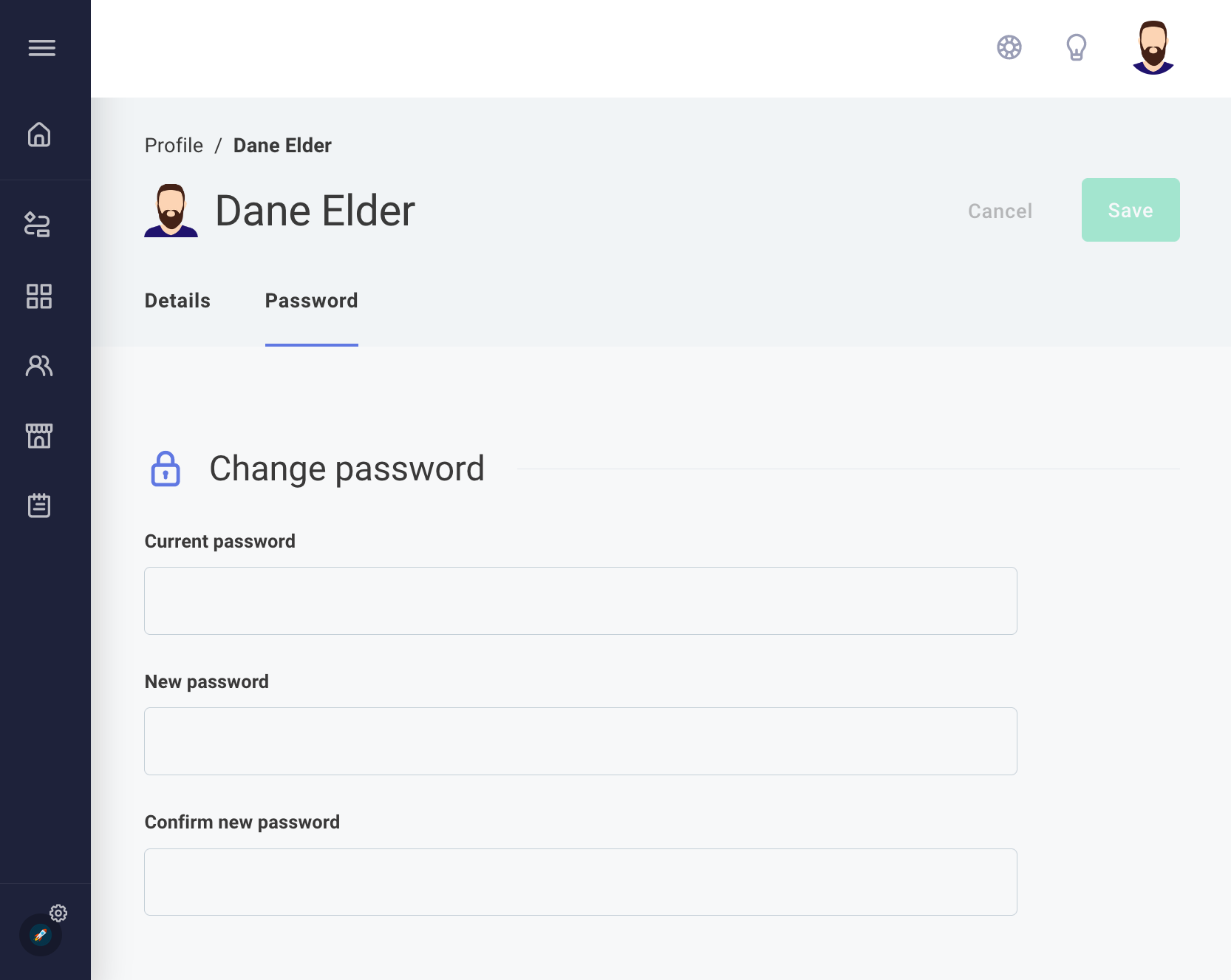
After clicking your avatar at the top-right of the screen and selecting User settings, open the Password tab. Enter your current password, then select a new password. Your password must contain:
- At least 8 characters
- At least one uppercase letter
- At least one lowercase letter
- At least one number
Note: If your organization uses single sign-on (SSO) to authenticate to Prismatic, you will not be able to change your password through Prismatic.
Resetting a forgotten password
If you have forgotten your password, navigate to https://app.prismatic.io. If you are not logged out, do so by clicking your avatar at the top-right of the screen and selecting Logout.
Enter your email address, then click Continue. Click the Forgot password? button and then click Continue again. You will receive an email with a password reset link where you can create a new password.
Updating your name, avatar, or phone number
After clicking your avatar at the top-right of the screen, select the Details tab. You can modify your name or phone number from this screen. If you provide a phone number, it can be used by your team members for monitoring and alerting purposes. If you modify your avatar image, Prismatic will resize and crop it to 500 x 500 pixels. Transparent PNG avatar images typically yield the best results.
Setting light or dark mode
By default, the web application will present light or dark mode to match your operating system settings. To override the light/dark mode setting, click your avatar at the top-right of the screen, and click the Light or Dark button as needed.

Light/dark mode settings are associated with your user account, so if you set a preference on one computer, that preference will be retained when you log in from another computer.