Changelog

Prismatic Changelog

Stay up to date with the latest changes and improvements to our product.

19 posts tagged with "Low-Code"

The low-code integration designer - flows, steps, expressions, testing, and designer UX.

View All Tags

New Integration Designer UX

We've built a new integration designer experience! Many of our customers have already switched to the new designer, and we're hearing great things.

The new designer makes it faster and easier to build integrations in our low-code environment. Here are the highlights:

  1. Streamlined designer canvas that makes better use of space
  2. Panning and zooming so you can move around quickly
  3. A more intuitive experience for adding and configuring integration steps
  4. ...and more enhancements coming soon!

To try out the new experience, toggle the Designer Beta setting you'll see at the top of your integration designer screen. (Note that any of your customers using the embedded designer won't see the beta version at this time.)

We love it, and we hope you will too!

Step-Level Error Handling

Sometimes a step in an integration throws an error. This can be caused by a variety of external factors - temporary network connectivity issues, brief third-party API outages, etc.

You can now configure how the integration runner handles errors on each step. You can choose to stop the instance execution (that's the current default behavior), you can ignore the error and continue the run, or you can choose to wait and retry the step at a later time.

Read more in our docs.

Cloning Flows

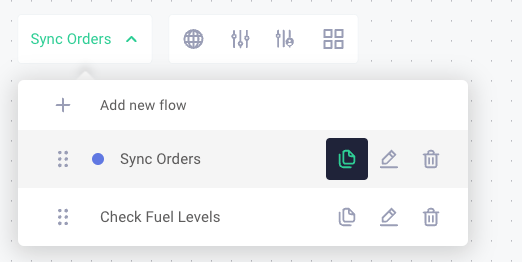
If you need to add a flow that is similar to another flow you've already built, it's helpful to be able to clone (make a copy of) a flow. You can now clone an existing flow from the flow menu in the integration designer.

Clone integration flow in Prismatic app

For more information, see our Building Integrations article.

Looping and Pagination

The loop component has been improved to facilitate easily looping over a paginated API. Many third-party APIs limit the number of records you can fetch at once, and let you load a batch (page) of records at a time. You can now more easily loop over paged records that you fetch from an external API, and you can break out of a loop whenever you've paged over all available records.

Check out our quickstart for a tutorial on how to loop over pages of records in an integration.

New Step Input: Expressions

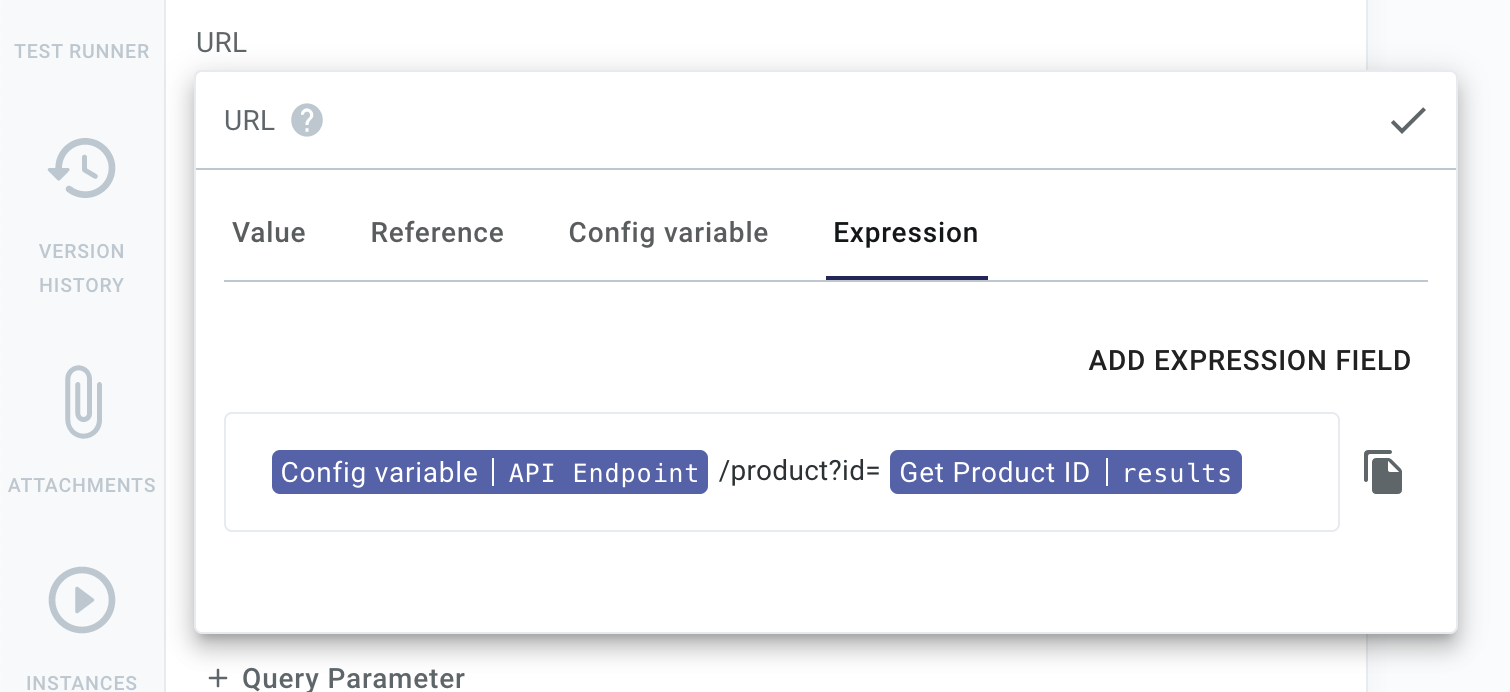
You can now reference multiple config variables, step results, and static strings for step input using templated inputs. This lets you concatenate config variables, text, and step results together, without needing an additional step to do the concatenation. It's helpful for dynamically generating URLs, queries, messages, and more.

Expressions for step inputs in Prismatic app

Update: As of 2022-05-25, "Expression inputs" have been renamed "Template inputs"

Configurable Webhook Triggers

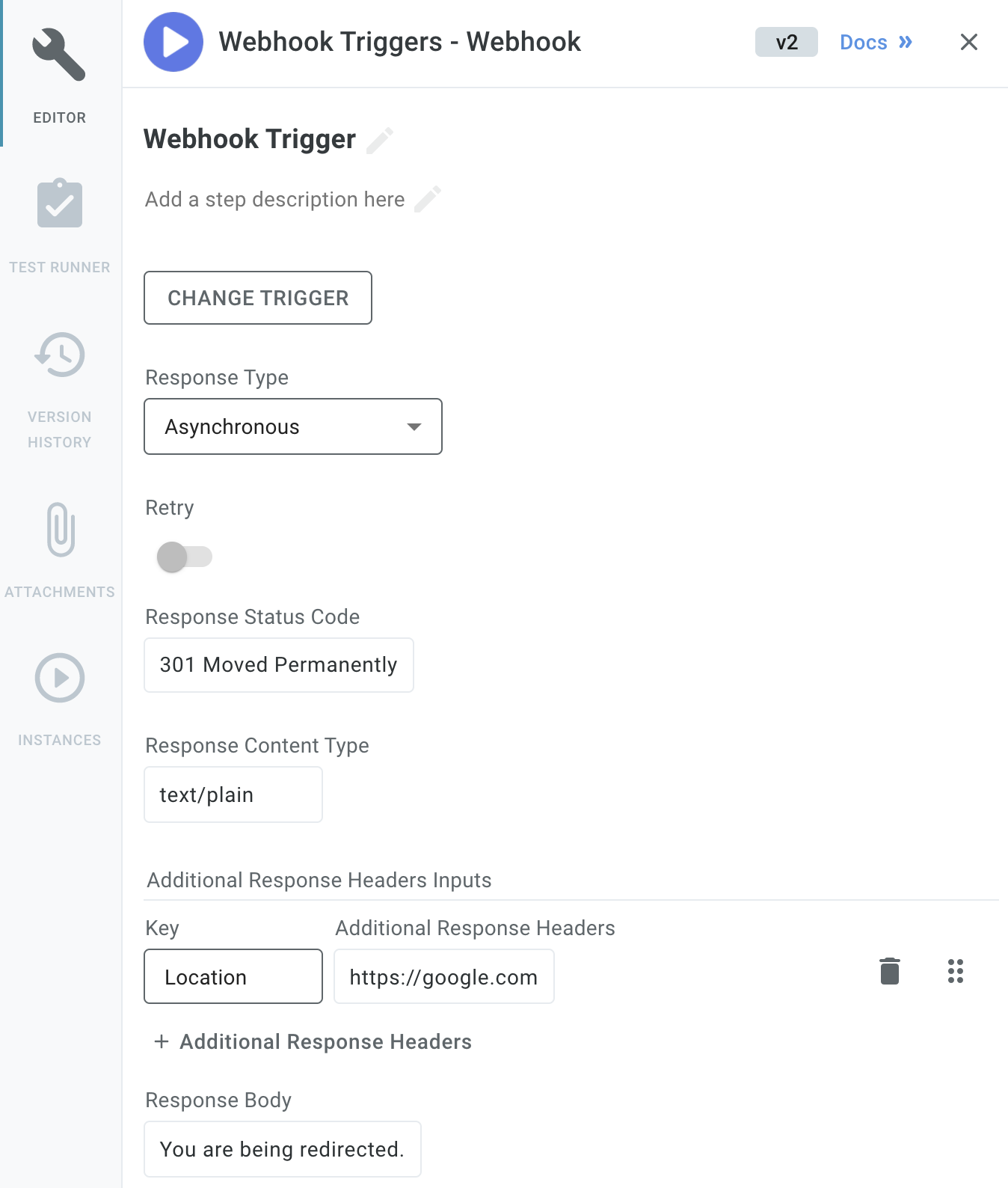
Configure webhook trigger in Prismatic app

The general webhook trigger is now more configurable. You can now specify the HTTP code, headers, response type, and response body that the webhook trigger returns to a webhook caller. This helps you handle APIs that require custom responses, and allows you to redirect webhook callers as needed.

Integration Categories and Icons

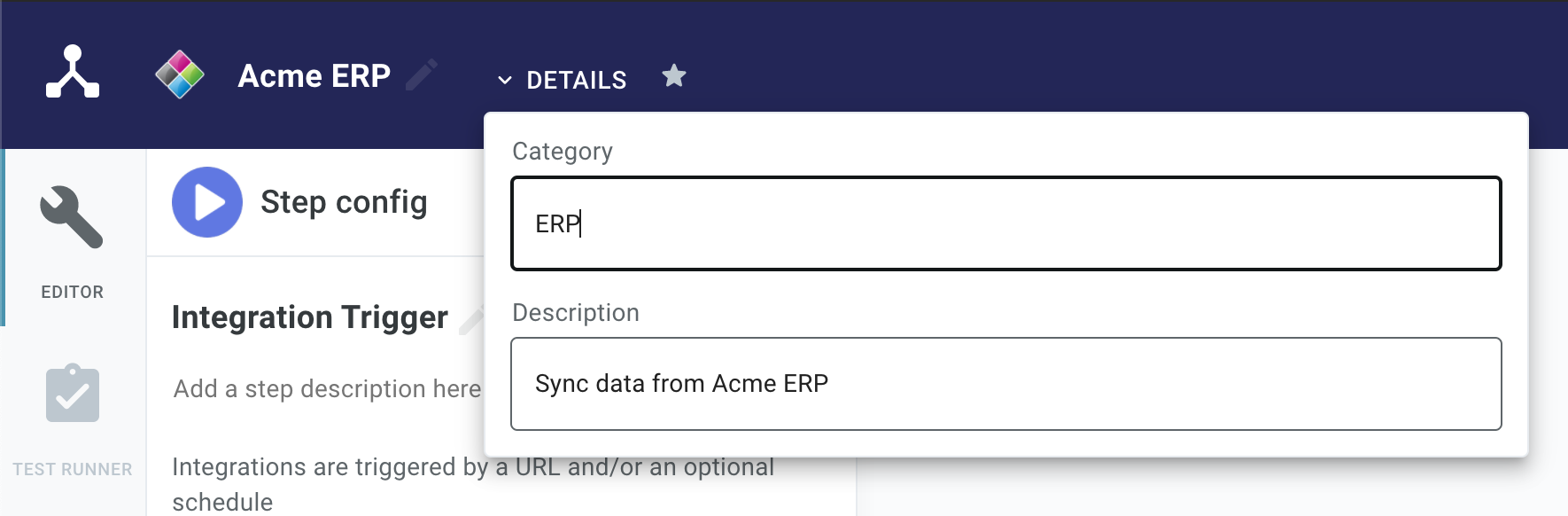
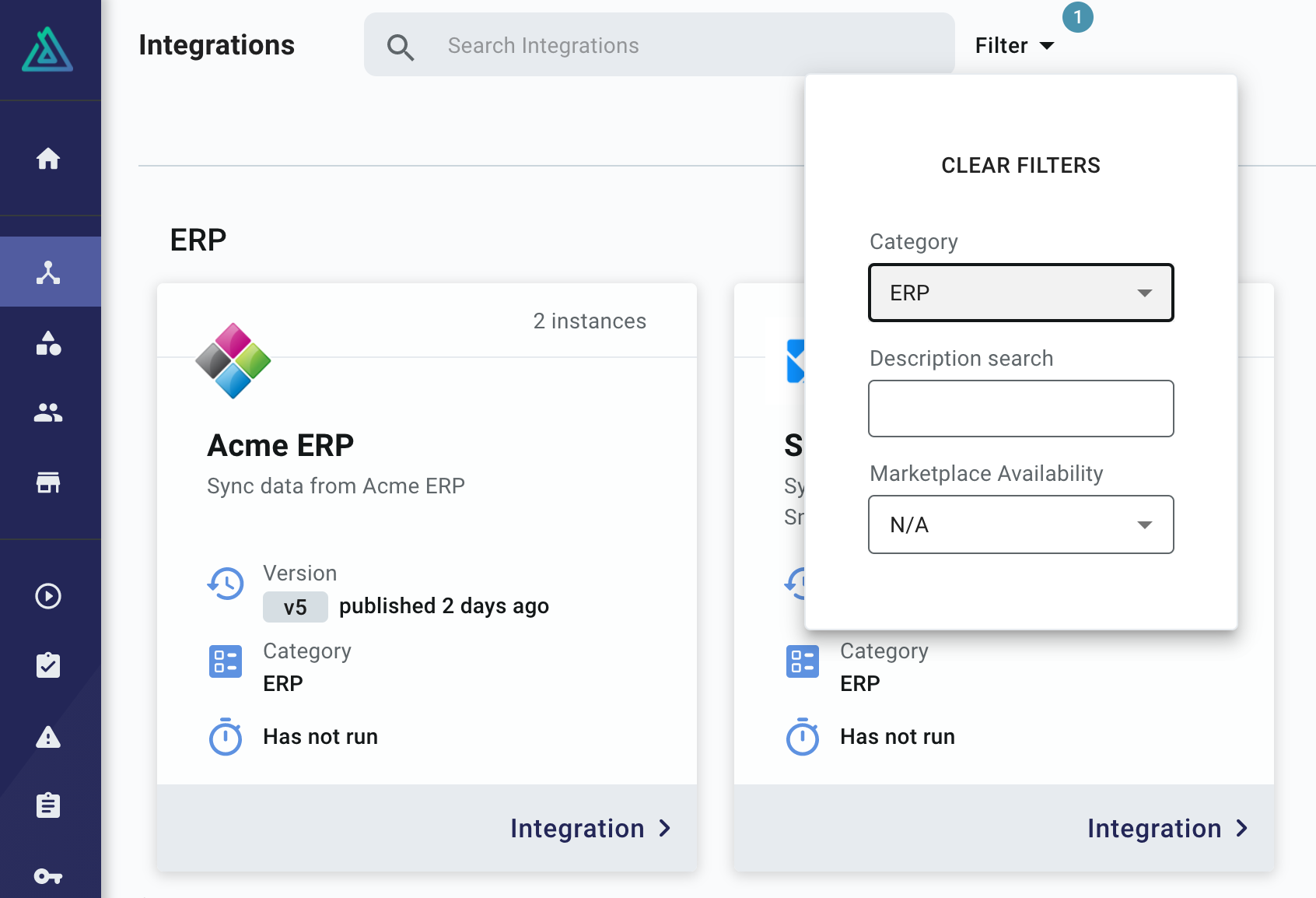
You can now assign a category and icon to each of your integrations. This helps your team manage and filter integrations and improves the way you present them to customers.

Assign integration to category in Prismatic app

Filter integrations by category in Prismatic app

Check out our docs on categorizing integrations and assigning an icon for more info.

Multi-Flow Integrations

Prismatic now provides full support for multi-flow integrations!

Integrations can now include multiple flows. (A flow is a trigger and a series of steps.) This enables you to provide your customers with a complex third-party integration that performs multiple related tasks, but is packaged and deployed as a single integration.

For example, you might integrate with an ERP that sends a variety of data via webhooks to your application (a webhook when inventory is updated, a webhook when customer info is updated, and so on). Rather than constructing integrations with complex branches or assembling multiple integrations, you can now create a single integration with flows that handle each type of webhook payload. You would create a flow to handle inventory updates, another flow to handle customer updates, and deploy all of those flows together as a single instance to a customer.

Each flow has its own trigger (so it gets its own webhook URL), and flows are tested and run independently of one another.

When customers or customer-facing teams deploy a multi-flow integration, they configure and deploy all of the flows at once using a single configuration screen.

Your existing integrations will continue to operate as expected. Please note:

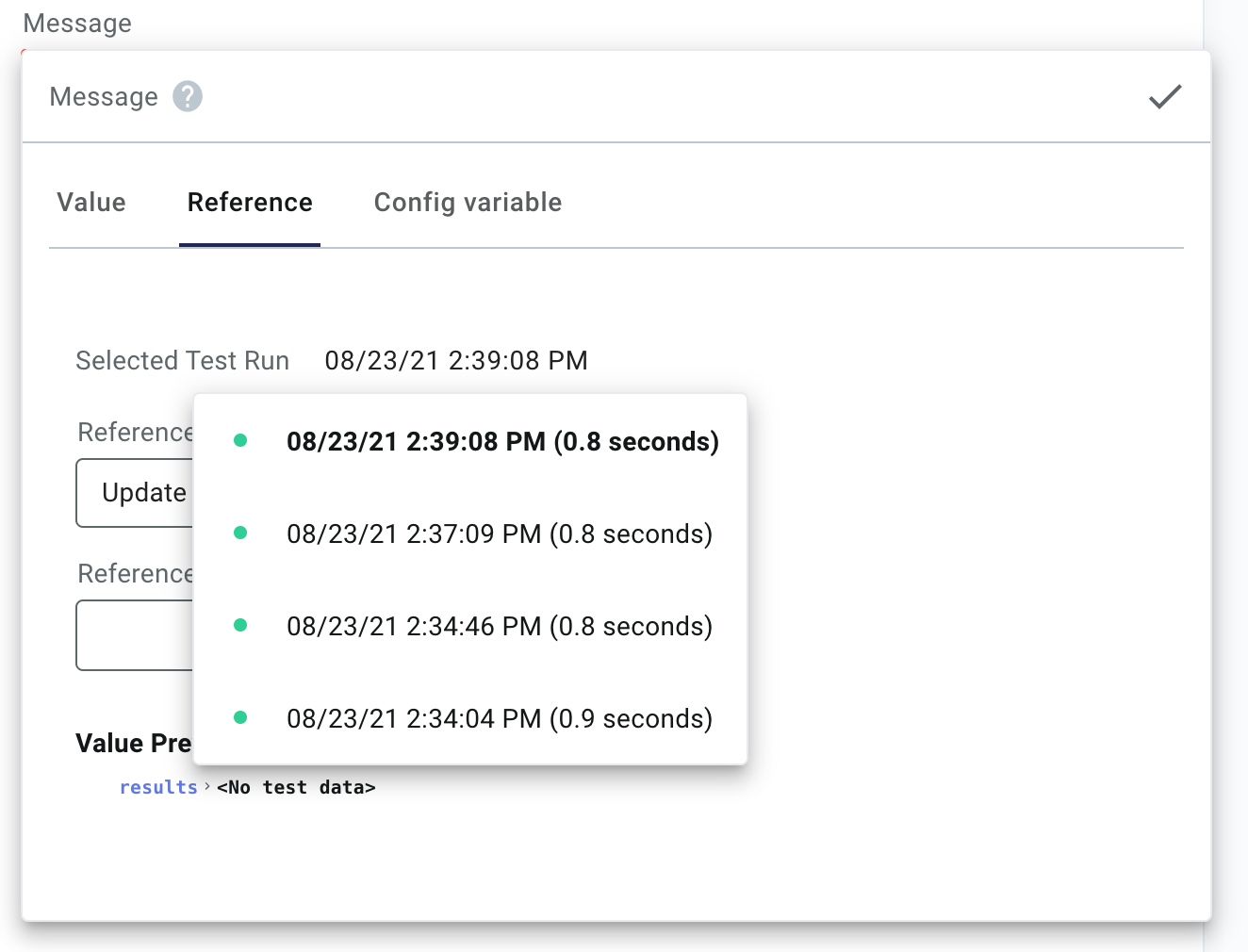
  1. The Selected Test Run dropdown has been moved to the input reference selector. When configuring an input for a step, you can select which test run to preview outputs for within the Reference tab. Select test run in Prismatic app
  2. Prismatic's CLI, Prism, has been updated to version 3.0.0 to account for this change. To install the latest Prism, run:
    npm install --global @prismatic-io/prism
  3. The YAML that defines integrations has been updated.

Check out our building integrations page for more information.