Changelog

Prismatic Changelog

Stay up to date with the latest changes and improvements to our product.

19 posts tagged with "Low-Code"

The low-code integration designer - flows, steps, expressions, testing, and designer UX.

View All Tags

Concurrent Editing Notifications

The Embedded Workflow Builder and low-code designer now warn you when someone else saves a newer version while you're editing. You'll see a banner with the option to reload to see the saved changes, overwrite the draft anyway, or copy the workflow. The same protection applies across multiple tabs and to Copilot.

Large data syncs in the low-code designer and embedded workflow builder

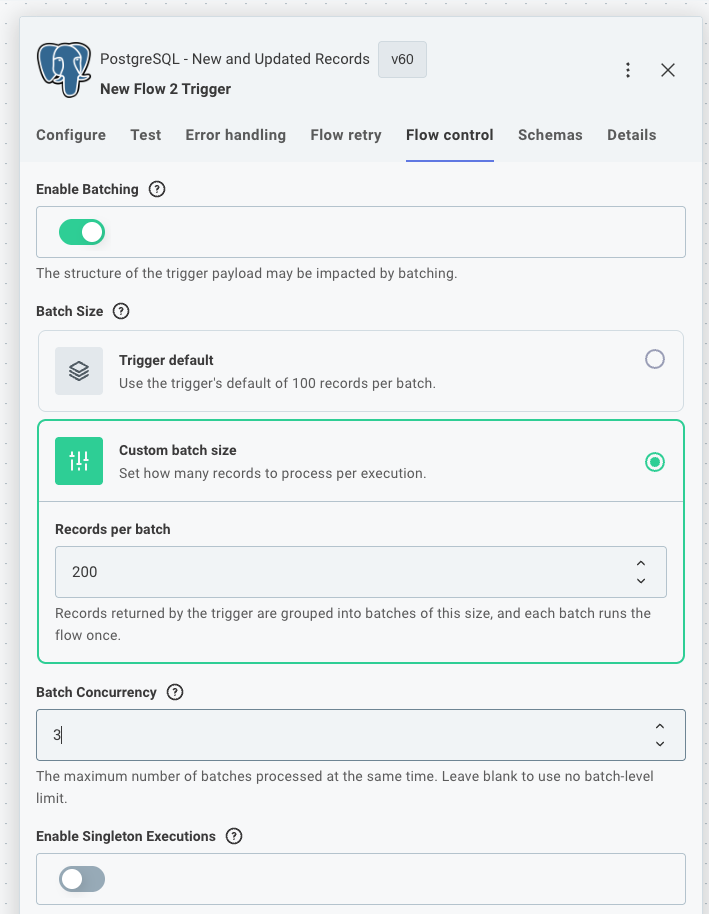
Enable batching in the flow control tab

Custom connector triggers can now split the records they fetch into batches, so a flow in the low-code designer or embedded workflow builder can sync large datasets without one long-running execution doing all the work. This brings the code-native batchFlowTrigger pattern to low-code flows and embedded workflows.

This is useful when polling for new records from a third-party API, or when efficiently backfilling existing records on instance deployment.

See large data syncs in custom triggers for usage and code examples.

We've updated polling triggers in our Salesforce, HubSpot, and PostgreSQL connectors to use this new pattern, with more to come!

Improved step outputs and references in EWB and low-code

When you reference a previous step in the Embedded Workflow Builder or low-code designer, you can now see the real data that step would return, without running a test of your whole workflow. The reference panel has also been redesigned so the payload data you reference most is front and center, with less common properties tucked out of the way.

Update your custom connectors to take advantage of new step output options - read more at Step Outputs.

New Integration Landing Page

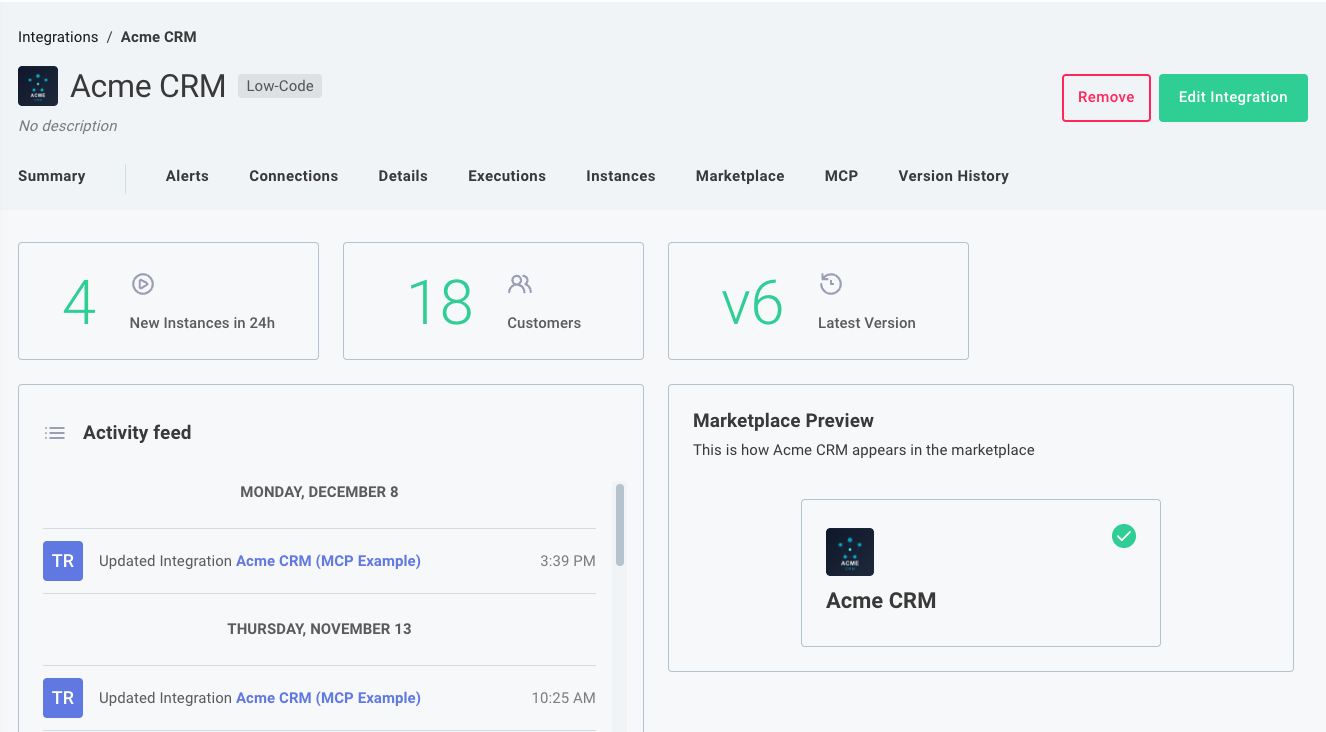
We've redesigned the integration landing page to provide a one-stop shop for all information related to a specific integration. When you as an organization team member opens an integration, you'll see information about deployed instances, recent executions, marketplace configuration, and more.

Screenshot of new integration landing page

In-app Low-Code to Code-Native Converter

You can now convert low-code integrations to code-native directly within the Prismatic UI. This allows you to prototype a new integration quickly using the low-code designer, and then switch to code-native when you need more flexibility or control.

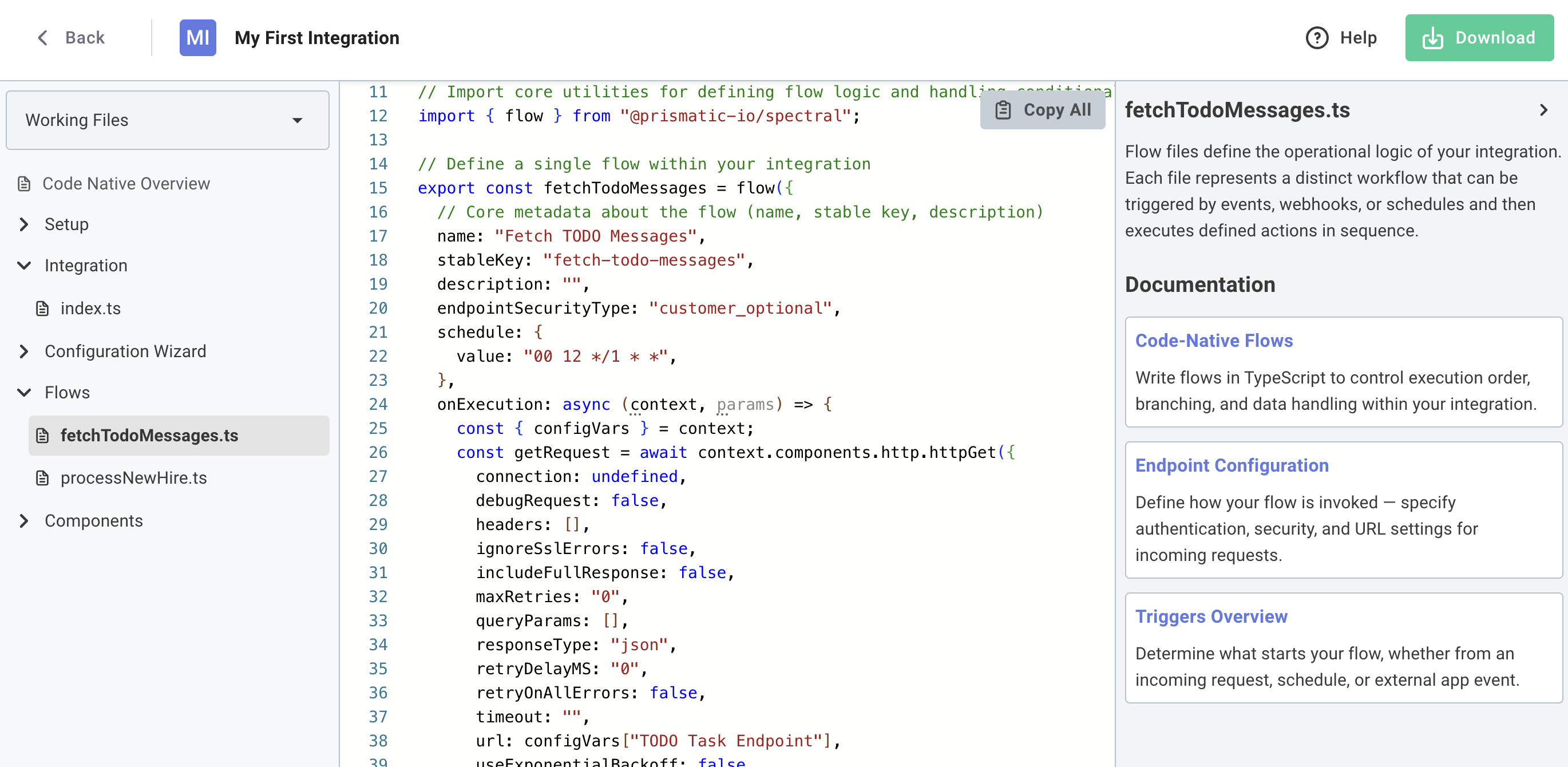
To get started, open any low-code integration and click Convert to Code. You'll get a preview of the generated code, and can choose to download a zip file containing the code-native TypeScript project.

Screenshot of low-code to code-native converter in app

New MCP UI in Integration Designer

We've added a new MCP tab to the integration designer that makes it easier to configure and manage Model Context Protocol (MCP) connections for your agentic flows.

Highlights:

  • View and copy the custom MCP endpoint URL for connecting AI agents to a specific integration's agentic flows
  • Enable or disable individual flows as MCP tools with simple toggle controls
  • See at a glance which flows are available as tools for AI agents like Claude, Cursor, or custom applications
  • Streamlined workflow for configuring which agentic flows should be exposed through the MCP flow server

Check out the MCP flow server documentation and connecting AI agents guide for more information.

Debug mode

You can now enable debug mode in the integration designer or for a specific instance, which gives you more insight into time and memory metrics of your running flow.

When debug is enabled, a log line is emitted after each step that details how long the step took and how much memory was consumed.

Additionally, a debug object has been added to the context parameter so that you can optionally emit debug lines, measure how long certain tasks take within a code block or custom action, or measure how much memory is consumed by portions of your custom code when debug mode is enabled.

Learn more about debug mode.

Prismatic's public components will start transitioning to using debug mode rather than action-specific debug toggles.

Product update: Native cross-flow calling

We've simplified how flows work together in Prismatic. Now you can directly reference and call other flows within the same integration with a simple cross-flow component. This makes it more intuitive to build integrations that need to coordinate between multiple flows.

Add a cross-flow trigger to an integration

Key improvements:

🖥️ Directly call other flows through a simple interface

🔃 Clear visibility of flow relationships in both testing and execution

⏱️ Real-time monitoring of called flow status

Perfect for breaking down complex processes into manageable pieces or creating reusable logic across your integrations.

Want to get started? Check out our docs.

Start a New Integration From a Template

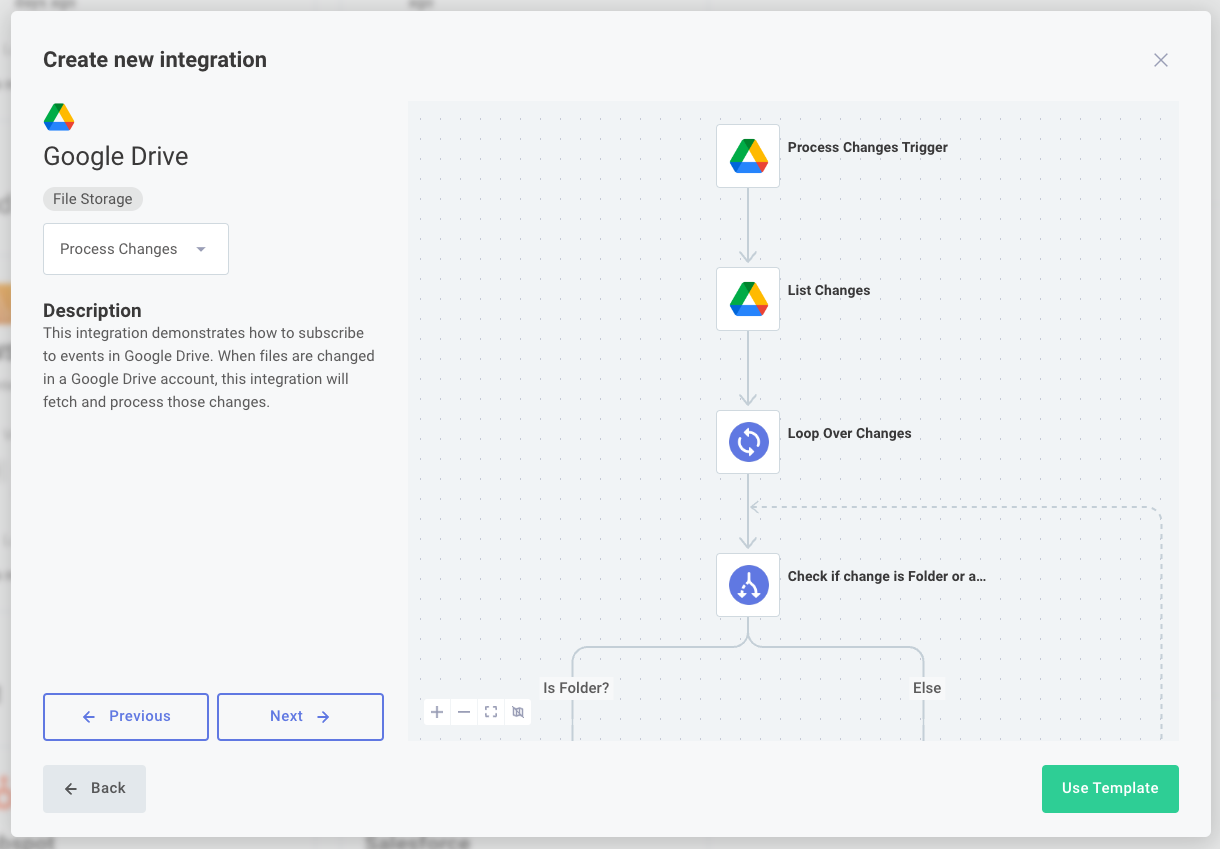
When you create a new integration, you can now start from a variety of Prismatic-built integration templates. The integration templates demonstrate common integration patterns across our most popular connectors.

Configure a new integration