
Changelog

Prismatic Changelog

Stay up to date with the latest changes and improvements to our product.

26 posts tagged with "Runner"

How integrations run - triggers, schedules, concurrency and queueing, retries, replays, and persisted state.

View All Tags

Large data syncs in the low-code designer and embedded workflow builder
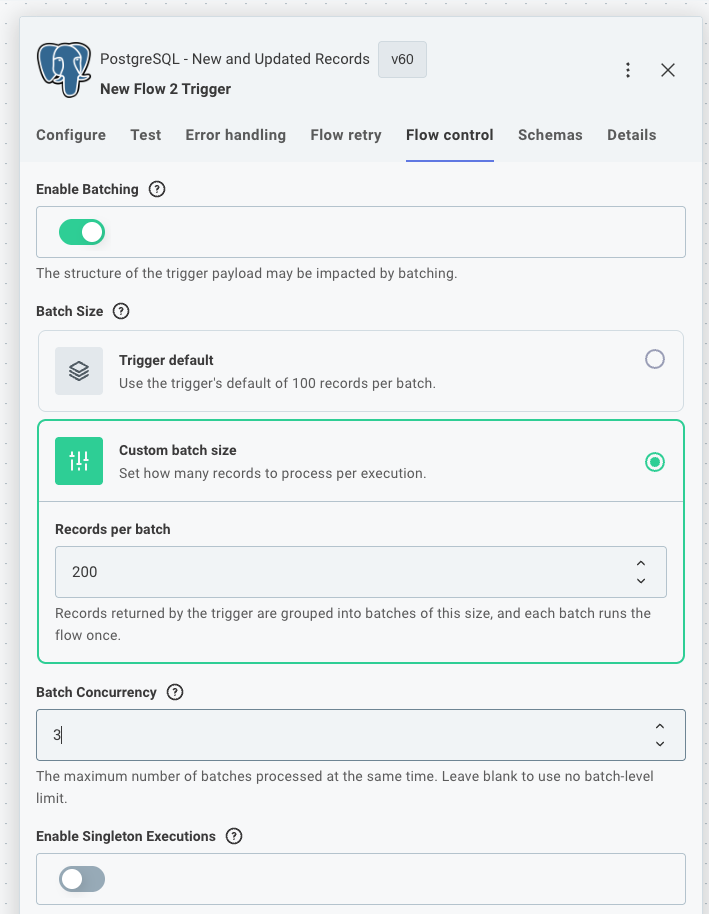
Enable batching in the flow control tab

Custom connector triggers can now split the records they fetch into batches, so a flow in the low-code designer or embedded workflow builder can sync large datasets without one long-running execution doing all the work. This brings the code-native batchFlowTrigger pattern to low-code flows and embedded workflows.

This is useful when polling for new records from a third-party API, or when efficiently backfilling existing records on instance deployment.

See large data syncs in custom triggers for usage and code examples.

We've updated polling triggers in our Salesforce, HubSpot, and PostgreSQL connectors to use this new pattern, with more to come!
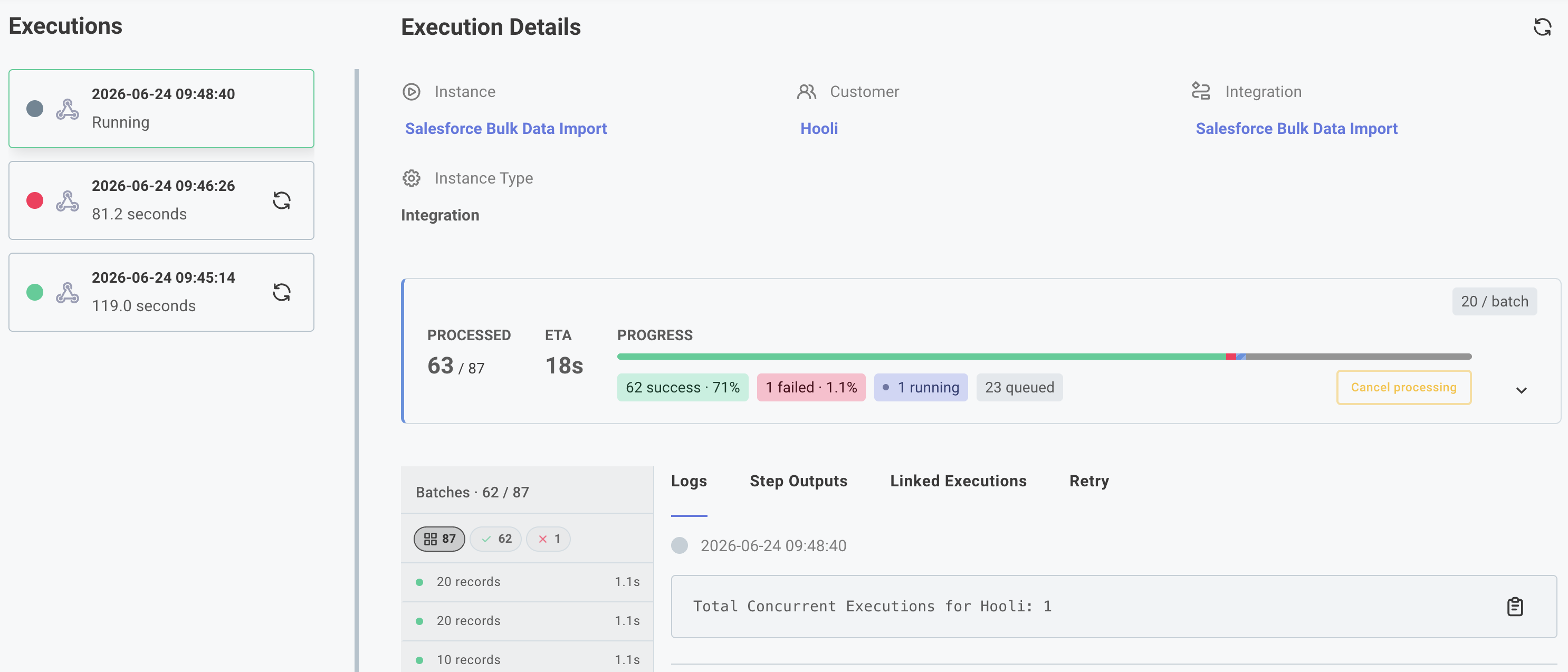
Large data sync with batchFlowTrigger

Code-native integrations can now use batchFlowTrigger to backfill large datasets on deploy and process real-time events through the same execution path - no manual recursion required.

Define an onDeploy function to page through your source API on instance deployment, returning a paginationState cursor so each invocation picks up where the last one left off. Define an onTrigger function to handle incoming webhooks after the initial sync completes. Both funnel records into a single onExecution function, and batchConfig controls how many records arrive per call and how many batches run concurrently.

Large data sync execution results

See Large Data Sync for usage and examples and here for a video walkthrough.

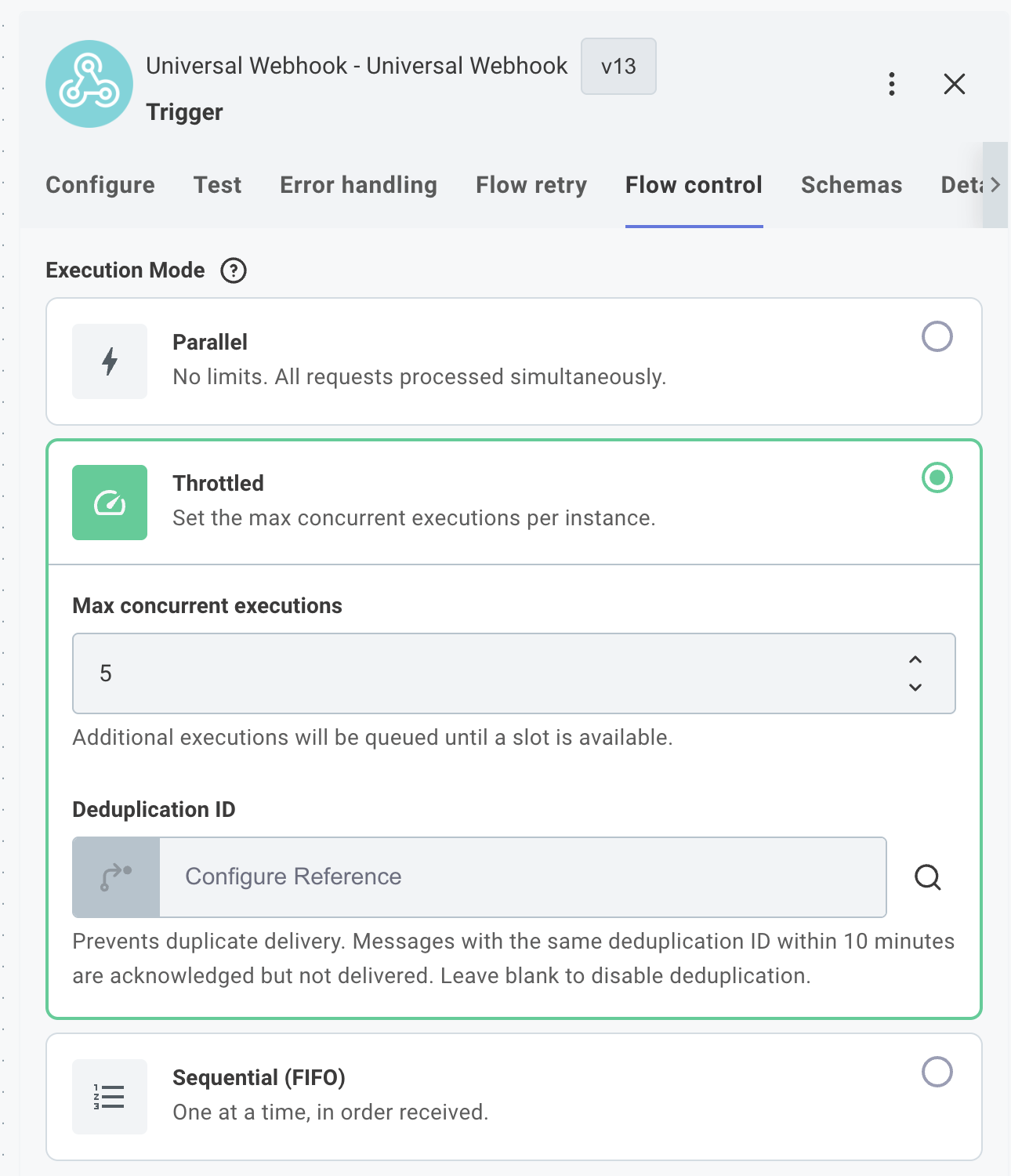
Per-customer execution concurrency controls

You can now set per-customer execution concurrency limits to prevent a single customer's high-volume integrations from consuming a disproportionate share of your organization's execution capacity.

When a customer reaches their limit, additional execution attempts return a 429 "too many requests" response.

You can configure limits from the Prismatic web app, via the GraphQL API, or via embedded JWT claims. You can also set up a Customer Concurrency Threshold Warning alert monitor to be notified when any customer approaches their limit.

This feature is available on Enterprise plans. See per-customer execution concurrency for more information.

Extended Flow Concurrency Controls

Flow concurrency settings in the integration designer

You can now control how many concurrent executions are allowed for individual flows within an integration. This allows you to prevent overwhelming third-party APIs with too many simultaneous requests, or to limit resource usage for particularly intensive flows.

Previously, you could configure a flow to allow only one execution at a time by enabling FIFO (first in, first out) processing. Now, you can set a specific maximum number of concurrent executions for each flow.

See Flow Concurrency for more information.

Instance Profiles

You can now create and assign instance profiles to customize resource allocations and execution constraints for specific integrations and instances. This allows you to increase memory limits for memory-intensive integrations, control step result and log retention, and enable quickstart to reduce cold start times for synchronous invocations.

Webhook Lifecycle Handlers and Listening Mode

Two new instance lifecycle events are now available for custom connector triggers: webhookLifecycleHandlers.create and webhookLifecycleHandlers.delete. These functions run when an instance is deployed or disabled, and also when you enter or exit listening mode.

Listening mode is a new feature in the integration designer and embedded workflow builder that allows you to quickly test webhook triggers without deploying an instance. When you or your customers enter listening mode, the webhookLifecycleHandlers.create function is executed to create a temporary webhook in the third-party application that points to your integration designer's test instance. When you exit listening mode, the webhookLifecycleHandlers.delete function is executed to remove the temporary webhook. While in listening mode, you can see incoming webhook requests in real-time and save webhook payloads to use as test data for your trigger.

Singleton Executions for Scheduled Flows

Prismatic now supports singleton executions for flows that run on a schedule. This means that if a scheduled flow is still running when the next execution is triggered, the new execution will be skipped.

Highlights:

  • Enable singleton executions in the trigger's configuration
  • Prevent overlapping executions for scheduled flows and flows that use a polling trigger
  • Avoid duplicate processing, race conditions and troubleshooting headaches

Learn about ensuring singleton executions for scheduled flows.

New Feature - FIFO Queues

Prismatic now supports first-in, first-out (FIFO) execution for webhook-triggered flows. Events are processed strictly in order, without needing any external queues or workarounds.

Highlights:

  • Flow-level toggle to enable FIFO
  • One execution at a time while subsequent events queue in order
  • Built-in event deduplication using an optional ID field
  • Error handling ensures failed executions don't block the queue

Learn about FIFO queue triggers.

Recursive Flow Trigger

Flows can run for up to 15 minutes. But, sometimes you have more than 15 minutes of work to do. Maybe you have 100,000 records to import when an instance is deployed, and you know that it'll take you 4 hours to process them.

The Recursive Flow component helps you chain a series of executions together, so you can process a set of data for more than 15 minutes. See the Processing Data with Recursive Flows article for examples of how you can process large sets of data across several executions.

Product update: Native cross-flow calling

We've simplified how flows work together in Prismatic. Now you can directly reference and call other flows within the same integration with a simple cross-flow component. This makes it more intuitive to build integrations that need to coordinate between multiple flows.

Add a cross-flow trigger to an integration

Key improvements:

🖥️ Directly call other flows through a simple interface

🔃 Clear visibility of flow relationships in both testing and execution

⏱️ Real-time monitoring of called flow status

Perfect for breaking down complex processes into manageable pieces or creating reusable logic across your integrations.

Want to get started? Check out our docs.