Low-Code Agentic Flows
Check out this tutorial to learn how to add agentic flows to your integrations in the low-code designer.
Add an invocation schema to a flow
To add an invocation schema to a low-code flow, click on the flow's trigger and select the Schemas tab.
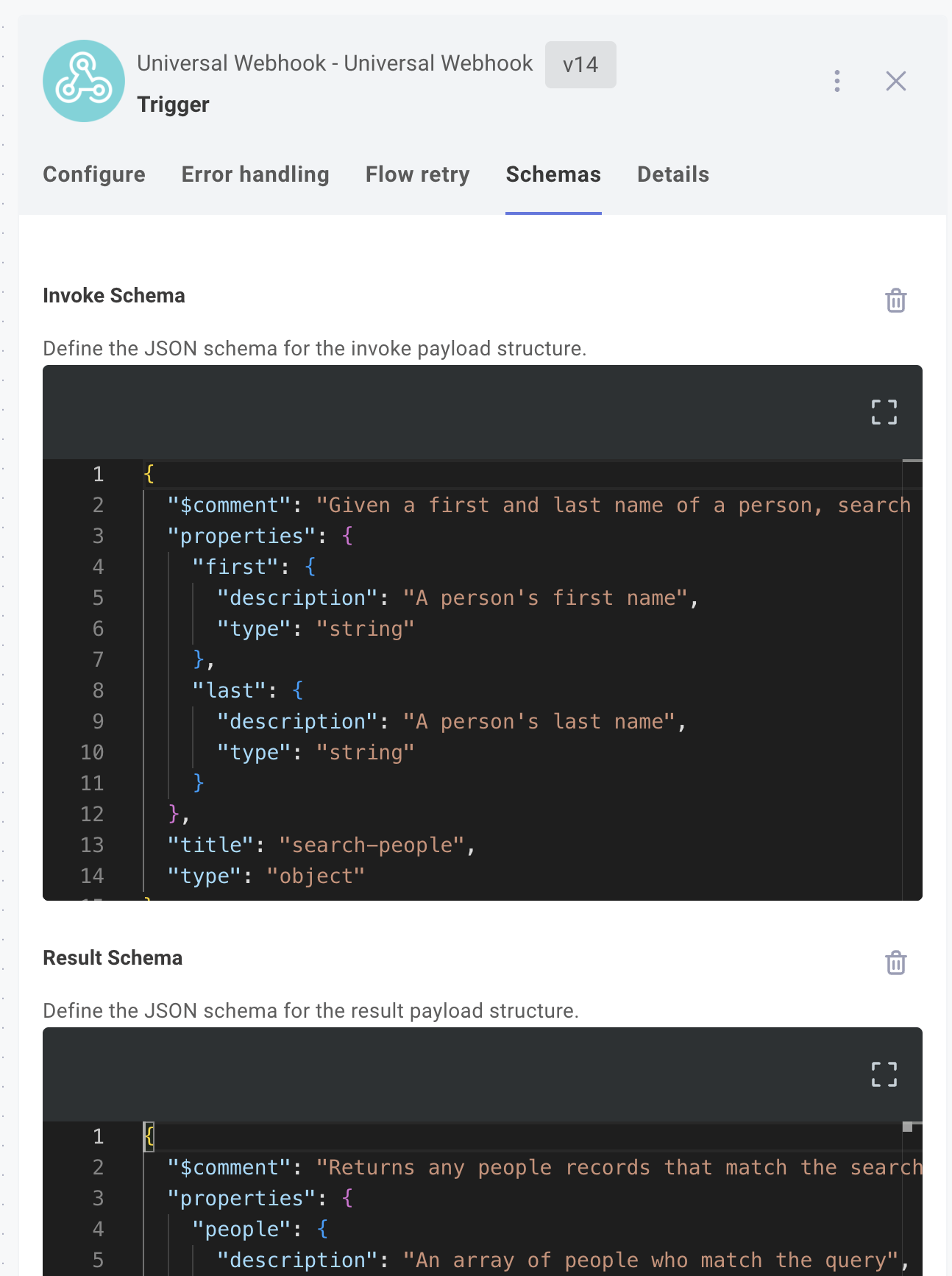
Note that invoke schemas are required but result schemas are optional.
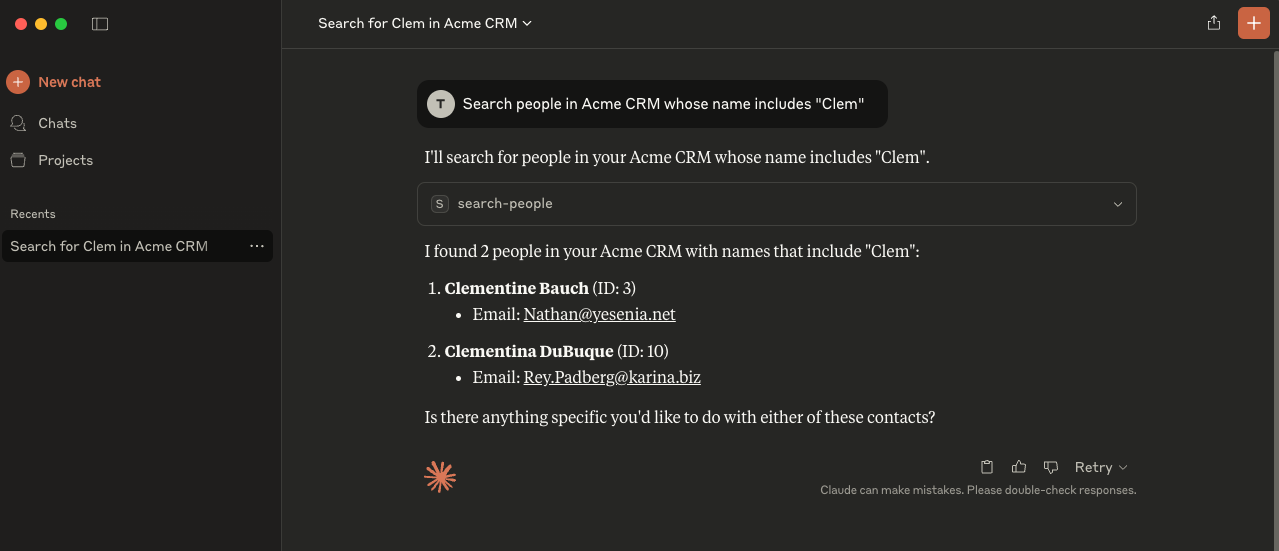
When an AI client like Claude invokes this flow, it translates a human language prompt like:
Search people in Acme CRM whose first name includes "Clem"
Into an HTTP request to the agentic flow's webhook URL with a payload of { "first": "Clem" }.
Mark a flow as tool-enabled
After adding an invocation schema to your flow, you must also mark the flow as tool-enabled. This is done in the integration designer by clicking the MCP icon on the left side of the flow designer, and toggling the Tool-enabled switch for specific flows.
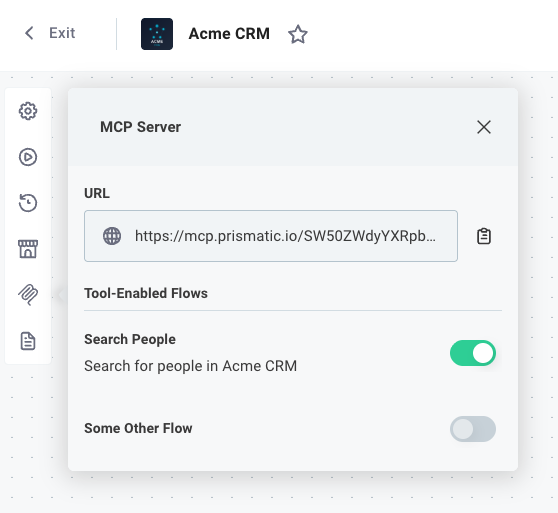
Once your flow is tool-enabled, you can query for its invocation schema and connect it to an AI agent.