Getting Started with Agentic Flows
In this guide we'll build a simple agentic flow that can be invoked by an AI agent as an MCP tool. This flow will take a user's query for first and last name, and return a list of people with matching names.
If you'd like to skip the build steps, create a new integration and select View Templates under Low-Code. Select the Generic MCP Example template.
A code-native version of this example is also available in GitHub.
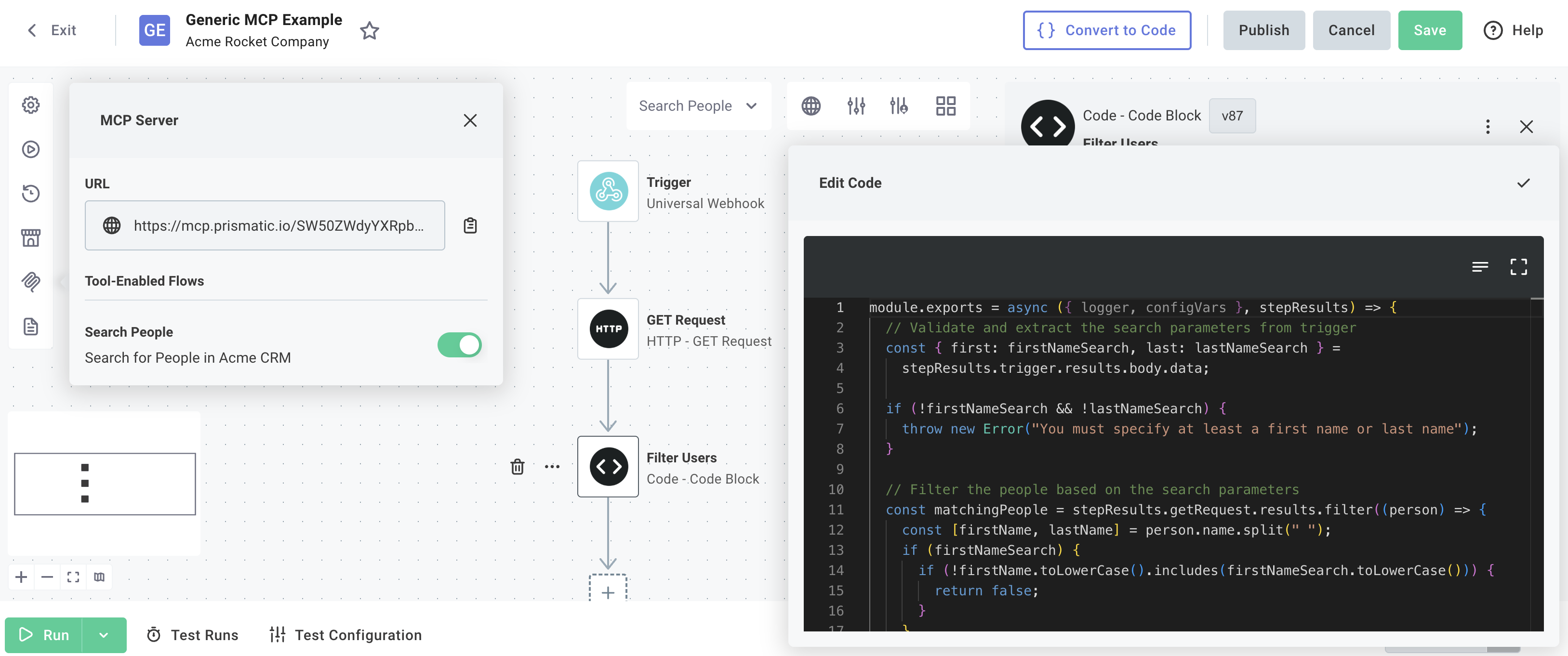
Build your agentic flow
Step 1: Create a new flow with invocation schema
Create a new integration that begins with a generic Universal Webhook trigger.
Click your trigger. Within the step configuration panel, open the Schemas tab. Add an Invoke Schema with the following JSON schema:
{
  "$schema": "https://json-schema.org/draft/2020-12/schema",
  "title": "search-people-in-acme",
  "$comment": "Given a first and last name of a person, search for matching people in Acme CRM",
  "type": "object",
  "properties": {
    "first": {
      "description": "A person's first name",
      "type": "string"
    },
    "last": {
      "description": "A person's last name",
      "type": "string"
    }
  }
}
This invocation schema tells an AI agent that this flow can be invoked with a JSON object containing a first and last string property, which represent a person's first and last name.
Neither property is required, so the agent can choose to provide either or both when invoking the flow.
For example, the flow may receive a webhook request with the following body:
{
  "first": "Leanne",
  "last": "Graham"
}
Step 2: Fetch data from an API
Add an HTTP - GET step to your flow that makes a request to https://jsonplaceholder.typicode.com/users to fetch a list of users.
Run your flow and verify that the HTTP step returns an array of 10 user objects.
Step 3: Filter data with a code step
Next, add a code step to filter the list of users based on the first and last properties from the invocation schema:
module.exports = async ({ logger, configVars }, stepResults) => {
  // Validate and extract the search parameters from trigger
  const { first: firstNameSearch, last: lastNameSearch } =
    stepResults.trigger.results.body.data;

  if (!firstNameSearch && !lastNameSearch) {
    throw new Error("You must specify at least a first name or last name");
  }

  // Filter the people based on the search parameters
  const matchingPeople = stepResults.getRequest.results.filter((person) => {
    const [firstName, lastName] = person.name.split(" ");
    if (firstNameSearch) {
      if (!firstName.toLowerCase().includes(firstNameSearch.toLowerCase())) {
        return false;
      }
    }
    if (lastNameSearch) {
      if (!lastName.toLowerCase().includes(lastNameSearch.toLowerCase())) {
        return false;
      }
    }
    return true;
  });

  return { data: matchingPeople };
};
Run your flow again with a webhook body of {"first": "Clem"} and verify that the code step returns two matching people: Clementine Bauch and Clementina DuBuque.
Step 4: Enable MCP tool access
To enable AI agents to discover your flow as an MCP tool, it needs invocation schema (which we added in Step 1) and it needs to be marked as a Tool-Enabled Flow. Open the MCP settings on the left-hand navigation and enable your flow as a tool.
Test your flow from an AI agent
Now that we've built an agentic flow with an invocation schema, we can test invoking it from an AI agent. This can be done by adding the integration's MCP endpoint (found in the same tab where you enabled your flow as a tool) to any agent that supports invoking MCP tools.
For example, if we're using Claude CLI we can run:
claude mcp add \
  --transport http \
  people-searcher \
  https://mcp.prismatic.io/SW5EXAMPLE/mcp
Then, we can ask Claude to enable and authenticate the MCP server and use the MCP server to query our flow.
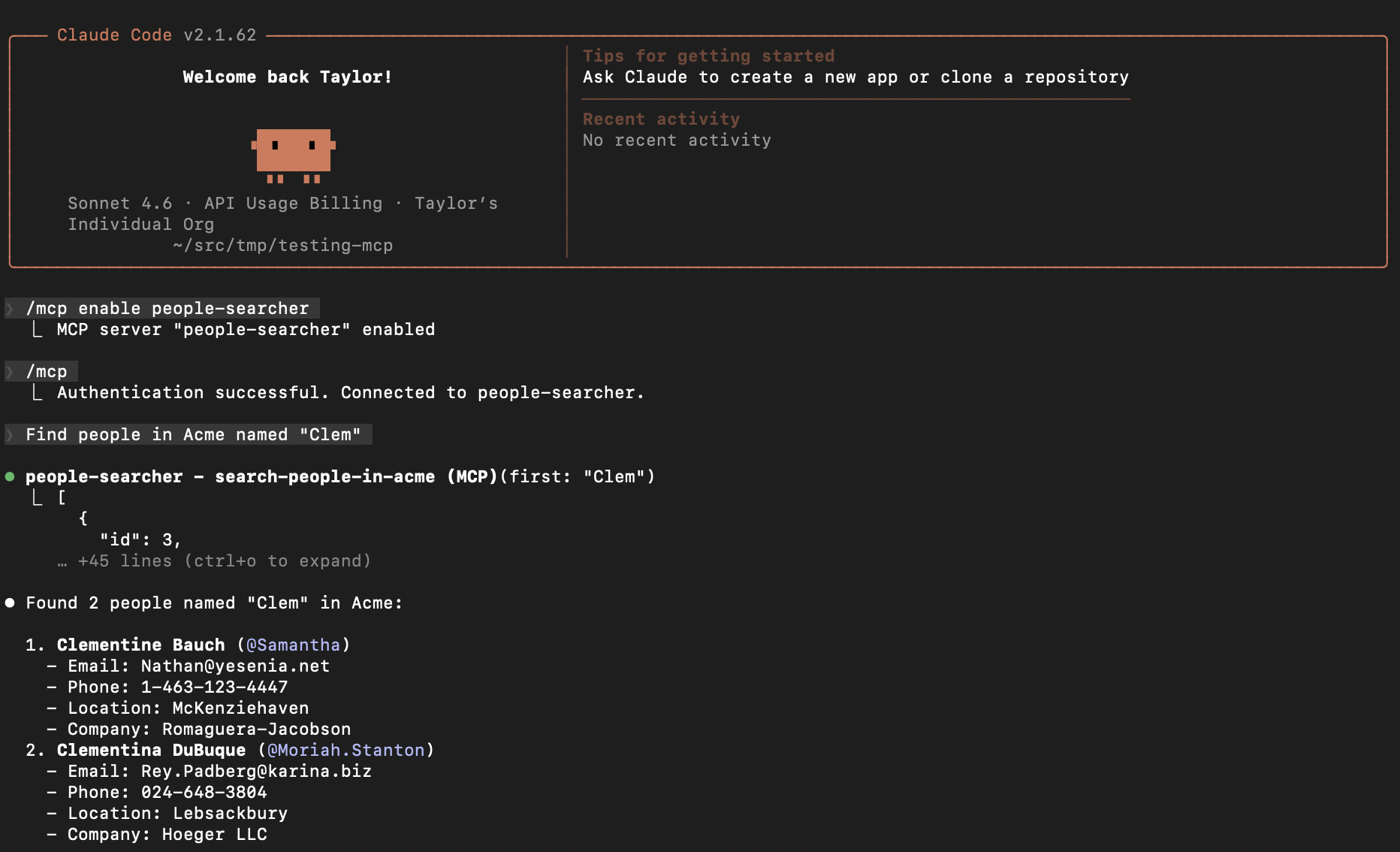
Documentation for setting up other agents, including your own via the Node AI SDK for chat bots in your app, is available here.
If your agent doesn't support OAuth 2.0 authentication, you can create a Prismatic access token with prism me:token and use that as a Bearer token when interacting with the MCP server.